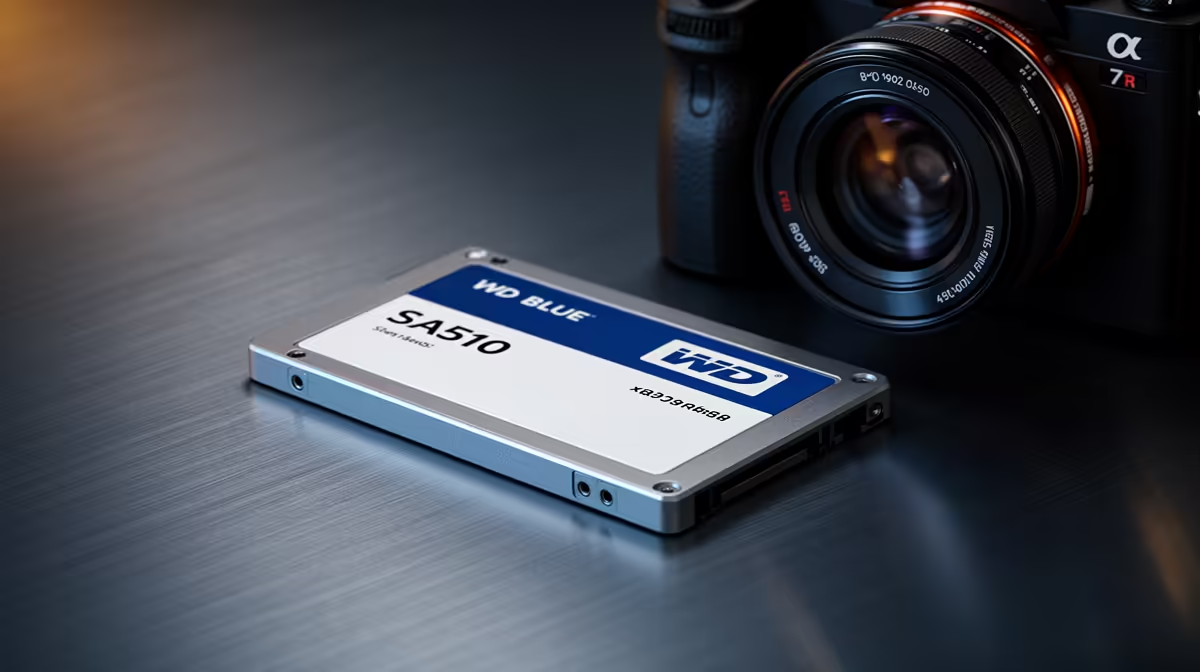
Is your PC feeling a bit sluggish? That old hard drive is likely the culprit. Instead of a frustrating reinstall, you can clone your drive to a speedy WD Blue SA510 SSD. This guide shows you exactly how to perform this super-satisfying upgrade, transferring your entire Windows setup, games, and files without losing a thing. Let’s bring your machine back to life! 🚀
Why Clone Your Drive to a WD Blue SA510?
Cloning your primary drive is about efficiency. It creates an exact, bootable copy of your old drive onto the new one. For anyone wanting to upgrade to a WD Blue SA510, this means you get a massive speed boost without the headache of reinstalling Windows, drivers, and all your favourite games.
The benefits are immediate:
- Blazing Fast Boot Times: Your PC will be ready to go in seconds.
- Quicker Application Loading: Say goodbye to waiting for Photoshop or your game library to open.
- Improved System Responsiveness: Everything just feels snappier and smoother.
The WD Blue SA510 is a fantastic SATA SSD that offers a reliable and affordable path to modern performance for older desktops and laptops.
What You'll Need for the Cloning Process
Before you start the process to clone your drive to the WD Blue SA510, gather a few essential items. Having everything ready makes the process seamless. 🔧
- Your new WD Blue SA510 SSD: Ensure it has enough capacity for all the data on your old drive.
- A way to connect it: For a laptop, a simple SATA-to-USB adapter is perfect. For a desktop, you can install it in a spare drive bay.
- Cloning Software: Western Digital provides a free version of Acronis® True Image™ for WD Edition. Alternatively, Macrium Reflect Free is another popular and powerful choice.
While the WD drive is a solid pick, there are many excellent options on the market. If you're exploring different models, you can find great performance from popular options from Kingston or check out great alternatives from brands like ADATA to find the perfect fit for your budget.
Pro Tip: Initialise Your New Drive! ✨
If your new WD Blue SA510 doesn't appear in the cloning software, don't panic! It might just need to be initialised. In Windows, right-click the Start button, select 'Disk Management', find your new drive (it'll be 'unallocated'), right-click it, and choose 'Initialise Disk'. Select 'GPT' and click OK. Now it should be visible!
Your Step-by-Step Guide to Cloning a Drive
Ready to go? This step-by-step guide will walk you through the entire WD Blue SA510 cloning procedure. Take your time and double-check each step.
Step 1: Connect the New SSD
Physically connect your WD Blue SA510 to your computer.
- Laptop: Plug the SSD into your SATA-to-USB adapter and connect it to a USB port.
- Desktop: Power down your PC, open the case, and connect the SSD to a spare SATA data port on your motherboard and a SATA power connector from your PSU.
Step 2: Install and Launch Your Cloning Software
Install your chosen software (e.g., Acronis for WD or Macrium Reflect) and run it. Most cloning tools have a straightforward wizard to guide you.
Step 3: Select the Source and Destination Drives
This is the most critical step.
- Source Drive: Select your current, old drive (usually C:).
- Destination Drive: Select your new, empty WD Blue SA510 SSD.
Warning: Be absolutely certain you have selected the correct drives. The destination drive will be completely erased during the cloning process.
Step 4: Begin the Cloning Operation
Once you've confirmed your selections, start the clone. The software will copy everything over bit by bit. This can take anywhere from 30 minutes to a few hours, depending on the amount of data and the speed of your drives. Go make some coffee... this part is a waiting game.
Step 5: Swap the Drives
After the clone is 100% complete, shut down your computer.
- Laptop: Remove the old hard drive and replace it with your newly cloned WD Blue SA510.
- Desktop: Unplug the old hard drive and ensure the new WD Blue SA510 is set as the primary boot drive.
It's worth noting the SA510 is a 2.5-inch SATA drive, perfect for this kind of upgrade. If your motherboard supports it, you could also explore even faster M.2 2280 NVMe drives for a future build. For bleeding-edge systems, there are even cutting-edge Gen 5 SSDs that offer next-level speeds.
Step 6: Boot Up and Enjoy the Speed!
Power on your computer. It should boot directly into your familiar Windows environment, but now... it's incredibly fast. Congratulations on a successful drive clone! You can now format your old drive and use it for extra storage.
Ready for a Serious Speed Boost?
Upgrading to an SSD is one of the best value-for-money performance boosts you can give your PC. The WD Blue SA510 is a fantastic choice, but there's a whole world of speed out there. Explore our massive range of solid-state drives and find the perfect drive to supercharge your system.