

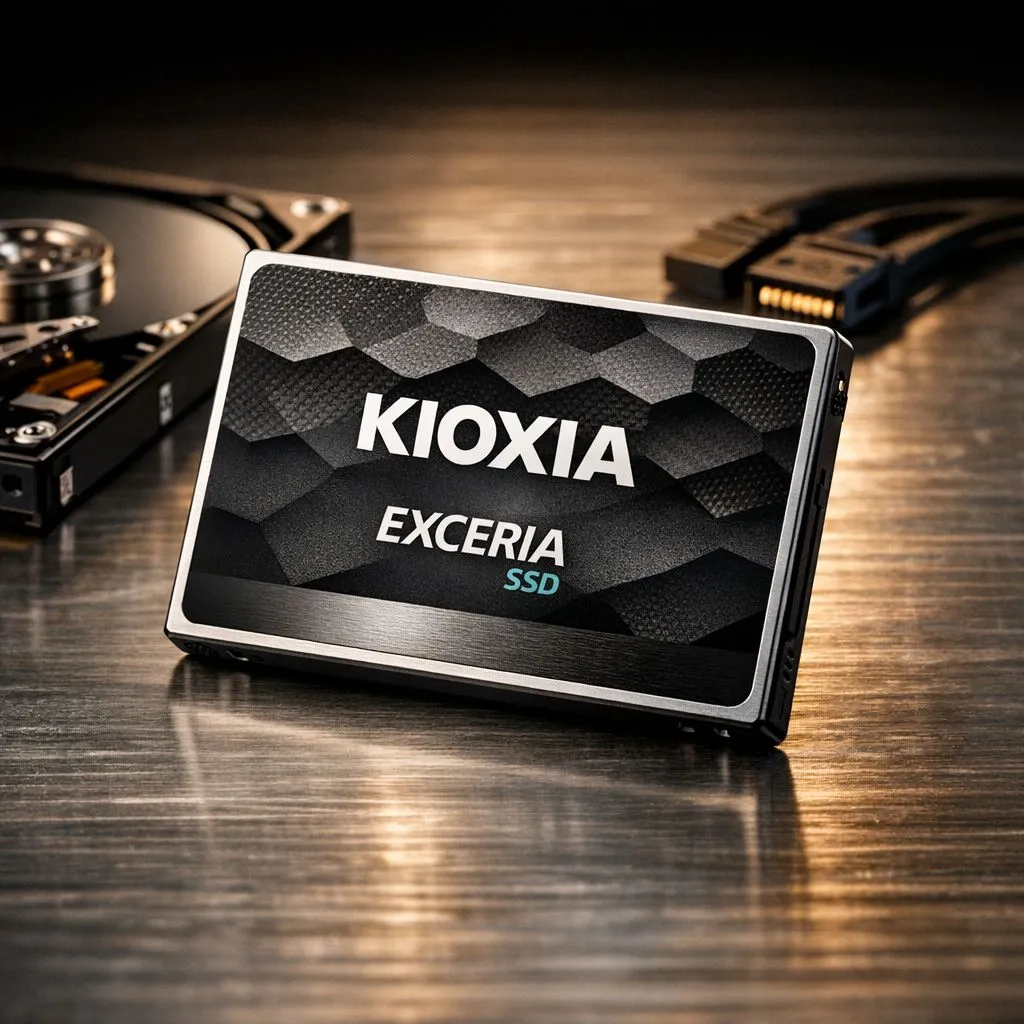
Is your PC feeling sluggish during those intense gaming sessions? It might be time to ditch that old spinning disk. When you decide to clone hard drive to kioxia ssd: step-by-step guide instructions are vital to ensure your data stays safe. Upgrading is the most cost-effective way to boost performance for South African gamers. You can get back into the lobby faster without spending thousands on a brand-new rig. 🔧
Why You Should Clone Your Drive to Kioxia
Kioxia drives offer incredible reliability and speed. If you want to buy solid state drives that balance price and performance, Kioxia is a top contender. Cloning allows you to move your entire Windows installation, including games and settings, without a fresh install. This saves hours of downloading large patches on a limited fibre line.
While you might consider ADATA drives or Western Digital alternatives for different builds, Kioxia’s heritage in NAND flash makes them a sturdy choice for daily use.
Step 1: Prepare Your Hardware
Before you start, ensure your new SSD has enough capacity. It should be equal to or larger than the used space on your current drive. If you are using a laptop, you might need a reliable external SSD enclosure to connect the new drive via USB first. ⚡
If you are on a desktop, simply plug the Kioxia drive into an available M.2 slot. Most modern Kioxia units utilise PCI Express (NVME) speeds to move data at blistering rates.
Step 2: Use the Right Cloning Software
Kioxia often provides utility software, but third-party tools like Macrium Reflect or Acronis are also popular. You want a tool that can resize partitions automatically. This is especially helpful if your new drive is much larger than your old one.
Storage Pro Tip ⚡
Before starting the cloning process, run a Disk Cleanup and delete temporary files. This reduces the total data being moved and ensures your new Kioxia SSD starts with a clean, optimised file system. It can save you several gigabytes of unnecessary transfer time.
Step 3: The Cloning Process
- Open your chosen software and select your current hard drive as the "Source".
- Select the Kioxia SSD as the "Destination".
- Ensure you copy all partitions... especially the EFI and Recovery partitions.
- Click "Start" and let the software work its magic.
While Kioxia is excellent, some users prefer Kingston storage for specific budget builds. However, for raw throughput, Kioxia remains a favourite in the Evetech workshop.
Step 4: Booting From the New SSD
Once the process finishes, shut down your PC. If you used one of the many External SSD options for the clone, you will now need to install the drive internally. 🚀
Enter your BIOS (usually by tapping Del or F2) and set the Kioxia SSD as the primary boot device. You will notice the difference immediately. Windows will load in seconds rather than minutes. For those chasing the absolute bleeding edge, keep an eye on Gen 5 (NVME) technology as it begins to hit the local market. ✨
Ready to Speed Up Your System? Upgrading to an SSD is the single best improvement you can make for your PC's responsiveness. Whether you need a high-speed NVMe or a portable backup solution, we have the best deals in South Africa. Explore our massive range of SSD specials and find the perfect drive to supercharge your setup.











