Why You Should Clone HDD Crucial SSD Today
Waiting for your PC to boot shouldn't feel like waiting for a rainy day in the Karoo. If your old mechanical hard drive is lagging, it is time to upgrade. Learning how to Clone HDD Crucial SSD is the most effective way to breathe new life into your rig without the nightmare of a fresh Windows installation... and it is easier than you think. ⚡
The transition from "spinning rust" to solid-state technology is the single best performance boost you can give your computer. Crucial drives are known for their reliability, but the process of moving your data can feel daunting. Before you start, you need to ensure you have the right hardware. While we focus on Crucial today, many users also buy solid state drives from other reputable manufacturers to find the best capacity for their budget.
Preparing Your Hardware for the Migration 🔧
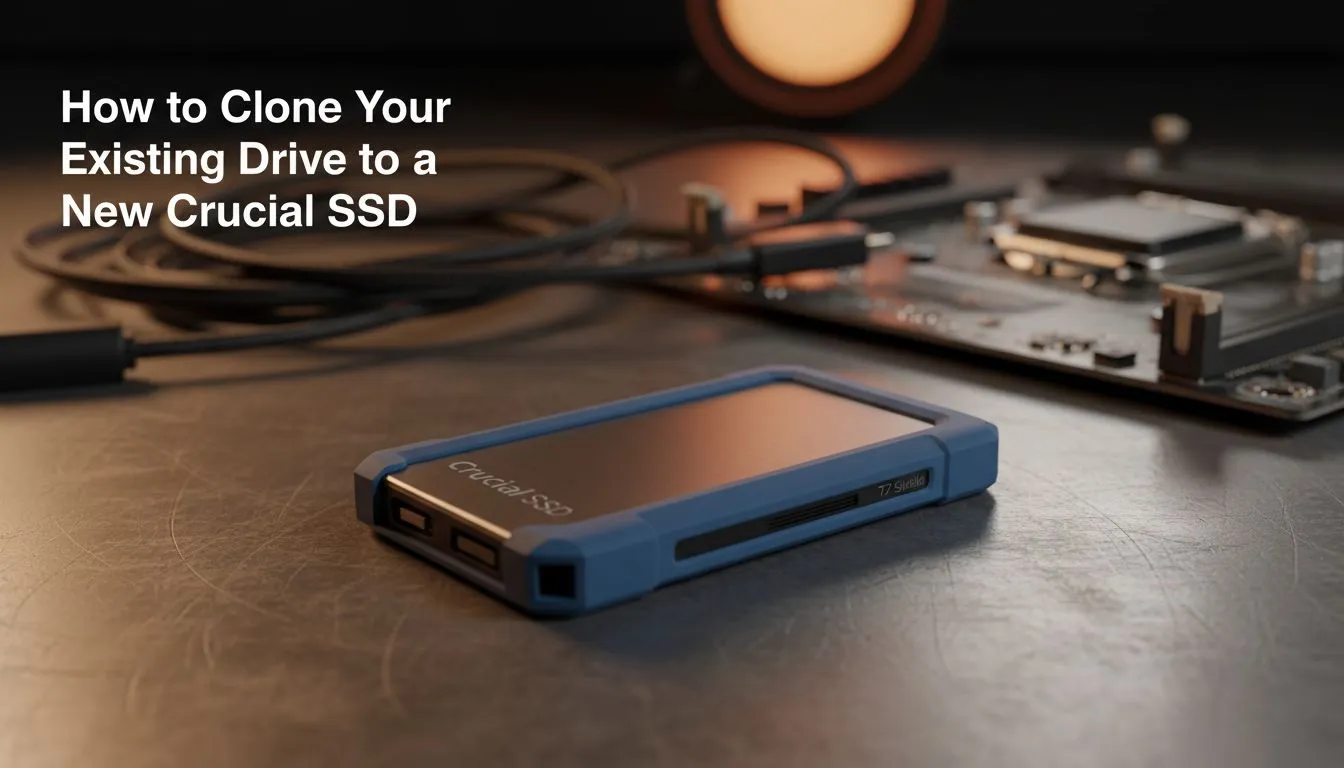
Before you begin the software side of things, you must connect your new drive. If you are using a desktop, you can plug it directly into a SATA or NVMe slot. However, laptop users often need to buy external SSD enclosures to facilitate the transfer. If you prefer a simpler route, you can find a dedicated external form factor drive that connects via USB for a seamless cloning experience.
Storage Pro Tip ⚡
Before starting the clone, ensure your new SSD has enough capacity to hold all the data from your current HDD. Use the Windows Disk Management tool to check your used space. If you are tight on room, consider moving large video files or unused games to a secondary drive first to speed up the cloning process.
Step-by-Step Guide to Cloning Your Drive
The most reliable way to Clone HDD Crucial SSD is by using the official Acronis True Image software provided by Crucial. This ensures that every bit of data... from your OS to your browser bookmarks... moves over perfectly.
- Download the Software: Visit the Crucial website and download their specific version of Acronis.
- Connect the Drive: Plug in your new SSD. If you are looking for alternative brands during your upgrade journey, many South Africans choose to buy Western Digital or ADATA drives for their excellent price-to-performance ratio.
- Select Clone Disk: Open the software and choose the "Clone Disk" utility.
- Choose Mode: Select "Automatic" so the software can handle partition resizing for you.
- Source and Destination: Select your old HDD as the source and your new Crucial SSD as the destination. ✨
Optimise for the Future with Gen 5 Speeds
Once the process finishes, shut down your PC and swap the drives. You will notice an immediate difference in responsiveness. While SATA SSDs are a massive leap over HDDs, those building high-end gaming rigs often look toward the latest Gen 5 NVMe technology for speeds that exceed 10,000 MB/s. No matter which path you choose, moving away from a mechanical drive is a decision you won't regret. 🚀
Ready to Boost Your PC Speed? Upgrading to an SSD is the most cost-effective way to make an old PC feel brand new again. Whether you need a lightning-fast NVMe or a reliable SATA drive, we have the best deals in South Africa. Explore our massive range of SSD specials and find the perfect storage solution for your setup.