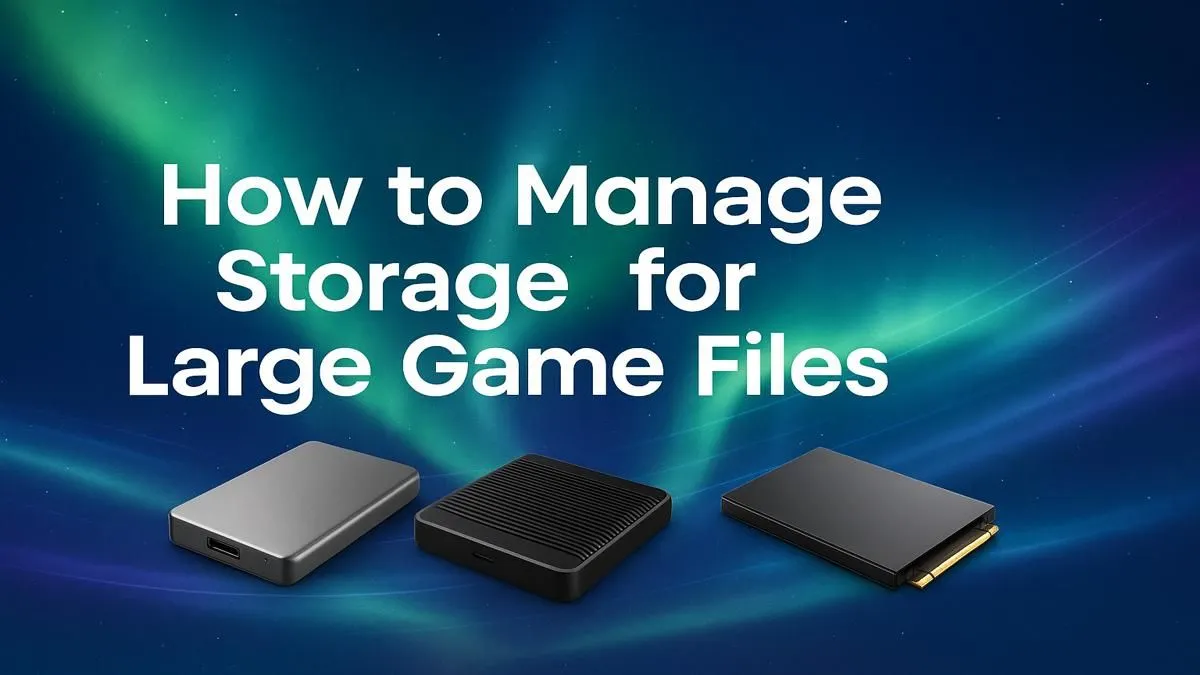
Staring at that "Disk Space Low" warning again? We’ve all been there. You’re amped for a new season of your favourite game, but your PC’s hard drive is fuller than a Durban beach on New Year's Day. With games ballooning to over 100GB, effective game storage management is no longer a nice-to-have... it's an essential skill for any South African gamer. Let's get your digital library sorted. 🚀
Why Your Game Storage Is Crying for Help
It’s not your imagination; games are getting massive. Titles like Microsoft Flight Simulator can swallow over 150GB, and let's not even talk about the legendary storage appetite of Call of Duty: Warzone 2.0. These huge file sizes are due to high-resolution textures, uncompressed audio, and sprawling open worlds. Without a solid game storage management plan, you'll spend more time juggling files than hitting high scores.
Smart Strategies for Taming Your Game Library
Before you rush out to buy a new drive, let's try some digital tidying. A few clever tricks can free up surprising amounts of space and make your gaming life easier.
The Uninstall-Reinstall Shuffle
This is the classic, brute-force method. Finished with a game? Uninstall it. Want to play again? Suffer through the download. It works, but with South Africa's internet speeds, it can be a painful cycle. It's a last resort for games you won't touch for months, but not ideal for your regular rotation of titles like Fortnite or Overwatch 2.
Master Your Game Launchers
Modern game launchers have built-in tools that are surprisingly powerful. Steam, for example, allows you to create multiple library folders across different drives. This means you can keep your fast-paced competitive games like Counter-Strike 2 on your speedy SSD and larger, slower-paced games on a bigger mechanical drive.
Steam Storage Manager Pro Tip 🔧
In Steam, go to Settings > Storage. From here, you can see all your drives and installed games. Click the '+' icon to add a new Steam Library folder on another drive. Then, just select a game, and you can move its installation files between your libraries without redownloading a single byte!
Cleanse the Clutter
Your PC is probably holding onto old files you don't need. Think old drivers, temporary files, and leftover data from uninstalled games.
- Windows Storage Sense: Find it in Settings > System > Storage. It can automatically clean up temporary files and empty your Recycle Bin.
- Shader Caches: Graphics drivers store pre-compiled shaders to speed up loading times. Sometimes these can bloat. Clearing them (via your GPU's control panel) can free up space, but they will be rebuilt as you play. This is a good step if you're playing demanding titles like Cyberpunk 2077 which rely heavily on shaders.
When Is It Time for a Storage Upgrade?
Software tricks are great, but sometimes you just need more space and speed. If your game storage management routine feels like a part-time job, it's time to upgrade. ⚡
Loading into a map in PUBG after your teammates have already landed is a clear sign your old HDD is holding you back. Even timeless classics like GTA V and heavily modded versions of Minecraft feel brand new on a modern NVMe SSD.
The difference is night and day. An NVMe drive can be over 10 times faster than a traditional hard drive, slashing loading screens and making your entire PC feel snappier. Investing in a 1TB or 2TB NVMe SSD is one of the most impactful upgrades you can make for your gaming rig.
Ready to End the Storage Struggle for Good? Managing a full drive is a mission. Upgrading is the solution. A fast, spacious SSD doesn't just store your games—it transforms your entire gaming experience. Explore our massive range of Gaming PCs, pre-built with the storage you need to conquer your library.