

Tired of watching loading screens more than you play the actual game? Is your laptop groaning every time you open a new tab? You're not alone. A sluggish drive is the ultimate bottleneck. Luckily, there's a fix that's easier than you think. This guide will show you exactly how to install an NVMe SSD in your laptop, giving your machine a serious performance injection right here in South Africa. 🚀
Is an NVMe SSD Upgrade Right for Your Laptop?
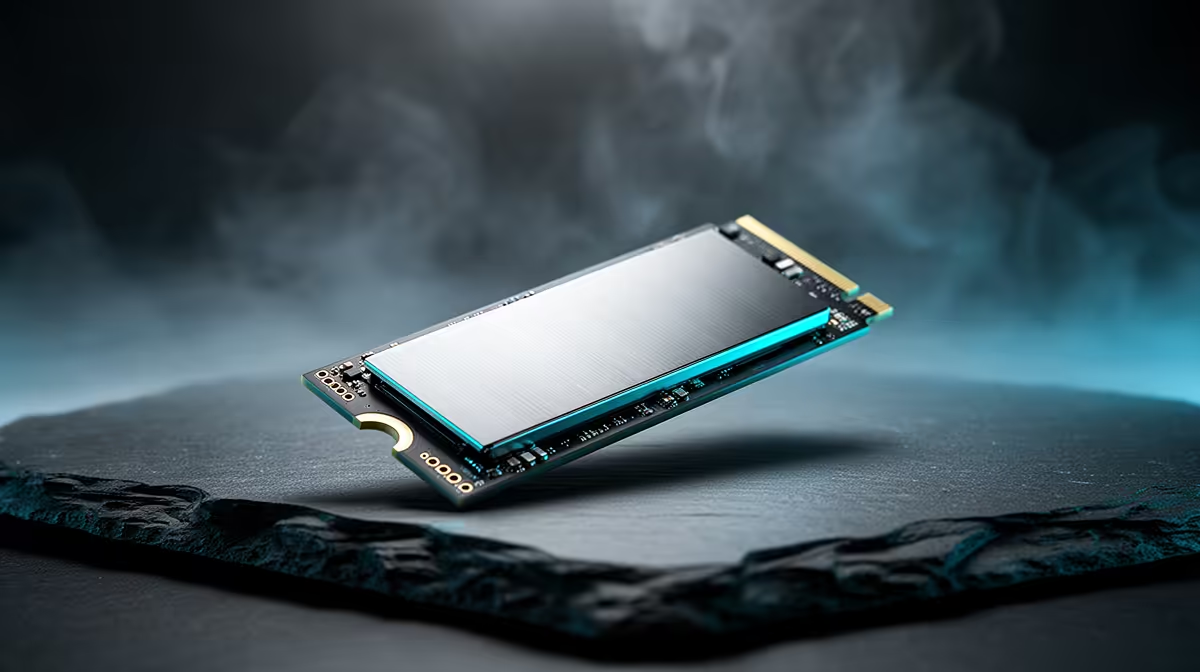
Before you start unscrewing things, let's talk about why this upgrade is so popular. An NVMe (Non-Volatile Memory Express) SSD is a small, stick-of-gum-sized storage drive that plugs directly into your laptop's motherboard. It's ridiculously fast… we're talking speeds that can be over 50 times faster than a traditional hard disk drive (HDD).
What does that mean for you?
- Lightning-fast boot times: Your laptop is ready to go in seconds.
- Instant game loading: Say goodbye to those painfully long loading screens in games like Apex Legends or Baldur's Gate 3.
- Snappier performance: Everything from opening apps to transferring files feels incredibly responsive.
For most modern laptops, this is the single best performance boost you can make. Exploring the different types of drives on our main SSD components page is a great first step to understanding your options.
Before You Begin: Your NVMe Installation Checklist 🔧
A little preparation makes the whole process smooth and stress-free. Getting this part right is key to a successful laptop NVMe installation.
1. Check Compatibility
This is the most important step! Your laptop must have a spare M.2 slot that supports the NVMe protocol. How do you check?
- Consult your laptop's manual: Look for terms like "M.2 slot," "NVMe support," or "PCIe storage."
- Search online: Google your exact laptop model + "NVMe upgrade."
- Physical inspection: If you're comfortable opening your laptop, you can look for a small, horizontal slot about 22mm wide.
If your laptop is a bit older and lacks an M.2 slot, don't worry! A standard 2.5-inch SATA SSD is still a massive upgrade over a mechanical hard drive.
2. Gather Your Tools
You don't need a full workshop. Just grab:
- A small Phillips-head screwdriver.
- An anti-static wrist strap (highly recommended to protect your components).
- A plastic pry tool or old credit card to help open the laptop casing without scratching it.
3. Back Up Your Data!
We can't say this enough: back up your important files to an external drive or cloud service before you start. Things rarely go wrong, but it's always better to be safe.
Fresh Install vs. Cloning
You have two options for your OS. Cloning copies your entire old drive to the new one, which is convenient. A fresh Windows install, however, can clear out digital clutter and often results in even better performance. We recommend a fresh install for a truly clean slate!
How to Install an NVMe SSD in Your Laptop: Step-by-Step
Alright, let's get to the good part. Take a deep breath… this is easier than it looks. ⚡
- Power Down & Unplug: Completely shut down your laptop. Unplug the power adapter and any other connected devices (USB drives, monitors, etc.).
- Open the Case: Flip the laptop over and remove the screws holding the bottom panel in place. Use your pry tool to carefully unclip the panel. Keep your screws organised!
- Ground Yourself: Before touching anything inside, put on your anti-static wrist strap and clip it to a metal part of the laptop's frame. This prevents static discharge from damaging sensitive components.
- Locate the M.2 Slot: Scan the motherboard for the empty M.2 slot. You'll see a small retaining screw opposite the connector.
- Insert the NVMe SSD: Grab your new drive. Notice the small notch in the gold connectors. Line it up with the key in the M.2 slot and slide the SSD in at a 30-degree angle. It should fit snugly.
- Secure the Drive: Gently press the SSD down so it's parallel with the motherboard. Use the small retaining screw you removed earlier to lock it in place. Don't overtighten it!
- Reassemble: Carefully clip the bottom panel back on and replace all the screws.
That's it! The physical part of your NVMe SSD installation is complete. Now you just need to set up the software. Once you're ready to pick your drive, you can browse our full range of high-speed NVMe SSDs here.
What to Do After Installing Your New SSD
After you've put your laptop back together, power it on. Your new SSD won't appear in "My Computer" just yet. You'll first need to either:
- Install Windows: Boot from a Windows installation USB drive and follow the on-screen prompts, selecting your new NVMe drive as the destination.
- Initialise the Drive (if it's a second drive): If you're keeping your old drive, just search for "Disk Management" in the Windows search bar, find your new unallocated drive, right-click it, and follow the wizard to format it.
And there you have it. You've successfully installed a new NVMe SSD in your laptop. Enjoy the incredible speed! ✨
Ready for a Serious Speed Boost? Stop waiting and start playing. Check out the best SSD deals in South Africa for performance that leaves lag in the dust.











