

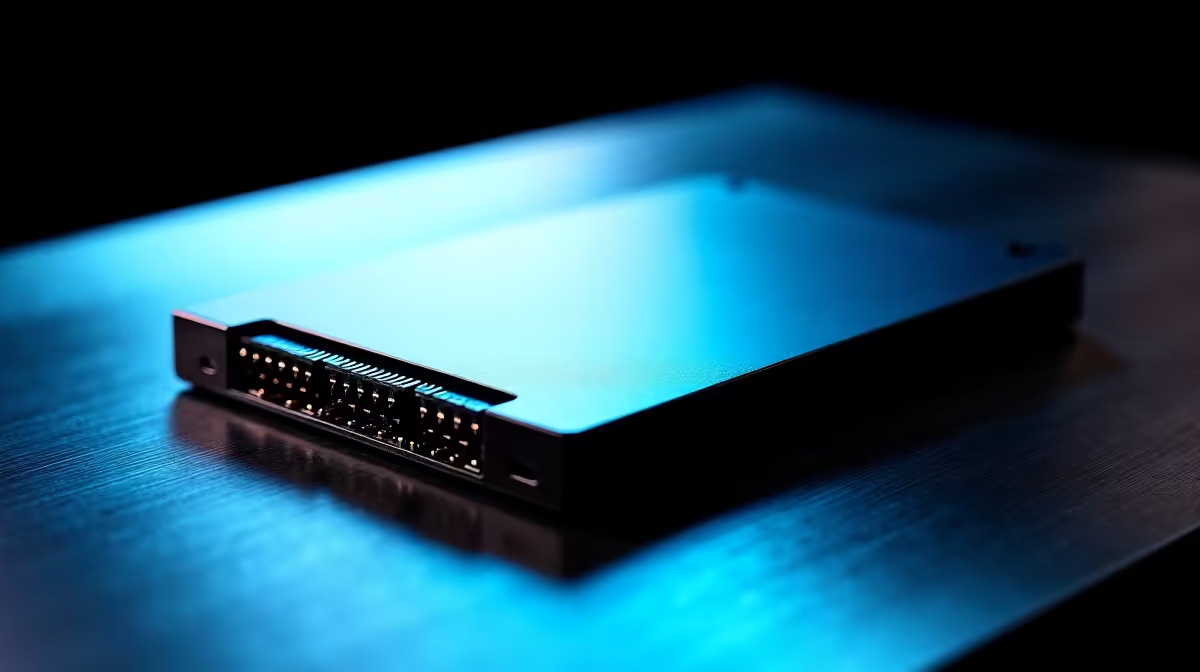
Quick Answer
Migrating Windows to a new SATA SSD is a straightforward process using free cloning software. The most reliable method involves cloning your existing drive to the new SSD using a tool like Macrium Reflect Free, then swapping the drives and booting from the SSD, which retains all your files, applications, and settings without a fresh Windows install.
What You Need Before Starting the Migration
Before you clone Windows to a new 1TB SATA SSD, gather everything required to complete the process without interruption. You need the new SATA SSD, a SATA-to-USB enclosure or adapter cable to connect it externally while cloning, a USB flash drive of at least 8GB if you want a rescue media backup, and free cloning software. Macrium Reflect Free is the recommended tool as of 2026 because it handles Windows 10 and 11 migrations reliably, resizes partitions automatically, and produces bootable clones without requiring a license. Check that your source drive's used space fits within 1TB. If your current drive is a 500GB SSD or HDD with 300GB used, cloning to a 1TB SATA SSD works with no issue. If you are migrating from a drive that is larger than 1TB with significant data, you may need to clean up files first or purchase a larger target drive. SATA SSDs in the 1TB range from quality brands cost between R900 and R1,600 locally in South Africa, making this one of the most cost-effective upgrades available. ## Step-by-Step: Cloning Windows to Your SATA SSD
Connect the new 1TB SATA SSD via a USB enclosure. Open Macrium Reflect Free and select your source drive from the list on the home screen. Click Clone This Disk, then select the new SATA SSD as the destination. The tool automatically maps all partitions including the EFI system partition, the main Windows partition, and the recovery partition. Adjust the target partition size if needed to use the full 1TB. Click Finish, then Run Now, and allow the clone to complete. Depending on how much data you have and your USB connection speed, this typically takes 15 to 60 minutes. Once the clone is complete, shut down the PC. If you are doing a desktop upgrade, disconnect the source drive from its SATA port and connect the new SSD to that same SATA port and SATA power connector. In a laptop, the process depends on the model: most require removing the back panel, unscrewing the drive bracket, and swapping the 2.5-inch drive. Power on the system. Windows should boot from the new SSD automatically. If it does not, enter the BIOS (typically F2 or Delete on startup) and set the new SSD as the first boot device. ## Verifying the Migration Was Successful
After booting from the new SATA SSD, open Windows Disk Management (right-click Start, then Disk Management) and confirm that the new drive shows the correct partition structure and total capacity of approximately 1TB. Open Task Manager and go to the Performance tab, then click Disk. The active disk should show speeds consistent with a SATA SSD: sequential reads around 500 to 560 MB/s. If your machine previously had a spinning hard drive, the improvement will be dramatic. Boot times often drop from 40 to 90 seconds on an HDD to under 15 seconds on a modern SATA SSD. Run Windows Update after the migration to ensure any device-specific drivers are current. Check Device Manager for any yellow warning icons that might indicate a driver loaded incorrectly during the transition. In most cases the migrated clone boots cleanly and requires no additional configuration. ## Optimizing Windows on Your New SATA SSD
Windows 10 and 11 automatically detect and optimize settings for SSD storage. TRIM is enabled by default, write caching is configured appropriately, and defragmentation is replaced with optimization runs that are SSD-safe. You do not need to make manual changes to enable these features. However, a few additional steps improve long-term SSD health. Make sure Windows is set to High Performance or Balanced power plan rather than Power Saver, which can throttle SATA link speeds on some laptops. Check that the SSD's firmware is up to date using the manufacturer's utility tool. Most quality SSD brands release firmware updates that improve stability and in some cases write performance. ## Frequently Asked Questions
Do I need to activate Windows again after migrating to a new SSD? No. As long as you cloned from a digitally licensed copy of Windows that is linked to your Microsoft account, activation carries over automatically. If your license is tied to a retail key rather than a digital license, you may be prompted to reactivate. Enter the product key in Settings under Update and Security, then Activation. Should I keep the old drive after migrating? Yes, at least for a few weeks. Do not format or repurpose the original drive until you have confirmed the new SSD is working correctly and all your data is intact. Once you are confident, you can format the old drive and use it as secondary storage or an external backup drive. Will migrating Windows clone my license, apps, and settings? A full clone copies everything on the drive exactly, including the OS, all installed software, user profiles, settings, and files. This is the main advantage of cloning over a clean Windows install. The only thing that does not transfer automatically is application-specific licenses that perform machine-based activation, such as some Adobe or Microsoft Office standalone products. Is a SATA SSD upgrade worth it in 2026? For any system still running a mechanical hard drive, a SATA SSD upgrade is one of the highest return-on-investment upgrades possible. For systems already running an NVMe SSD, a SATA SSD makes better sense as secondary storage than as a primary drive replacement. If you are upgrading a laptop or desktop that only has a SATA bay, a 1TB SATA SSD delivers excellent real-world speed at a very accessible price point in South Africa.
Ready to Find Your Perfect Match? Browse Evetech's full range of SATA and NVMe SSDs. Find the right 1TB SSD for your upgrade at great South African pricing.











