

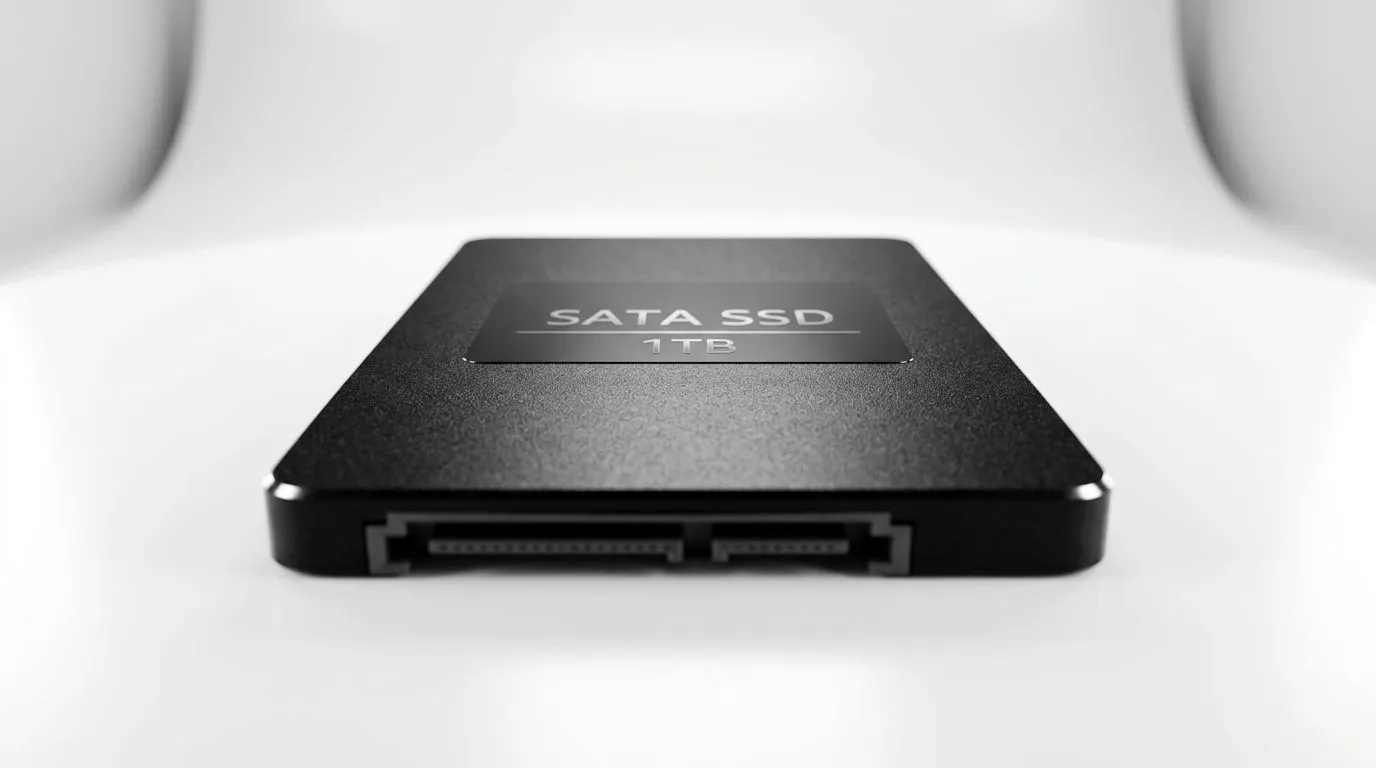
A Faster Boot in Your Spare Time: Install a 1TB SATA SSD Without Changing Your Hardware 🔧
So your PC feels slow… but you do not want to rebuild the whole machine? Good news. You can usually breathe new life into an older setup by installing a 1TB SATA SSD, keeping the same motherboard, case, and power supply. For South African gamers and students alike, that upgrade can mean faster installs, quicker map loads, and a desktop that feels responsive again. Let’s do it the clean, safe way.
Install a 1TB SATA SSD Without Changing Your Hardware: What You’re Really Buying ✨
Before you buy, check what your system supports. A SATA SSD uses a SATA data cable and SATA power. Most desktops and many older laptops have that. You’re upgrading storage capacity and speed without touching core hardware.
When choosing a 1TB SATA drive, focus on:
- Capacity (1TB) for breathing room (games, projects, and downloads).
- Reliability over “fast for fast’s sake”.
- Brand support and sensible warranties.
If you want to browse options, start here:
- Solid state drives from Evetech: Solid state drives on Evetech
Not sure what to pick? You can filter by brand:
Install a 1TB SATA SSD Without Changing Your Hardware: Check Compatibility in 5 Minutes ⚡
This is the part most people rush. Don’t. It saves you from that “why doesn’t it show up?” moment.
Desktop checklist
- Free 2.5” or 3.5” bay (most SATA SSDs are 2.5”).
- SATA data port available on the motherboard.
- SATA power connector available from the PSU.
- Your BIOS sees the drive after installation.
Laptop note (important)
Some laptops use 2.5” SATA storage. Others are strictly M.2 only. If you’re unsure, open the base panel and look for the slot type.
If you discover your machine actually supports M.2 instead, you’ll want a different form factor. You can explore:
Install a 1TB SATA SSD Without Changing Your Hardware: The Actual Upgrade Steps 🚀
Here’s the typical flow for desktops. (Laptops are similar, just with more careful handling.)
- Back up anything important. It’s boring, but it saves you.
- Power down fully and unplug the PC.
- Press the power button for 5 seconds to discharge residual power.
- Open the case and find your current drive.
- Mount the new SATA SSD in the available bay.
- Item
- Close the case, plug in, and boot.
Next, you have two paths:
- Clone your current drive (fastest way to keep Windows as-is)
- Do a clean install (best for a fresh start)
If you need extra context on SSD interfaces for faster tech paths later, you can compare interfaces here:
- [Browse SSDs by Gen 5 interface](https://www.evetech.co.za/PC-Components/buy-solid-state-drives-83?attributes-interface\=Gen+5+%28NVM…
Install a 1TB SATA SSD Without Changing Your Hardware: Set It Up for Real Gaming Gains 🎮
Once the drive is detected, you should verify Windows settings:
- Update your PC after cloning or installing.
- Confirm the SSD is set as the boot drive in BIOS.
- In Windows, check that your storage uses the right drive letter.
- If it’s a clean install, install your games and launchers onto the SSD right away.
What difference should you expect? SATA SSDs are a major jump from HDDs for boot times and game load consistency. You may not get NVMe “wow” numbers, but for most players, the feel is still night-and-day… especially in everyday sessions.
Productivity Pro Tip 🔧
On Windows, after installing your new SSD, open Settings > System > Storage and set your default install location to the SSD. This stops launchers like Steam or Epic from silently dropping new downloads on your older drive, keeping your 1TB space usable for games.
A quick micro-story from the workshop
We’ve seen it a thousand times. Someone installs a 1TB SSD, but leaves games installing to the HDD. A week later, the HDD is full, and the SSD is “mysteriously empty”. The PC feels inconsistent, and frustration kicks in. The fix is simple: move installs, then enjoy smooth loading again.
Install a 1TB SATA SSD Without Changing Your Hardware: Finish Smart and Avoid Rework ✅
If the SSD doesn’t show up, check:
- SATA power seated properly
- SATA data cable not loose
- BIOS storage detection
- Drive mounted and connected before first boot
You do not need a new build. You need correct connections and a clean setup plan. That’s how you get the upgrade without the headache.
Ready to Find Your Perfect Match? The Mac vs Windows debate is complex, but for maximum power, choice, and value in South Africa, Windows is hard to beat. Explore our massive range of laptop specials and find the perfect machine to conquer your world.











