Why You Should Install a 2.5-inch SSD as Secondary Drive in Your PC
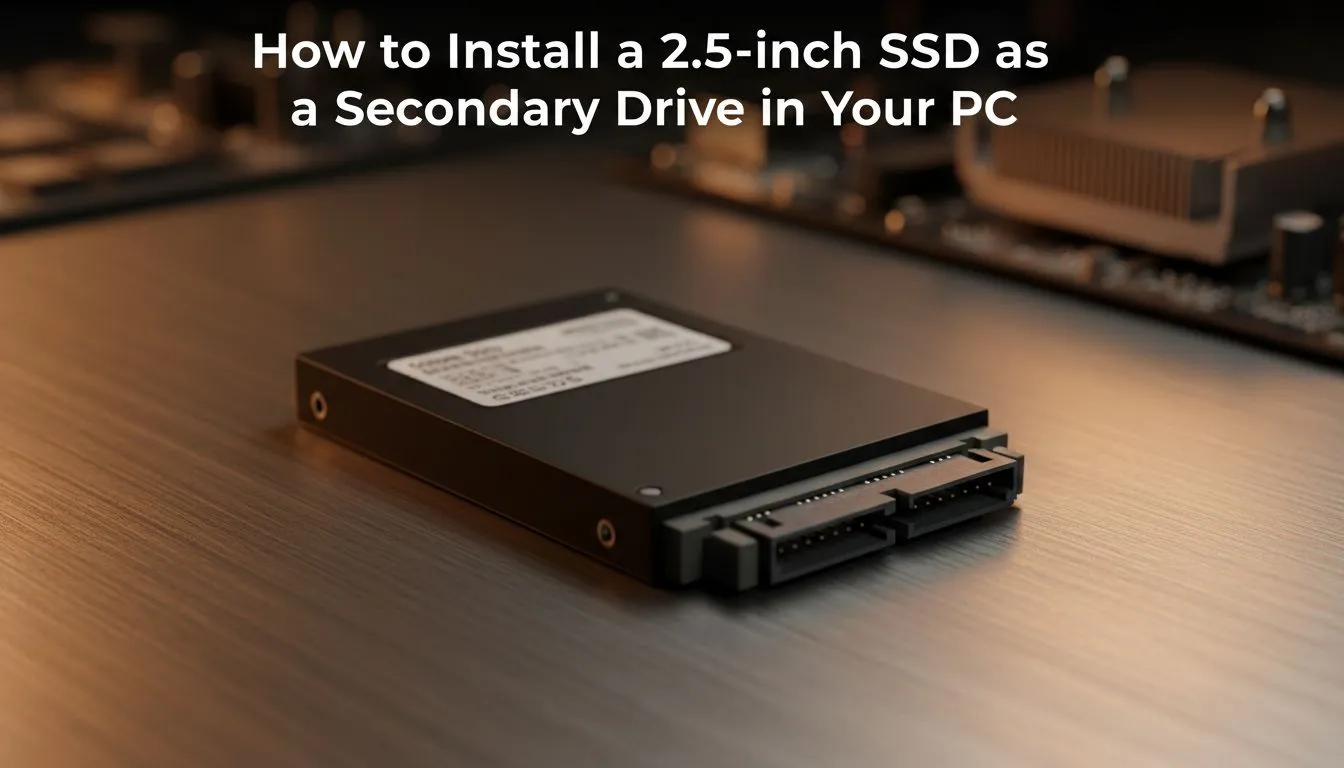
Running out of space on your gaming rig is a nightmare... especially with modern titles easily crossing the 100GB mark. If your boot drive is crying for help, learning how to install a 2.5-inch SSD as a secondary drive in your PC is the most cost-effective way to expand your library. It is a simple, rewarding DIY project that keeps your system fast without breaking the bank. ⚡
While many modern motherboards focus on M.2 slots, the classic SATA 2.5-inch drive remains a staple for bulk storage. Whether you are eyeing high-performance solid-state drives for your game library or just need a place for your media, these drives offer incredible value in the South African market.
Preparing for Your Storage Upgrade
Before you open your chassis, ensure you have the right components. Most 2.5-inch drives require a SATA data cable and a SATA power connector from your PSU. If you prefer a brand known for longevity, you might look at Western Digital options or perhaps the highly reliable Kingston range.
If your internal slots are already full, you could consider a portable external SSD instead. These are perfect for gamers on the move, offering great speeds in dedicated external form factors that plug straight into your USB ports. However, for a permanent, clean setup, internal is always the way to go.
Step-by-Step: How to Install a 2.5-inch SSD as a Secondary Drive in Your PC
- Power Down: Switch off your PC and unplug the power cable. Safety first... always.
- Open the Case: Remove the side panel to access the drive bays.
- Mount the Drive: Slide your SSD into a 2.5-inch bay or mounting bracket. Many modern cases have dedicated spots behind the motherboard tray.
- Connect SATA Power: Find a flat SATA power connector from your power supply and plug it into the wider port on the SSD.
- Connect SATA Data: Plug your SATA data cable into the smaller port on the SSD and the other end into an open SATA port on your motherboard.
Cable Management Pro Tip ⚡
When connecting your new drive, try to use a SATA data cable with a locking clip. This prevents the cable from wiggling loose over time due to vibrations or during transport. If you are using multiple drives, label the cables at both ends... it makes troubleshooting much easier if you ever decide to swap parts later.
Initialising Your New Drive in Windows
Once you have physically secured the hardware, your PC needs to recognise it. Windows won't always show the drive in "This PC" immediately. You will need to right-click the Start button and select Disk Management. A pop-up should appear asking you to initialise the disk... choose GPT for modern systems.
While SATA drives are fantastic for secondary storage, those looking for the absolute peak of performance might eventually look toward NVMe PCIe drives. For the ultimate enthusiast, the latest Gen 5 NVMe SSDs provide speeds that SATA simply cannot match. However, for most South African gamers, a solid ADATA 2.5-inch drive provides the perfect balance of price per gigabyte. 🚀
Ready to Boost Your Storage? Don't let a full drive slow down your grind. Whether you need a massive SATA SSD for your backlog or a lightning-fast NVMe for your OS, we have the best deals in South Africa. Explore our massive range of SSD specials and find the perfect drive to upgrade your PC today.