

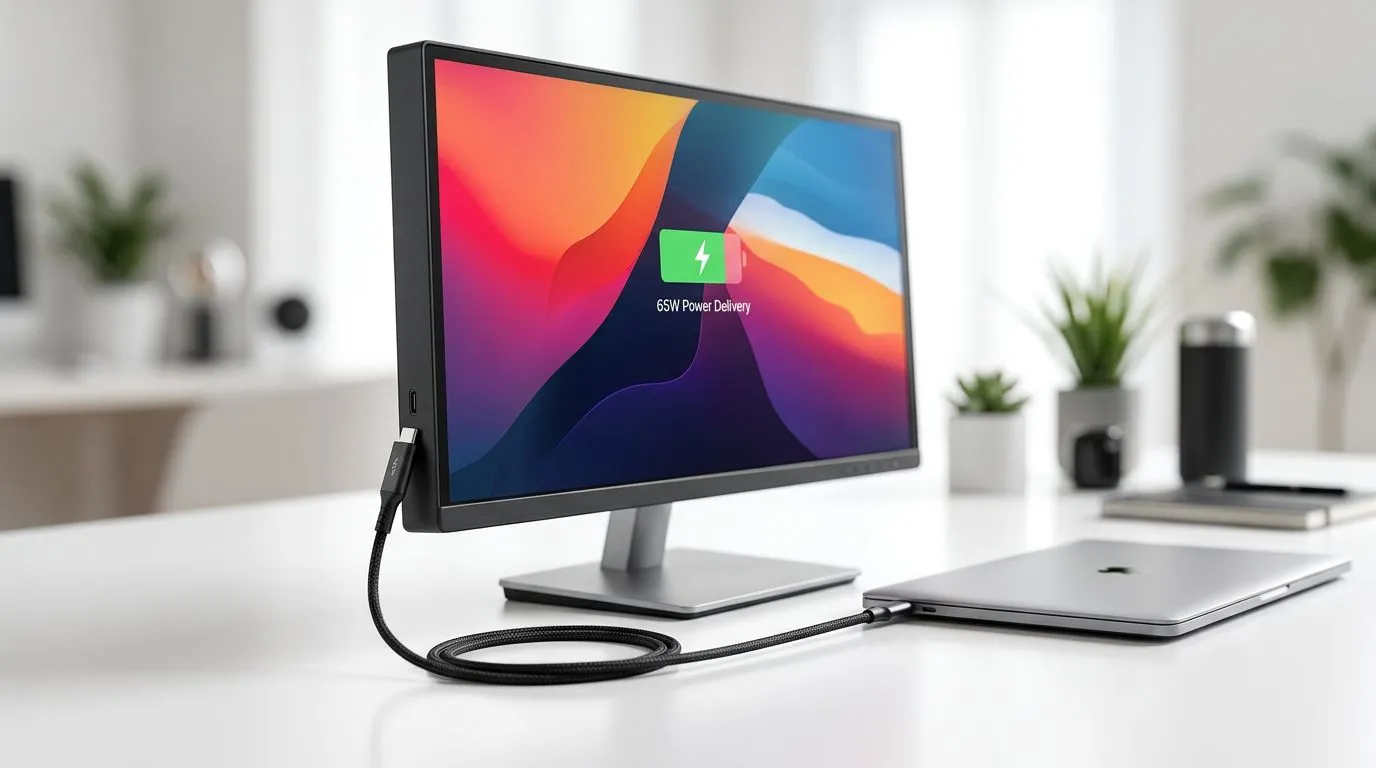
Why this USB-C monitor matters for South African buyers (and gamers) ⚡
If you’re juggling studies, work calls, and late-night ranked sessions, desk space matters. So does cable clutter. A USB-C monitor with power delivery (PD) can simplify everything… one cable for video, audio, and charging. That means fewer adapters, less faff, and a cleaner setup that looks as good as it plays.
In South Africa, where every rand counts, the “upgrade path” is often about smart compatibility rather than buying everything at once. Let’s make sure you pick the right monitor, with the right 65W power delivery, so your laptop doesn’t die mid-match.
USB-C Monitor With 65W Power Delivery: The Ultimate Laptop Upgrade (the real-world benefit) 🚀
A USB-C monitor with up to 65W Power Delivery is designed to charge many laptops while you use them. In practice, that can turn your monitor into a single docking hub. You plug the USB-C cable into the monitor, and the monitor handles both display output and charging.
Why “ultimate laptop upgrade”? Because this setup reduces:
- Cable chaos behind your desk
- Charger swapping
- The annoying “battery at 12%” moment during long sessions
If your laptop supports USB-C charging, this is one of the cleanest upgrades you can make without replacing the whole machine.
What “65W” should mean for your laptop
65W is a common target for mid-range laptops. But the key is matching the monitor’s PD profile to what your laptop actually accepts. Many laptops will still charge even if they don’t hit the full wattage, just at a slower rate. For accuracy, confirm your laptop’s USB-C charging spec in your laptop’s manual or product page. If you can’t find it, check the charging brick label and look for the wattage your laptop uses normally.
A quick compatibility check (before you buy) 🔧
USB-C Compatibility Check ⚡
First, confirm your laptop supports DisplayPort over USB‑C (often noted as “DP Alt Mode”) and that it supports USB‑C charging. Then check whether the laptop accepts charging from a USB‑C power source at or near 65W. If both match, you’re set for a true one-cable setup.
Best ways to choose the right monitor for your setup (South Africa edition) ✨
A 65W PD monitor is only “ultimate” if the rest of the panel fits your use case. Gamers usually care about refresh rate and response time, while office users care about text clarity and ergonomics.
Here’s how to choose confidently:
- Match the resolution to your GPU and distance. For many desks, a 27-inch 1440p monitor is a sweet spot. For sharper text, consider 4K where scaling is handled well by your OS.
- Pick the right refresh rate for your games. If you’re playing esports titles like Valorant or Rocket League, a higher refresh rate can feel smoother.
- Use the monitor’s USB ports and ports layout. A monitor that also offers convenient USB access can replace a chunk of desk hardware.
- Plan your cable management early. One USB-C cable is great… until you still need extra power, Ethernet, or headphone cables. Think about what you’ll keep plugged in.
Deals and models worth checking on Evetech
Before you decide, it helps to compare options and pricing. Here are solid places to start exploring:
- If you want a broad look across value options, see best PC monitor deals here.
- For a general selection by category, browse PC monitors in this range.
- If your priority is gaming performance, check all gaming monitors here.
- For immersive setups, curved monitor options can help with focus and wider field of view.
- If you need something flexible for travel or dual locations, explore portable monitors.
- For crisp work and sharp image detail, compare 5K and 4K monitor options.
- And don’t forget the practical side of upgrades. If you want to tidy your desk and avoid compatibility headaches, browse monitor accessories.
Setup tips that make the “one-cable upgrade” actually feel effortless 🔥
Let’s talk about the day-one tweaks that separate a good purchase from a great experience.
1) Set your power and sleep behaviour
After you connect a USB-C monitor, your laptop might change its charging and sleep behaviour. In Windows power settings, check:
- When the display turns off
- What happens when the laptop lid is closed (if you use an external keyboard)
- Battery saver triggers
Goal: stop your laptop from undercharging during long work sessions.
2) Calibrate your display for less eye strain
A bright office monitor and gaming mode can be rough. Use the built-in OSD settings (or Windows display calibration) to set:
- Brightness around “room normal”
- Contrast that doesn’t crush blacks
- A colour mode you’ll actually stick to
If you’re editing content, you’ll also want consistent colour temperature across devices, but start with comfort first.
3) Make sure your ports match your routine
If you rely on Ethernet, confirm your monitor supports it or plan for a separate adapter. If you use a headset, test audio output immediately. The best upgrade is the one that removes friction from your routine.
Common mistakes to avoid
- Buying a USB-C monitor without confirming DP Alt Mode support (no video, even if it charges)
- Assuming all “Type-C” ports behave the same (they don’t)
- Ignoring scaling on high resolution screens, leading to blurry text
Final thoughts: a USB-C monitor upgrade that respects your budget and your time 🚀
A USB-C Monitor With 65W Power Delivery: The Ultimate Laptop Upgrade is less about marketing and more about convenience and compatibility. When your laptop supports USB-C video and charging, you get a cleaner desk and fewer interruptions.
If you’re building an upgrade path, this is one of the smartest “surface-level” changes that can improve your everyday workflow instantly… and make your gaming nights feel more organised from the start.
Ready to Find Your Perfect Match? The Mac vs Windows debate is complex, but for maximum power, choice, and value in South Africa, Windows is hard to beat. Explore our massive range of laptop specials and find the perfect machine to conquer your world.











