

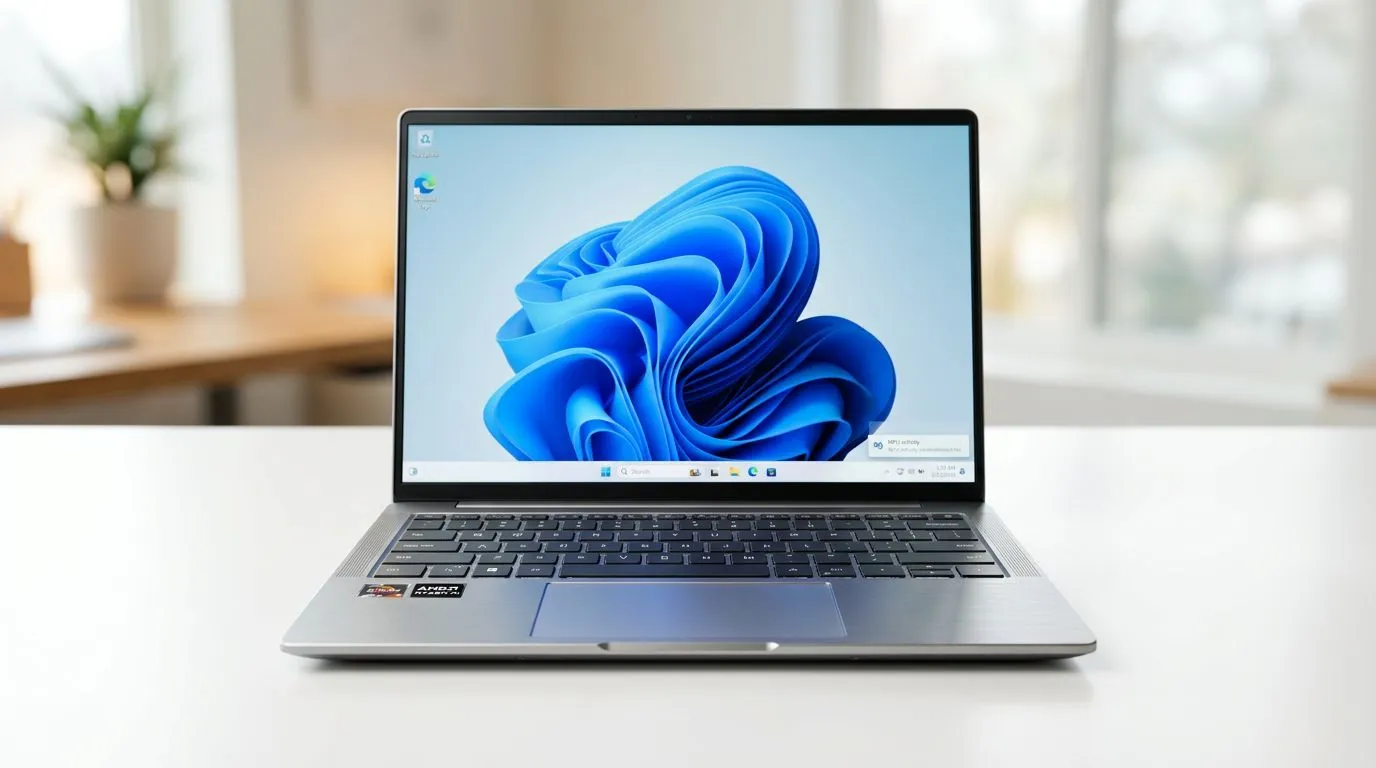
AMD Ryzen AI Laptop Guide: Enabling NPU Features on Windows 11 (Why South African buyers should care)
If you’re shopping for a new laptop and you’ve seen the words “AI” and “NPU”… you’re not alone. In South Africa, gamers and content creators want fast, efficient performance without paying desktop prices. But “AI-ready” is only useful if your Windows 11 laptop can actually use its NPU features.
This guide walks you through enabling NPU support on Windows 11 for AMD Ryzen AI laptops. 🔧 Expect practical steps, what to check, and how to avoid the common “it’s enabled… but nothing happens” problem.
AMD Ryzen AI Laptop Guide: Enabling NPU Features on Windows 11 (What an NPU actually does)
On Windows 11, an NPU is the chip built for AI workloads. Depending on the model and software support, it may accelerate tasks like:
- AI-enhanced camera effects
- Background noise reduction in supported apps
- Some local AI features in Windows and vendor tools
Important reality check… not every AI app will use the NPU. Windows uses “available acceleration” based on drivers, capabilities, and the app’s integration. So your goal is to confirm support and enable the features that your hardware supports. ⚡
AMD Ryzen AI Laptop Guide: Enabling NPU Features on Windows 11 (Step-by-step checklist)
Before you start, grab these basics:
- Your laptop model (and whether it’s a Ryzen AI series model)
- A stable internet connection
- Time for updates (drivers matter)
Step 1: Update Windows 11 fully
- Settings → Windows Update
- Click Check for updates
- Install everything and restart
NPU features often depend on updated system components, not just the driver.
Step 2: Install the latest AMD chipset/graphics and AI-related drivers
For AMD Ryzen AI laptops, the most reliable path is to install the latest drivers from the manufacturer, then cross-check through Windows Update.
If you’re unsure what to install, search your laptop’s support page first. Using mismatched drivers is a quick way to end up with features that never light up.
Step 3: Confirm NPU availability in Windows
Try these checks:
- Task Manager → Performance: look for an NPU or AI-related entry (if your system supports it)
- Settings: check for AI features or system information pages that list acceleration support (varies by build)
If you don’t see any NPU section, don’t panic. It can mean drivers are missing, or your specific Windows build and configuration don’t expose the hardware yet.
Step 4: Enable AI features where they live
Some NPU features show up under app settings, not only Windows settings. Examples include:
- Windows Studio effects (if present)
- Camera and audio enhancements within supported apps
- Vendor-provided AI apps or control panels (when included)
Again… “NPU enabled” is not the same as “every AI feature works”. Apps must support the acceleration path.
NPU Setup Pro Tip 🔧
On Windows 11, after updating drivers, restart your laptop before testing AI features. Then open the exact app you want to use (like your camera or conferencing tool) and check its settings for AI effects. If you test before a restart, you can end up thinking the NPU is broken when it’s just still loading the older components.
AMD Ryzen AI Laptop Guide: Enabling NPU Features on Windows 11 (Common issues and fast fixes)
Here are the issues South African buyers run into most often, plus what usually fixes them:
“I enabled AI, but nothing uses the NPU”
Likely causes:
- App doesn’t support NPU acceleration
- Drivers are outdated or incomplete
- Feature is only available on certain Windows builds
Fix path:
- Re-run Windows Update
- Install the latest AMD drivers for your model
- Test with the same app after a restart
“The NPU doesn’t show in Task Manager”
Likely causes:
- Drivers missing
- Unsupported configuration for your exact model
Fix path:
- Verify you installed chipset and graphics drivers correctly
- If still missing, confirm you have the correct driver package for your exact laptop SKU
“Performance feels inconsistent”
AI features can increase background processing. Try disabling AI effects temporarily to compare:
- Use the laptop for gaming or encoding as you normally would
- Toggle the AI feature off and retest If there’s a meaningful difference, you’ve confirmed the feature is active in some form. ✨
AMD Ryzen AI Laptop Guide: Enabling NPU Features on Windows 11 (Buying smarter: pick the right Ryzen AI laptop)
If your priority is smooth AI features on Windows 11, start with a Ryzen AI model that’s clearly supported by current driver updates and vendor tooling. Buying the wrong configuration can turn “AI” into marketing.
If you’re still choosing hardware, here are Evetech paths that help you narrow down options fast:
- Explore Intel laptops on special if you’re comparing platforms: https://www.evetech.co.za/intel-laptops-on-special/l/866
- Browse Ryzen laptop deals to match budget with modern performance: https://www.evetech.co.za/ryzen-laptop-deals/l/682
- If you want gaming + strong everyday performance, check best gaming laptop deals: https://www.evetech.co.za/best-gaming-laptop-deals/l/1468
- Need to keep it under budget? Start with buy gaming laptops under R20k: https://www.evetech.co.za/buy-gaming-laptops-under-r20k/l/1559
- And if GPU acceleration matters for your workflow, look at GeForce RTX gaming laptops on special: https://www.evetech.co.za/geforce-rtx-gaming-laptops-on-special/l/1633
Why mention all this in an NPU guide? Because your end result depends on the full laptop package: chipset support, driver maturity, and how the platform is configured.
AMD Ryzen AI Laptop Guide: Enabling NPU Features on Windows 11 (What to do after you enable it)
Once NPU support is confirmed:
- Keep Windows updated.
- Re-check AI feature settings after major Windows updates.
- Only leave AI enhancements on when you actually benefit from them (camera calls, supported apps, or real-time effects).
For gamers and creators in South Africa, that’s the sweet spot: better quality when you need it, and stable performance when you don’t. 🚀
Ready to Find Your Perfect Match? The Mac vs Windows debate is complex, but for maximum power, choice, and value in South Africa, Windows is hard to beat. Explore our massive range of laptop specials and find the perfect machine to conquer your world.











