So, you’ve dived into the world of local AI with DeepSeek, running models right on your rig here in South Africa. It’s powerful stuff... but are random crashes or sluggish performance holding you back? The culprit might be hiding in your BIOS. This practical CPU SA voltage guide is for you. We’ll demystify one of the most crucial settings for stability, especially when pushing high-speed RAM for those demanding AI workloads. Let's get your machine optimised. ✨
What is CPU SA Voltage, Anyway?
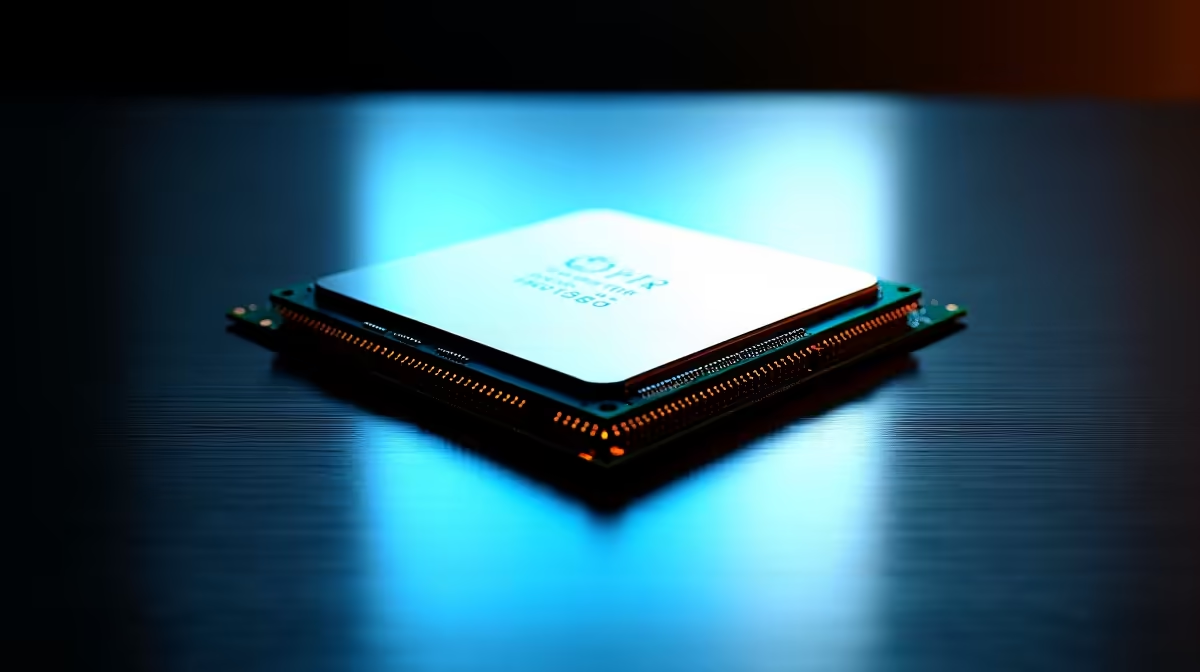
Before we start tweaking, let's understand what we're changing. CPU SA Voltage stands for Central Processing Unit System Agent Voltage. In simple terms, it's the power supplied to the "uncore" parts of your CPU. This includes critical components like the integrated memory controller (IMC), the PCIe controller, and the display engine.
Think of the System Agent as the main logistics manager for your CPU. It handles the flow of data between your processor cores, your RAM, and your graphics card. When you install faster RAM or a powerful GPU, you're increasing the speed and volume of traffic this manager has to handle. Sometimes, it needs a little more power to do its job without errors, and that's where manual SA voltage tuning comes in.
Why It Matters for Your DeepSeek AI PC
Running large language models or complex AI tasks is incredibly memory-intensive. Your PC is constantly shuffling huge amounts of data between your RAM and your processor. If your memory isn't perfectly stable, you can experience everything from poor performance to total system crashes.
A properly configured SA voltage ensures your high-speed DDR4 or DDR5 RAM runs flawlessly under heavy load. This is vital whether you're leveraging the Tensor Cores in one of Evetech's powerful NVIDIA GeForce gaming PCs or harnessing the raw multi-core power found in modern AMD Radeon gaming PCs. Fine-tuning this setting is a key part of a comprehensive PC optimisation strategy.
A Practical Guide to Tuning CPU SA Voltage
Ready to get your hands dirty? Follow these steps carefully. Remember, the goal is stability at the lowest possible voltage to keep temperatures in check.
Step 1: Establish a Baseline
Before you change a thing, enter your BIOS and enable your RAM's XMP (for Intel) or EXPO (for AMD) profile. This is the manufacturer's certified overclock. Save, boot into Windows, and run a memory stress test like TestMem5 or the built-in Windows Memory Diagnostic. If it passes without errors after an hour, you have a stable baseline! If it fails, SA voltage is likely the next setting to check.
Step 2: Make Small, Cautious Adjustments 🔧
Reboot into your BIOS and navigate to the voltage settings. Find "CPU SA Voltage" (it may also be called "VCCSA"). Avoid leaving this on "Auto", as motherboards can sometimes supply excessive voltage, which can degrade your CPU over time.
Set it to manual control. A good starting point for modern CPUs is often around 1.15V. If your memory test failed, this might be enough to stabilise it. If you were already stable, you can even try lowering the voltage in tiny 0.01V steps to reduce heat. The key is to make one small change at a time.
Check Your Vitals ⚡
Use a free tool like HWiNFO64 to monitor your voltages and temperatures in real-time from your Windows desktop. This helps you confirm that the voltage you set in the BIOS is actually being applied and lets you keep an eye on system health without having to constantly reboot.
Step 3: Test, Rinse, and Repeat
After every single adjustment, you must save the settings, reboot, and run your stress test again. Yes, it's a slow and repetitive process, but it's the only way to be certain you've found a truly stable setting. Patience here will save you hours of troubleshooting later. 🚀
Knowing the Risks and When to Stop
This is the most important part of any CPU SA voltage guide: know the limits. Pushing voltage too high can permanently damage or degrade your processor. For most recent Intel and AMD platforms, anything above 1.35V SA is generally considered the danger zone for daily use.
Always research the safe voltage ranges for your specific CPU generation. The goal is the lowest voltage that provides 100% stability. If this entire process sounds daunting, don't worry. For mission-critical AI work where stability is non-negotiable, many professionals in South Africa choose pre-configured high-performance workstation PCs that are expertly built and stress-tested for this very purpose.
Ready for Unlocked AI Performance?
Mastering your PC's voltages is rewarding, but sometimes you just want flawless power straight out of the box. Our AI-ready PCs are expertly built and stress-tested for maximum stability. Configure your dream AI PC with Evetech today and let us handle the fine-tuning.