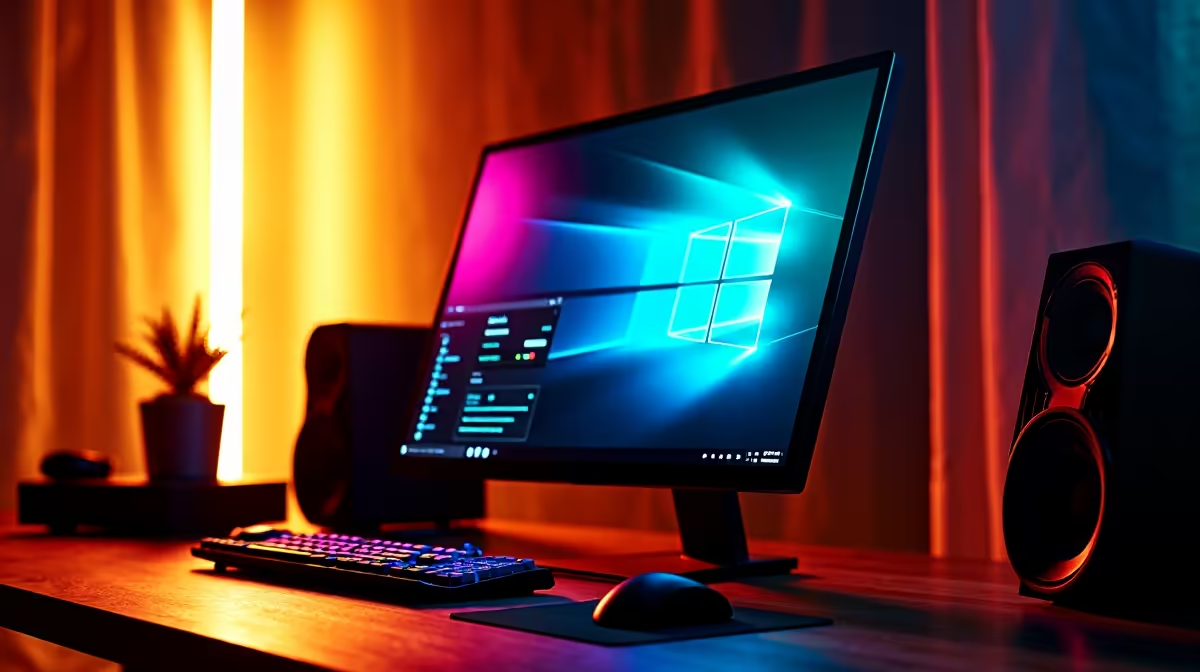
Tired of choosing between your weekend Warzone sessions on Windows and your weekday AI projects on Linux? In South Africa, tech enthusiasts and developers face a common dilemma: the world's best gaming OS versus the undisputed king of development. But what if you didn't have to choose? This guide will show you how to set up the ultimate rig with a dual boot of Windows and Linux for AI development, giving you the best of both worlds. 🚀
Why Dual Boot Windows and Linux for AI?
The "best of both worlds" isn't just a saying; it's a strategic advantage. On one side, you have Windows—the undisputed champion for PC gaming. It has the drivers, the DirectX support, and the massive library of titles you love. It’s where you relax, connect with friends, and enjoy the latest AAA releases on a powerful AMD Radeon gaming PC without a single compatibility headache.
On the other side, you have Linux. Specifically, distributions like Ubuntu or Pop!_OS are the native habitat for developers and AI researchers. Why?
- Native Tooling: Tools like Docker, Kubernetes, and countless command-line utilities run natively and more efficiently.
- Package Management: Installing complex libraries and dependencies for Python, TensorFlow, or PyTorch is often a single command away.
- Performance: Linux has a lighter footprint, leaving more of your precious RAM and CPU cycles for compiling code or training models.
A dual boot Windows and Linux setup means you don't sacrifice your gaming lifestyle for your professional or academic ambitions. You simply reboot.
Getting Your Rig Ready for a Dual Boot
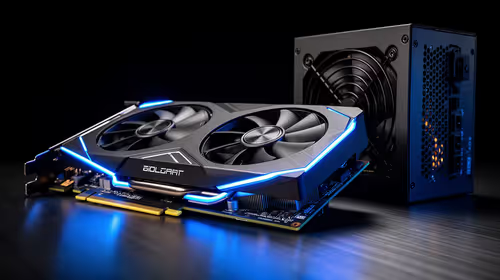
Before you start, let's talk hardware. While Linux can run on a potato, AI development cannot. The core of your machine learning rig is the Graphics Processing Unit (GPU). For most AI frameworks, NVIDIA is still the top choice due to its mature CUDA platform, which provides a direct pipeline to the GPU's processing power. A rig from our range of NVIDIA GeForce gaming PCs is the perfect starting point, giving you both elite gaming performance and AI-ready hardware. 🧠
You'll also need a fast Solid State Drive (SSD), preferably an NVMe M.2 drive. This is non-negotiable. The speed difference when booting between Windows and Linux, or when loading large datasets, is massive. Aim for at least a 1TB SSD to give both operating systems enough breathing room.
Partition Planning Pro Tip 🔧
Before you install anything, plan your drive space. A good starting point for a 1TB drive is 500GB for Windows (for the OS, games, and apps) and 500GB for Linux. Within Linux, you'll create a root partition, a home partition for your files, and a swap partition (usually 1.5x your RAM size). Planning this prevents headaches later!
Finally, you'll need to dive into your PC's BIOS/UEFI. Two key settings to check are:
- Secure Boot: This needs to be disabled for most Linux installations.
- Fast Startup (in Windows): This feature must be turned off. It's a form of hibernation that can prevent Linux from accessing the Windows NTFS partition correctly.
A Step-by-Step Guide to Your Dual Boot Installation
This isn't a line-by-line terminal guide, but a high-level roadmap to get you started on your dual boot for AI development journey. The process is surprisingly straightforward.
Step 1: Back Up Everything
Seriously. Before you touch a single partition, back up your important Windows files to an external drive or the cloud. Things can go wrong, and you don't want to lose your data.
Step 2: Prepare Your Windows Partition
With Windows already installed, you need to shrink its main partition to make space for Linux.
- Press
Win + R, typediskmgmt.msc, and hit Enter. - Right-click your C: drive and select "Shrink Volume".
- Enter the amount of space you want to free up for Linux (e.g., 500000 MB for 500GB) and click "Shrink". You'll now see a large chunk of "Unallocated" space.
Step 3: Create a Bootable Linux USB
Download an ISO image of your chosen Linux distribution (Ubuntu 22.04 LTS is a fantastic, stable choice). Use a tool like Rufus or Balena Etcher to flash this ISO image onto a USB stick (at least 8GB).
Step 4: Install Linux
Reboot your PC with the USB stick plugged in and boot from it (you may need to press F12, F10, or DEL during startup to select the boot device). Follow the Ubuntu installation prompts. When you get to the "Installation type" screen, choose the option that says "Install Ubuntu alongside Windows Boot Manager". This is the magic option that handles the dual boot setup for you.
For professionals running massive datasets and training models for days on end, a dedicated machine might be more practical. In that case, our purpose-built Workstation PCs offer the stability and raw power needed for mission-critical tasks without compromise.
Life After Installation: Making Your Dual Boot Work for You ✨
Congratulations! After the final reboot, you should be greeted by the GRUB bootloader menu, asking you to choose between Linux and Windows.
Your day-to-day workflow is now seamless. You can work on your AI models in the optimised Linux environment, and when you're ready to unwind, a simple reboot drops you right back into Windows for a gaming session. You can even access your Windows files from within Linux, as it can read NTFS partitions out of the box, making it easy to share documents, music, or project assets between your two worlds. This dual boot Windows & Linux for AI development setup truly gives you the ultimate flexible and powerful machine.
Ready to Build Your AI Powerhouse? A dual boot setup unlocks the full potential of your hardware, but it all starts with the right machine. From hardcore gaming to intensive machine learning, having a powerful, reliable PC is non-negotiable. Explore our range of customisable PCs and build the perfect rig for your ambitions.