So, you've spent ages crafting the perfect prompt for Stable Diffusion. You hit "Generate," wait with excitement... and get a masterpiece... almost. Except for the extra fingers, the weirdly blended face, or that bizarre, distorted background. We've all been there. These visual glitches, or artifacts, are a common frustration. But don't stress, this guide will show you exactly how to fix Stable Diffusion artifacts and start creating the flawless, clean AI images you've been aiming for.
Understanding Stable Diffusion Artifacts
Before we can fix the problem, it helps to know what's causing it. Stable Diffusion creates images by starting with random noise and gradually refining it to match your text prompt. Artifacts often appear when the AI gets a bit confused. This can happen for a few reasons:
- Overly Complex Prompts: Too many conflicting ideas can lead to visual chaos.
- High CFG Scale: Pushing the AI to follow your prompt too strictly can cause distortion and oversaturation.
- Model Limitations: The specific AI model you're using might struggle with certain concepts, like hands or complex patterns.
- Low Step Count: Not giving the AI enough steps to refine the image can leave it looking unfinished and messy.
Knowing the cause is half the battle won. Now, let's get to the solutions. 🔧
Your Guide to Generating Clean AI Images
Getting rid of artifacts is a process of refinement, both in your technique and sometimes, in your hardware. Here are the most effective methods to start cleaning up your generations.
Master the Art of the Negative Prompt
One of the most powerful tools at your disposal is the negative prompt. This tells the AI everything you don't want to see in the image. By listing common issues, you can guide the AI away from creating them in the first place.
A great starting negative prompt for portraits or characters often includes terms like: ugly, tiling, poorly drawn hands, poorly drawn feet, poorly drawn face, out of frame, extra limbs, disfigured, deformed, body out of frame, blurry, bad anatomy, blurred, watermark, grainy, signature, cut off, draft.
Negative Prompt Pro Tip ⚡
Keep a text file with your best negative prompt combinations. For general images, add terms like blurry, jpeg artifacts, low quality, worst quality. For images with text, add garbled text, incorrect spelling. Customising your negative prompt for each image type is key to getting clean AI images.
Tweak Your Settings: CFG Scale & Sampler
Two other crucial settings are the CFG (Classifier-Free Guidance) Scale and the Sampler.
- CFG Scale: This controls how closely the AI sticks to your prompt. A low value (e.g., 4-6) gives the AI more creative freedom, while a high value (e.g., 12-15) forces it to be very strict. The sweet spot for avoiding artifacts is usually between 7 and 10. If your images look burnt or distorted, your CFG is likely too high.
- Sampler: Different samplers (like Euler a, DPM++ 2M Karras, or DDIM) are the methods the AI uses to denoise the image. Some are faster, while others produce sharper results. Experimenting with different samplers can often resolve strange artifacts without changing your prompt at all.
The Hardware Factor: Your GPU is the Engine 🚀
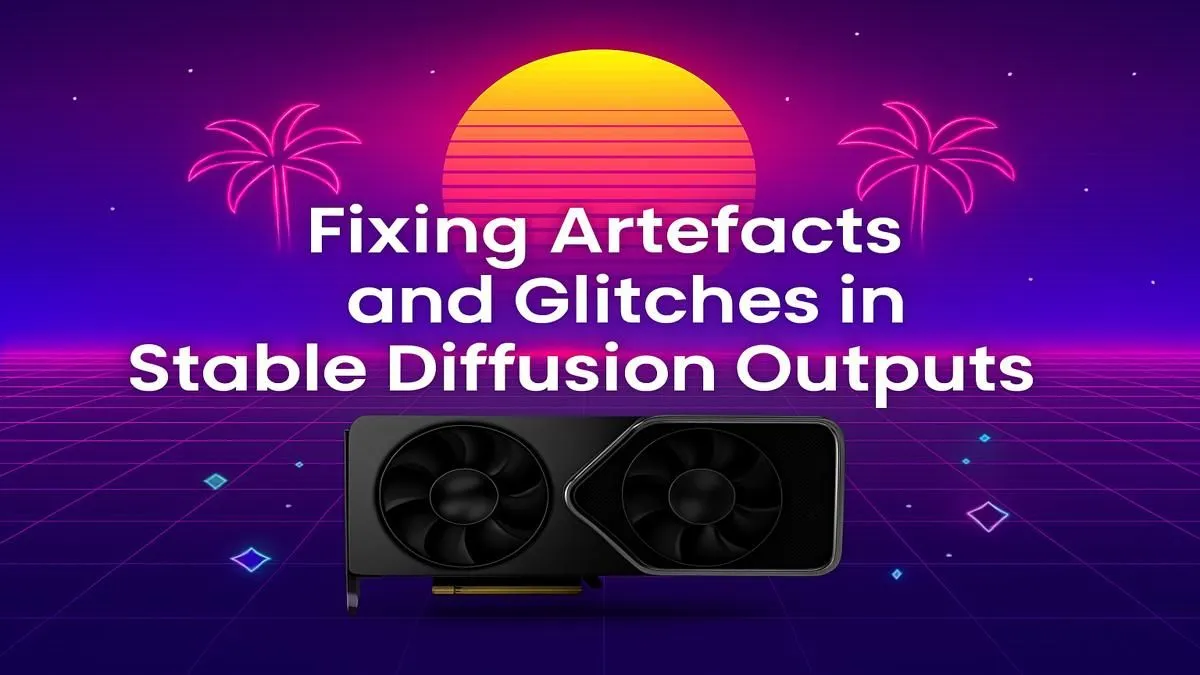
While software tweaks are vital, the power of your PC plays a massive role, especially your graphics card. A more powerful GPU doesn't just generate images faster; it allows you to work at higher resolutions and use more advanced models without your system grinding to a halt. More VRAM means you can generate bigger, more detailed images where artifacts are less likely to occur.
Upgrading your hardware is a direct investment in quality and speed. Whether you're just starting or a seasoned pro, there's a huge range of graphics cards available to suit your needs and budget. For many AI enthusiasts, the robust ecosystem and CUDA core advantage make an NVIDIA GeForce graphics card the go-to choice.
However, the competition is fierce, and powerful options from AMD Radeon deliver fantastic performance, especially for gamers who also dabble in AI art. For those running serious, high-volume AI workloads or training their own models, stepping up to dedicated workstation graphics cards with massive amounts of VRAM can be the ultimate solution.
By combining smart prompting techniques with capable hardware, you'll have everything you need to fix Stable Diffusion artifacts for good and consistently produce stunning, professional-quality AI images. ✨
Ready to Supercharge Your AI Creations? A powerful GPU is the engine behind breathtaking AI art. Stop waiting and start creating. Explore our range of NVIDIA RTX 40 Series GPUs and find the perfect upgrade to unleash your creativity.