Article (MDX)
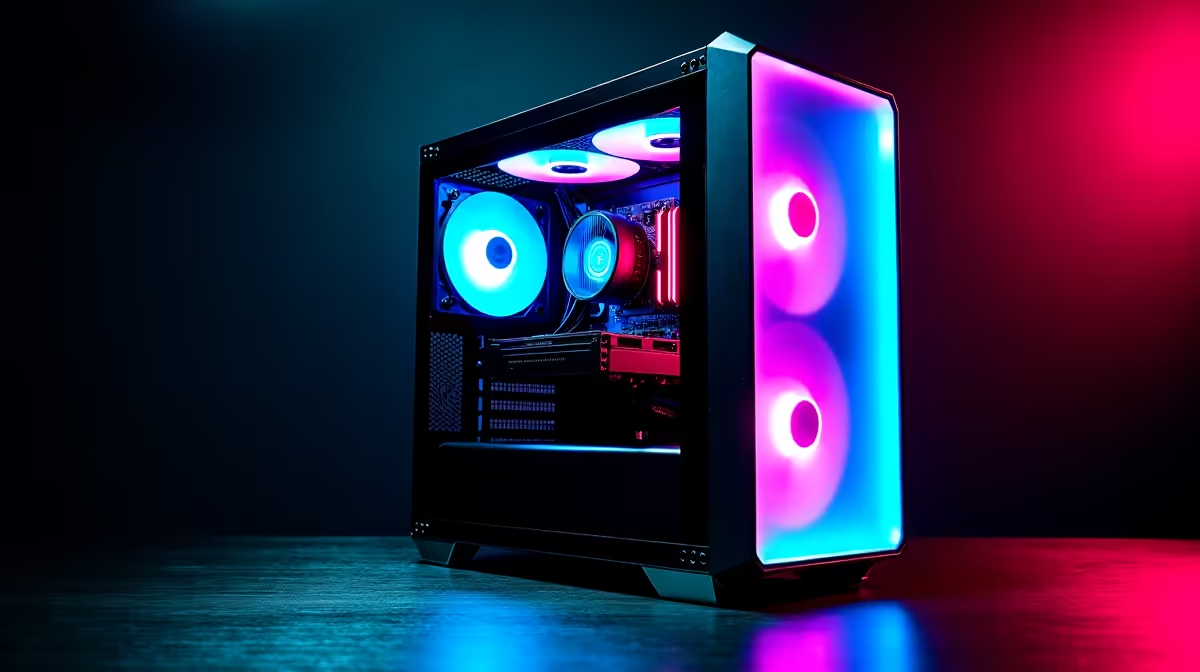
Tired of watching progress bars crawl while your large language model (LLM) trains? That beast of a gaming rig you use for Helldivers 2 has more potential than you think. In South Africa, the leap from gaming to AI development is getting shorter. This guide will show you exactly how to optimise your PC for faster LLM training, turning your graphics card from a frame-pusher into a brain-building powerhouse. Let's get your machine ready for the AI revolution. 🚀
Why Your Gaming PC is an AI Powerhouse in Disguise
At its core, training an LLM and running a high-fidelity video game share a critical resource: the Graphics Processing Unit (GPU). Both tasks involve massively parallel computations. For gaming, this means rendering millions of pixels and complex lighting. For AI, it means processing vast datasets and adjusting model parameters simultaneously.
This overlap means many South African gamers already own hardware that’s surprisingly capable of handling entry-to-intermediate level AI tasks. The key is knowing how to unlock that potential. A few strategic hardware and software adjustments can dramatically speed up your model training times.
Core Hardware Optimisations for LLM Speed
While software plays a role, your hardware is the foundation. Getting this right is the most important step to optimise your PC for faster LLM training.
The GPU: VRAM is King 👑
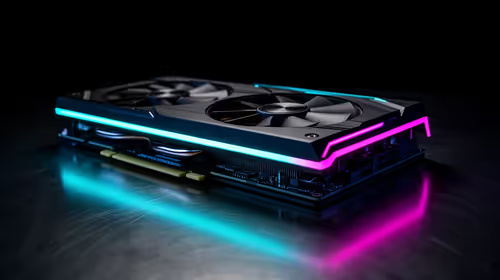
Your GPU is the single most important component. When choosing or evaluating a GPU for LLM training, one specification stands above all others: VRAM (Video RAM). Larger, more complex models require more VRAM to load and process. If you run out, performance plummets as the system resorts to using slower system RAM.
- NVIDIA: Thanks to its mature CUDA parallel computing platform, NVIDIA is the undisputed leader in the consumer AI space. Cards like the RTX 4070 SUPER or RTX 4090 with their generous VRAM are fantastic starting points. Many powerful NVIDIA GeForce gaming PCs come equipped with these cards, making them excellent dual-purpose machines.
- AMD: Team Red is catching up fast with its ROCm software stack. While the ecosystem is less mature than NVIDIA's, cards like the RX 7900 XTX offer a compelling price-to-performance ratio, especially for those who love to tinker. You can find these in many high-value AMD Radeon gaming PCs right here in SA.
For those moving beyond hobbyist projects to serious, professional AI development, a gaming PC might eventually become a bottleneck. At that point, purpose-built workstation PCs with multiple high-VRAM GPUs and optimised cooling become the logical next step.
System RAM and Storage: Don't Starve Your GPU
Your GPU needs data, and it needs it fast. A slow system can create a bottleneck, leaving your expensive graphics card waiting.
- RAM: Aim for at least 32GB of fast DDR4 or DDR5 RAM. This ensures your operating system and data-loading processes run smoothly without interfering with the VRAM.
- Storage: Your dataset can be huge. A fast NVMe SSD is non-negotiable. It drastically reduces data loading times, which is the first step in any training job.
Pro Monitoring Tip 🔧
On Windows with an NVIDIA GPU, open your command prompt and type nvidia-smi -l 1. This command will refresh your GPU's stats (temperature, VRAM usage, power draw) every second. It's an essential tool for diagnosing bottlenecks and ensuring your model is actually using the GPU's full potential.
Software Tweaks for Maximum Performance
Hardware is only half the battle. The right software setup can provide a significant boost and improve stability.
Drivers and Environment
Always use the latest drivers for your GPU. For NVIDIA users, installing the "Studio Driver" instead of the "Game Ready Driver" can sometimes offer better stability and performance for creative and computational workloads like LLM training.
For the best compatibility with AI frameworks like PyTorch and TensorFlow, consider using the Windows Subsystem for Linux (WSL2). It provides a native Linux environment directly within Windows, which is what most AI development tools are built for. This avoids many common compatibility headaches and can often yield better performance. ⚡
Model and Batch Size Adjustments
Finally, the way you configure your training job has a huge impact.
- Precision: Using mixed-precision training (like
FP16) can nearly double your speed and halve your VRAM usage with minimal loss in accuracy. - Batch Size: Experiment with the largest batch size that fits into your VRAM. A larger batch size allows the GPU to process more data in parallel, improving efficiency.
Optimising your PC for LLM training is a journey of small, iterative improvements. By focusing on your GPU's VRAM, ensuring your system has no bottlenecks, and using the right software environment, you can turn your gaming rig into a formidable AI development machine.
Ready to Build Your AI Powerhouse? Optimising your current PC is a great start, but for serious AI development and faster LLM training, the right hardware is non-negotiable. Explore our range of AI-ready Workstation PCs and find the perfect machine to bring your models to life.