

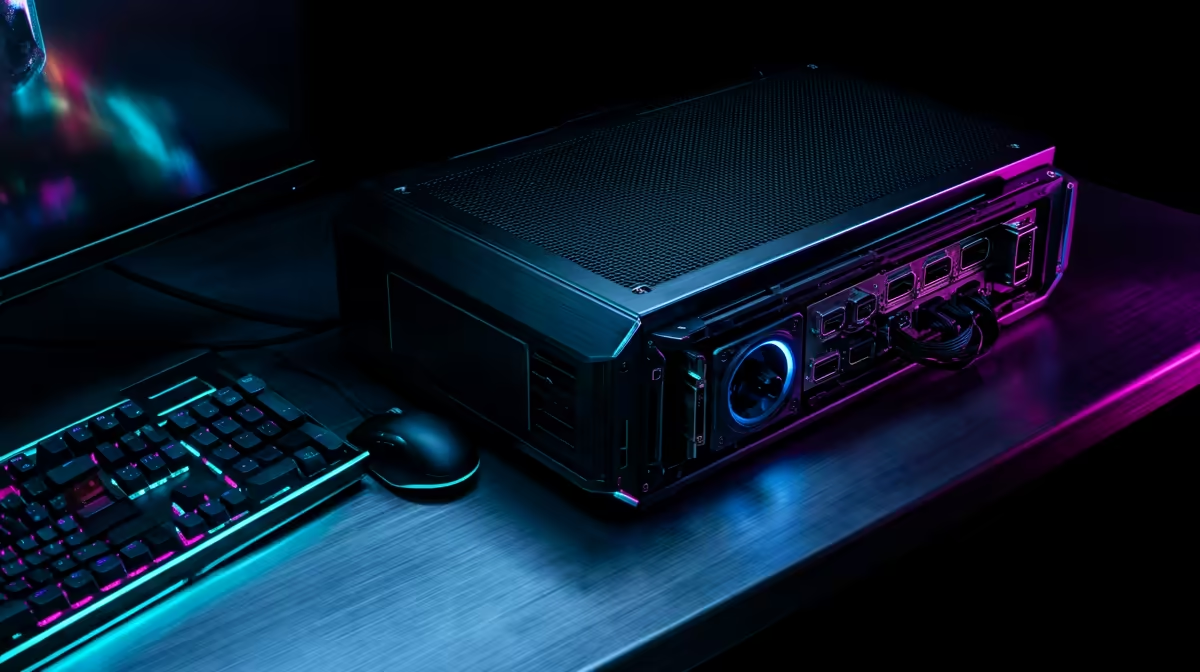
You’ve finally done it. You’ve ascended, building a rig powerful enough to push pixels on a glorious new 4K display. The image is crisp, the colours are breathtaking… but look down. That tangled nest of cables, the digital serpent lurking beneath your desk, is ruining your otherwise perfect battle station. Don't let a cable catastrophe undermine your investment. Proper 4K gaming setup cable management is the final boss fight for a truly elite rig.
It's about more than just looks; it's about building a space that feels calm, professional, and ready for action. Let's get it sorted. ✨
Why Cable Management for Your 4K Setup Matters
That chaotic mess of wires isn't just ugly; it's a performance bottleneck waiting to happen. A clean setup isn't just about impressing your mates. It improves airflow around your PC components and the back of your PC monitors, which can contribute to lower temps.
More importantly, a tidy space reduces dust build-up and makes cleaning a breeze. When you need to troubleshoot or swap a peripheral, you won’t have to spend 20 minutes untangling a knot. A clean desk equals a clear mind... and faster reaction times.
Your 4K Gaming Setup Cable Management Blueprint 🔧
Tackling the cable monster seems daunting, but a simple strategy makes all the difference. Whether you're rocking one of our immersive curved monitors or a multi-screen beast, this process works every time.
Step 1: The Great Disconnect
Start with a clean slate. Yes, that means unplugging everything from the wall and your PC. It’s the only way. Group your cables by function:
- Power: PC, monitor(s), speakers.
- Display: DisplayPort, HDMI.
- Peripherals: USB cables for your keyboard, mouse, headset, etc.
This simple sort makes it much easier to see what you’re working with and plan your routes.
Step 2: Gear Up with the Right Tools
You don't need a massive budget. A few key items will transform your setup:
- Velcro Cable Ties: Infinitely reusable and much safer for your cables than plastic zip ties.
- Cable Sleeves: A brilliant way to bundle multiple cables running the same path (e.g., from your PC to your monitor) into one neat tube.
- Adhesive Cable Clips: Perfect for guiding single cables along the back or underside of your desk.
The VESA Mount Trick 💡
If your monitor is on a stand, you can often coil a bit of excess DisplayPort or power cable and tuck it neatly into the recessed area where a VESA mount would attach. Use a Velcro tie to hold the coil flat against the monitor's back. It’s a simple, invisible way to hide extra cable length.
Step 3: Route, Bundle, and Secure
Now for the fun part. Start by plugging everything back into your PC and monitor(s). Run the cables along the natural lines of your desk—the back edge, down a leg, or along a monitor arm.
Use your Velcro ties to bundle cables heading in the same direction. Use adhesive clips to lock them in place under your desk, completely out of sight. The goal is to have as few visible cables as possible. This final step in your 4K gaming setup cable management plan makes the biggest visual impact.
Taking Your Setup to the Next Level 🚀
Once you’ve mastered the basics, a few extra tweaks can elevate your setup from clean to flawless. Consider a monitor arm to lift your screen off the desk entirely, creating a floating effect and freeing up massive amounts of space. This even applies if you're using one of the new breed of portable monitors for a secondary display on the go.
Ultimately, the best setup is one that lets you focus entirely on the game, displayed in stunning detail on one of the latest 4K and 5K monitors. A tidy desk is the foundation for that immersion. We've seen setups transformed by this simple process across all gaming monitors, and yours can be next.
Ready to Build Your Masterpiece? A clean, powerful setup starts with a stunning centrepiece. Explore the best PC monitor deals in South Africa and find the perfect screen to build your dream rig around.











