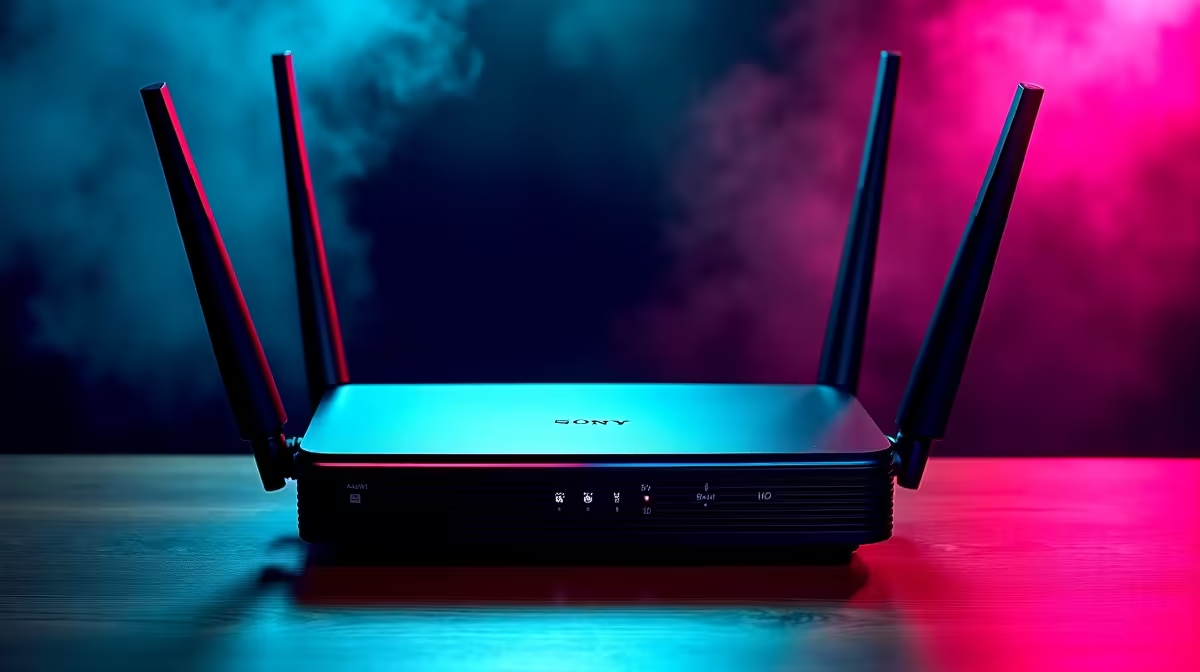
Buried in the admin panel of most 5G home routers is a setting that quietly decides whether your hardware uses its own built-in aerials or external ones you bolt on. 5G router antenna settings trip up plenty of owners, because only one antenna path is active at a time, and choosing the wrong mode can leave a perfectly good external antenna doing nothing while the internal ones struggle. For South African homes on the fringe of a coverage zone, knowing when and how to switch is the difference between a usable connection and constant buffering.
Quick Answer
Many 5G CPE routers include an antenna-mode setting in the admin panel that switches between built-in internal antennas and attached external ones. Only one path is active at a time, so the mode must match your hardware. Use internal antennas when your signal is already good, and switch to external only when you are in fringe coverage and the internal aerials cannot pull in a strong enough signal.
Why the setting exists
A 5G router has internal antennas built into its body, tuned to work well out of the box in areas with decent coverage. Many routers also include ports for external antennas, which you mount higher, nearer a window, or even on a roof to capture a signal the internal aerials cannot reach. The catch is that the router does not use both at once. When you enable external antennas in the settings, they replace part or all of the internal path, so the mode you select determines which aerials are actually live.
This is why simply screwing on an external antenna without changing the setting often does nothing. The router keeps using its internal antennas, the new external one sits idle, and you conclude the antenna was useless when in fact it was never switched into the signal chain. Understanding that one path is active at a time is the whole key to this setting.
When to leave it on internal
For most homes with reasonable coverage, internal is the right answer and you should not touch the setting at all. Properly tuned internal antennas deliver consistent performance straight out of the box, with no cabling, no mounting and no chance of human error from a misaimed external aerial. If the router already pulls a strong, stable signal on its own, an external antenna will not necessarily improve anything, and you risk making the connection worse by introducing a poorly positioned aerial or a lossy cable run.
The principle is simple: do not solve a problem you do not have. If your speed tests are good and the connection is steady, leave the router on its internal antennas and move on. The external option is a fix for weak signal, not a default upgrade.
When to switch to external
External antennas earn their place in one specific situation: fringe coverage, where you are far from the tower, behind thick walls, or in an area the internal aerials cannot reach cleanly. By mounting an external antenna higher or nearer the source, you capture signal that simply does not penetrate to the router's internal aerials, and that can lift a marginal connection into a usable one. South African homes in outer suburbs or semi-rural areas on the edge of a 5G zone are exactly the case this is built for.
Here is the step-by-step to switch correctly:
- Confirm your signal is genuinely weak first. Check the router's signal indicators or run speed tests on internal antennas. If the signal is poor and unstable, an external antenna is worth trying.
- Connect the external antenna to the correct ports. Attach it to the router's antenna ports before changing any setting, and route the cable to a higher or window-facing position.
- Log in to the admin panel. Open the router's web interface in a browser using the address and login on the device label.
- Find the antenna-mode setting. It usually sits under an advanced or network section, often near the mobile or WAN settings, and is labelled something like external antenna or antenna mode.
- Enable external and save. Switch the mode to external so the router uses the attached aerials instead of the internal ones, then save and let the router reconnect.
- Test and compare. Run a fresh speed test and check the signal indicators against your earlier internal reading. If external is better, keep it; if it is worse, switch back, because a badly placed external antenna can underperform the internal ones.
That final comparison matters, since the goal is a measured improvement, not just a different setting. When you are choosing hardware or an external aerial, the networking range at Evetech is where to find routers that support external antennas and the accessories to go with them.
Positioning and cabling notes
If you go external, placement does most of the work. Mount the antenna as high as practical, ideally with a clear line toward the nearest tower, since elevation and line of sight matter more than raw antenna size. Keep the cable run as short as sensible, because long, low-quality cable adds loss that can eat the gain you were chasing. A well-mounted external antenna on a fringe connection can genuinely transform it, but a poorly placed one on a low shelf may do nothing at all. The mounts, cables and connectors that make a tidy external install are easy to overlook, and the accessories best sellers reflect what local users pick up to finish these setups.
Frequently Asked Questions
Why did my external antenna make no difference?
Most likely because the router is still set to internal antennas. Only one path is active at a time, so attaching an external antenna without enabling external mode in the admin panel leaves it idle. Switch the antenna-mode setting and test again.
Should I always use external antennas for better signal?
No. If your internal signal is already strong and stable, external antennas may not help and can even make things worse if poorly positioned. Use external only when you are in fringe coverage and the internal aerials cannot pull a good signal.
Where is the antenna-mode setting in the admin panel?
It is usually under an advanced or network section, often near the mobile or WAN settings, labelled antenna mode or external antenna. Log in to the router's web interface using the address on the device label to find it.
Does the external antenna replace the internal ones?
Yes, in effect. Enabling external mode switches the router to use the attached aerials instead of the internal path, since only one is active at a time. That is why the setting and the physical antenna both have to match.
How important is where I mount the external antenna?
Very. Height and a clear line toward the nearest tower matter most, and a short, good-quality cable run preserves the gain. A well-placed external antenna can transform a fringe connection, while a badly placed one may perform worse than the internal aerials.
On the edge of 5G coverage and fighting for signal? Find routers that support external antennas in the networking range at Evetech and set the antenna mode correctly to get every bit of signal your location offers.