Staring at your FPS counter, wondering why that beastly rig isn't hitting the buttery-smooth frames you paid for? You've updated drivers, closed every Chrome tab... but the real secret might be lurking where many South African gamers fear to tread: the BIOS. Don't stress. We're here to demystify the essential BIOS settings for gaming, turning that daunting blue screen into your PC's ultimate performance command centre. Let's unlock some free performance. 🚀
What is the BIOS and Why Should Gamers Care?
Think of the BIOS (Basic Input/Output System) or its modern successor, UEFI, as the control room for your PC's hardware. It's the very first thing that loads when you press the power button, waking up your CPU, RAM, and graphics card before Windows even starts.
For most people, the default settings are fine. But for gamers? Leaving your BIOS on default is like driving a sports car in first gear. A few careful adjustments can unlock smoother gameplay, faster load times, and a more responsive system. This guide will walk you through the most impactful BIOS settings for gaming without needing an engineering degree.
The Must-Tweak BIOS Settings for Maximum Gaming Performance
Ready to dive in? To access your BIOS, you typically need to press a key like Delete, F2, or F12 right after you turn on your PC. The key varies by motherboard manufacturer (ASUS, MSI, Gigabyte, etc.), so watch the screen for a prompt.
1. Unleash Your RAM: Enable XMP or EXPO
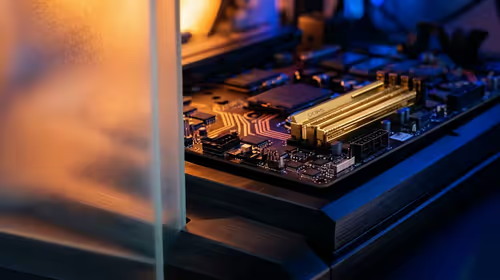
This is the single most important BIOS setting for gaming performance. Your high-speed RAM often runs at a much slower default speed out of the box. Enabling its pre-configured performance profile is essential.
- For Intel systems: Look for a setting called XMP (Extreme Memory Profile).
- For AMD systems: Look for EXPO (Extended Profiles for Overclocking) or sometimes A-XMP/DOCP.
Enabling this one setting can boost your frame rates by 5-15% in CPU-intensive games. It's a non-negotiable step for any serious gamer, whether you're running one of our top-tier Intel gaming PCs or a powerful rig from our lineup of AMD Ryzen PC deals.
2. Boost GPU Communication: Activate Resizable BAR / Smart Access Memory
This feature allows your CPU to access your graphics card's entire memory buffer at once, rather than in small chunks. The result? A noticeable performance uplift in many modern titles. ⚡
- On systems with NVIDIA GPUs, the feature is called Resizable BAR.
- On systems with AMD GPUs, it's known as Smart Access Memory (SAM).
You'll usually find this setting under "PCI Subsystem Settings" or a similar advanced menu. Make sure it's enabled to get the most out of your hardware, especially if you're rocking one of the latest NVIDIA GeForce gaming PCs or a beastly machine from our AMD Radeon gaming PC range.
Pro Tip: Save Your Profile! ✨
Most modern BIOS interfaces let you save your settings to a profile. After you've dialled in your optimal gaming BIOS settings, save them! This way, if a future BIOS update resets everything, you can reload your optimised profile in seconds instead of starting from scratch.
3. Fine-Tune Your Fan Curves
Is your PC screaming like a jet engine during a Warzone match, or getting too hot and throttling performance? Your BIOS is the place to fix it. Look for a "Hardware Monitor" or "Fan Control" section. Here, you can change the fan curve, which tells your fans how fast to spin at certain temperatures.
You can set a more aggressive curve for better cooling (and more performance) or a quieter curve for late-night sessions. Finding the right balance is key for system health and stability, a principle we apply meticulously when building our ultra-reliable workstation PCs.
When BIOS Tweaks Aren't Enough
Optimising your BIOS settings for gaming is a fantastic way to extract every drop of performance from your current components. It's the final 10% that separates a good build from a great one.
However, there's a limit to what software tweaks can do. If you're still not hitting your target frame rates after these optimisations, it might be a sign that your core hardware—your CPU, GPU, or RAM—is the bottleneck. No amount of BIOS magic can make an older graphics card run Cyberpunk 2077 at 4K with ray tracing. That’s when it’s time to consider an upgrade.
Ready for a Real Performance Jump?
Optimising your BIOS is a powerful free upgrade. But when you've squeezed every last frame from your current hardware, the next level awaits. Explore our legendary range of custom gaming PCs and find a rig built to dominate from day one.