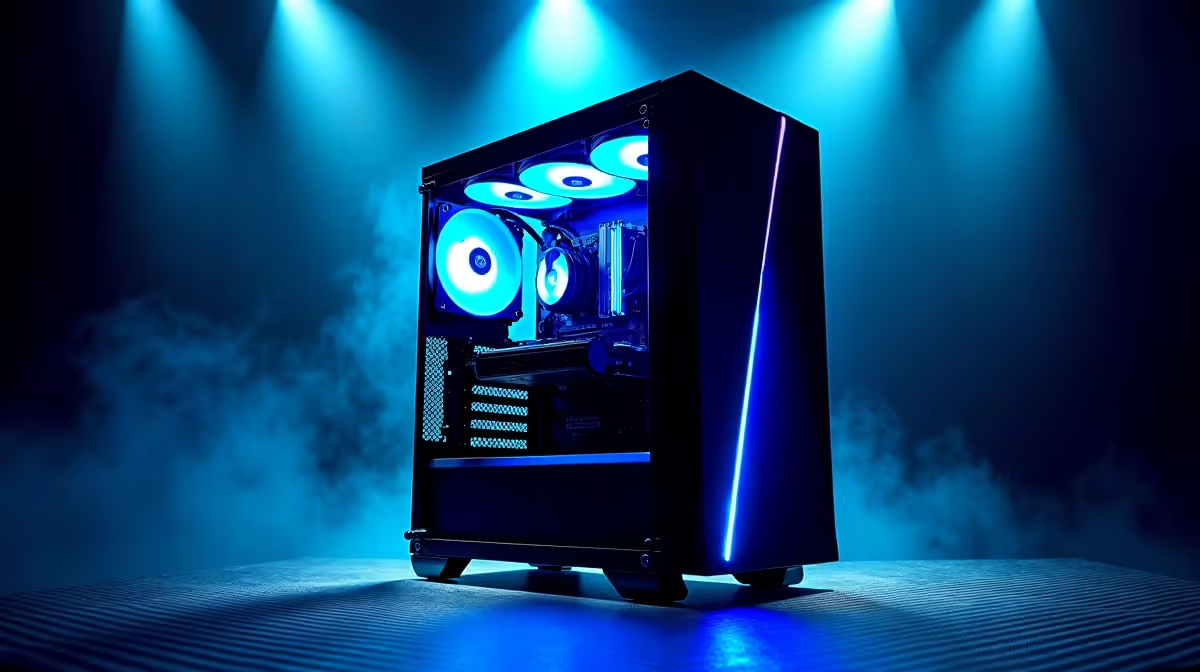
You’re in a tense 1v3 clutch in Apex Legends. The circle is closing. Suddenly, your PC’s fans spin up, sounding like a jet taking off from OR Tambo. Your frames drop, your game stutters, and… you’re back in the lobby. A classic case of budget gaming PC overheating. It’s a frustrating problem, especially during a South African summer, but don’t stress. You don’t need a massive budget to fix it. Here are 10 easy ways to lower your temps.
Why Your Budget Gaming PC is Overheating
Before we dive into the fixes, let’s quickly understand the enemy. Your PC generates heat, especially the CPU and GPU. Overheating happens when the cooling system can't remove that heat fast enough. For budget builds, this is often due to a few common culprits: dust buildup choking your fans, poor airflow inside the case, dried-up thermal paste, or simply components working overtime to run the latest titles. Tackling these issues is key to a cooler, quieter gaming experience.
10 Simple Fixes to Lower Your PC Temps 🔧
Ready to get your hands dirty? Most of these fixes cost nothing but a little bit of your time.
1. The Deep Clean: Evict the Dust Bunnies
Dust is the number one enemy of cool components. It insulates parts and clogs fan intakes, trapping heat.
- How: Power down and unplug your PC. Take it outside if you can. Use a can of compressed air to blow dust out of your case fans, CPU cooler, GPU fans, and power supply. Hold the fan blades gently so they don't spin too fast.
2. Give It Room to Breathe
Where you place your PC matters. Shoving it into a tight cabinet or against a wall suffocates it, preventing cool air from getting in and hot air from getting out.
- How: Ensure there are at least 10-15 centimetres of clear space around all sides of your PC tower, especially the back and front.
3. Optimise Your Fan Curves
Your fans are set to a default speed profile. You can tell them to work harder, sooner.
- How: Enter your PC’s BIOS/UEFI on startup (usually by pressing DEL or F2). Find the fan control section (often called "Smart Fan," "Q-Fan," or similar) and set a more aggressive curve. This makes the fans spin up at lower temperatures.
Pro Cooling Tip ❄️
Most modern motherboards come with software (like Armoury Crate for ASUS or Dragon Center for MSI) that lets you adjust fan curves directly from Windows. It's much easier than rebooting into the BIOS every time you want to tweak your settings. Install it and experiment with a profile that balances noise and performance for you.
4. Re-apply Thermal Paste
The paste between your CPU and its cooler transfers heat. Over 2-3 years, it dries out and becomes less effective.
- How: This is a bit more hands-on. You'll need to remove your CPU cooler, clean the old paste off with isopropyl alcohol, and apply a small, pea-sized dot of new thermal paste before re-mounting the cooler.
5. Add More Case Fans
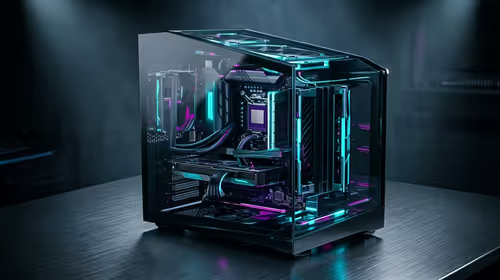
Many budget cases only come with one or two fans. Adding another intake fan at the front and an exhaust at the back or top can drastically improve airflow and lower overall system temps. It's one of the cheapest hardware upgrades you can make. It's also why many modern budget gaming PCs are designed with better airflow from the start.
6. Tidy Up Your Cables
A mess of cables inside your case can block airflow just as much as dust.
- How: Spend 30 minutes routing cables behind the motherboard tray or using cable ties to bundle them together, clearing paths for air to travel from your intake fans to your components and out the exhaust.
7. Lower In-Game Settings
This is a free, instant fix. Pushing "Ultra" settings on a budget card generates a massive amount of heat.
- How: In your game's graphics settings, try lowering demanding options like Shadows, Anti-Aliasing, and Texture Quality from Ultra to High or Medium. You'll barely notice the visual difference, but your GPU will thank you. ✨
8. Upgrade Your Stock CPU Cooler
The basic cooler that comes with a budget CPU is often… well, basic. It's designed to do the bare minimum.
- How: Investing just a few hundred Rand in a decent tower air cooler can lead to a 10-20°C drop in CPU temperatures. It's a high-impact upgrade, and many of the great PCs under R20k already include an upgraded cooler for this very reason.
9. Check Your Ambient Temperature
This one’s a no-brainer for us in SA. If your room is 35°C, your PC has no chance of staying cool.
- How: Game in a room with a fan or air-conditioning if possible. If not, try to game during cooler parts of the day, like the early morning or late at night.
10. Know When It’s Time for an Upgrade
Sometimes, budget gaming PC overheating is a sign that your hardware is simply getting too old to keep up. If you've tried everything and are still hitting 90°C+, your components might be at the end of their life. This is where you can find some of the latest pre-built PC deals that offer balanced performance and cooling.
The Ultimate Fix: Is It Time for a New Rig? 🚀
Fixing an overheating issue is rewarding, but it can also be a temporary solution for an ageing machine. While the tips above are fantastic for extending the life of your current build, a new PC offers a fresh start with warranties, optimised airflow, and components that work together flawlessly. Unlike budget fixes, the cooling solutions found in premium rigs over R20k are designed for sustained, high-performance gaming without breaking a sweat.
If you find yourself constantly fighting high temps instead of enjoying your games, it might be the perfect time to check out South Africa's best gaming PC deals. A new build means more time gaming and less time worrying.
Tired of Thermal Throttling?
Overheating can kill your performance and your components. If these fixes aren't enough, it might be time for a rig with cooling built right. Explore our range of custom-built gaming PCs and find a machine that stays cool under pressure.