


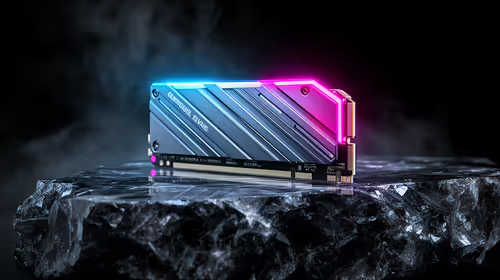
Best SSD for Gaming in South Africa - Updated July 2026
The best SSD for gaming is available at Evetech from R1,599 including VAT, with 58 drives in stock. A PCIe Gen4 NVMe drive at 500GB to 1TB is the recommended pick for most gamers.
Read moreRay-Ban Meta connects to your phone over Bluetooth for real-time audio and AI, and to Wi-Fi for offloading photos and downloading firmware, both configured in the Meta AI app. Correct Wi-Fi setup at first use prevents most sync failures.
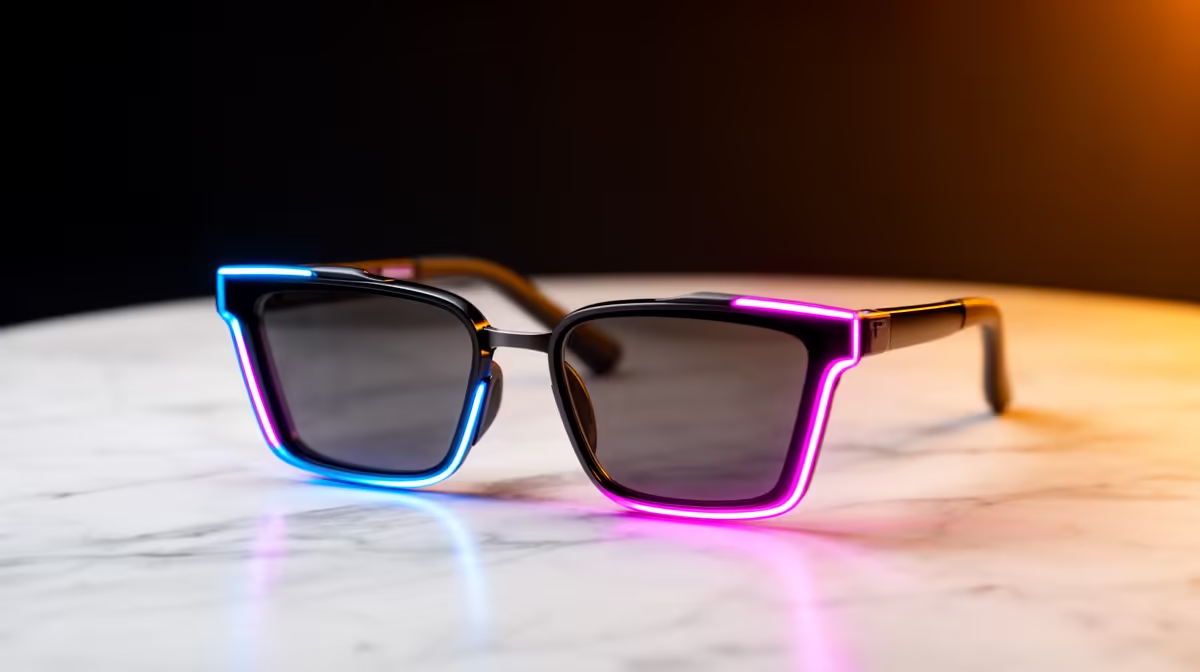
Plenty of first-time owners pull their Ray-Ban Meta out of the box, pair them over Bluetooth, and assume that is the whole job done. Then the photos refuse to sync and a firmware update stalls, because half the connectivity story was never set up. Connecting Ray-Ban Meta to Wi-Fi and your phone is a two-part process: Bluetooth handles live audio and the assistant, while Wi-Fi quietly does the heavy lifting of moving captures and installing updates. Get both right at first use and almost every common sync headache disappears.
Ray-Ban Meta uses Bluetooth to pair with your phone for calls, music and Meta AI, and Wi-Fi to offload photos and videos and to download firmware. Both are configured in the Meta AI app. Set up the Wi-Fi connection during first-time setup, not later, and the glasses will sync captures automatically whenever they sit in their charging case.
Everything routes through one app, so install it before you touch the glasses. The Meta AI app, available for both iOS and Android, is the control hub for setup, file syncing, firmware updates and assistant settings. Create or sign in to your account inside the app, grant it the Bluetooth, Wi-Fi and notification permissions it asks for, and only then start the pairing flow. Skipping permissions at this stage is the single most common reason a later step silently fails.
With the app open and ready to pair, fold both arms of the glasses and press and hold the capture button on the top of the frame for about twelve seconds. The LED on the inside of the frame starts blinking blue to confirm the glasses are discoverable. The app should then detect them and walk you through pairing. This Bluetooth link is what carries phone-call audio, music, and your spoken requests to Meta AI, so it needs to connect cleanly before anything else.
This is the step most people miss, and it is where the glasses get their real usefulness. Ray-Ban Meta uses Wi-Fi in two distinct ways, and understanding the difference saves a lot of confusion.
For everyday use, the app links the glasses to your home Wi-Fi network so larger files can move quickly. When you are actually importing captures or installing a firmware update, the app connects your phone directly to a temporary Wi-Fi network broadcast by the glasses themselves. That second, short-lived connection is normal and expected, so do not be alarmed when your phone briefly hops onto a network with the glasses' name during a sync or update.
During first-time setup, add your home network when prompted and enter the password carefully. A wrong character here is a frequent cause of captures that never appear in the app. If you live in a flat with a crowded 2.4GHz band, sitting close to the router during the first sync helps the connection settle.
Once Wi-Fi is configured, syncing is hands-off. Photos and videos transfer automatically to the Meta AI app over Wi-Fi when the glasses are in their charging case and connected. From inside the app you then export them to your camera roll or share them onward. If captures are not appearing, the usual culprits are the glasses being out of their case, Wi-Fi being switched off on the phone, or the home network password having been entered incorrectly during setup. Working through those three in order clears the vast majority of sync failures.
Firmware keeps the assistant and camera features current. The app notifies you when an update is available. To install it, place the glasses in their case with Wi-Fi enabled and leave them to complete the update. Updates can take several minutes and the glasses should stay in the case throughout, so it is worth starting one when you do not need the glasses immediately, such as overnight on charge. When you want to see which models are currently available and what each one includes, the AR and smart glasses category at Evetech has the current line-up in one place.
If pairing will not complete, switch Bluetooth off and on at the phone, confirm the glasses are charged, and retry the twelve-second button hold. If audio works but captures never sync, the fault is almost always the Wi-Fi side rather than Bluetooth, so re-check the network password in the app. If an update refuses to start, make sure the glasses are seated properly in the case and that the phone is on the same network. A spare charging cable and case-friendly accessories are easy to keep on hand, and the steadily restocked items in the accessories best sellers are a good guide to what owners replace most.
Yes, for the full experience. Bluetooth carries live audio, calls and Meta AI requests, while Wi-Fi handles fast photo and video syncing and firmware downloads. You can use audio over Bluetooth alone, but captures will not offload properly without Wi-Fi.
That is the glasses' temporary Wi-Fi network. The app uses it specifically when importing captures or installing firmware, then disconnects afterwards. It is normal behaviour, not a fault.
Confirm the glasses are in their charging case, that Wi-Fi is on at the phone, and that the home network password was entered correctly in the Meta AI app. Those three account for most sync failures.
Wait for the app to notify you, then place the glasses in their case with Wi-Fi enabled and let the update run. Keep them in the case until it finishes, which can take several minutes.
No. The app is the only control point for pairing, Wi-Fi, syncing and updates, so install it before you begin and grant the permissions it requests.
Ready to get the most out of your smart glasses or compare what is available? Browse the AR and smart glasses range at Evetech and start with connectivity set up correctly from day one.
Yes, for the full experience. Bluetooth carries live audio, calls and Meta AI requests, while Wi-Fi handles fast photo and video syncing and firmware downloads. You can use audio over Bluetooth alone, but captures will not offload properly without Wi-Fi.
That is the glasses' temporary Wi-Fi network. The app uses it specifically when importing captures or installing firmware, then disconnects afterwards. It is normal behaviour, not a fault.
Confirm the glasses are in their charging case, that Wi-Fi is on at the phone, and that the home network password was entered correctly in the Meta AI app. Those three account for most sync failures.
Wait for the app to notify you, then place the glasses in their case with Wi-Fi enabled and let the update run. Keep them in the case until it finishes, which can take several minutes.
No. The app is the only control point for pairing, Wi-Fi, syncing and updates, so install it before you begin and grant the permissions it requests.
The best SSD for gaming is available at Evetech from R1,599 including VAT, with 58 drives in stock. A PCIe Gen4 NVMe drive at 500GB to 1TB is the recommended pick for most gamers.
Read more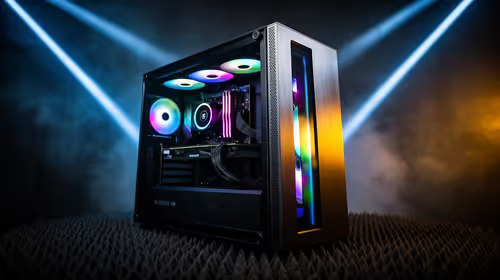
The best streaming PC range is available at Evetech from R20,684 including VAT, with 22 models in stock. Every build pairs a multi-core CPU with an NVENC or Quick Sync capable GPU, so streaming and gaming can run on one machine without stealing frame rate.
Read more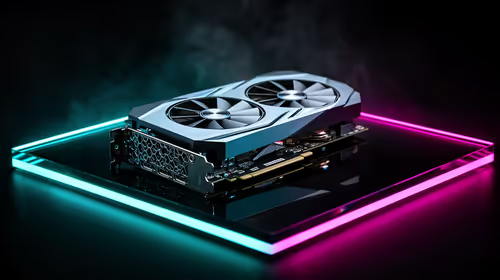
The RTX 5070 is available at Evetech from R11,899 including VAT, with 18 models in stock and most cards priced between R11,899 and R14,000. It is the current 1440p value pick in the NVIDIA 50-series.
Read more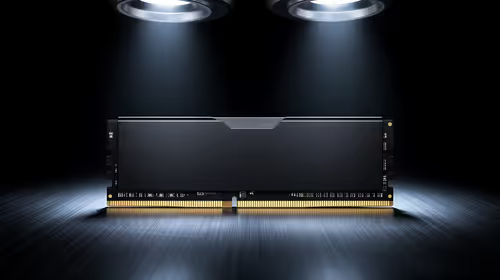
16GB DDR5 RAM is available at Evetech from R3,799 including VAT, with 22 modules in stock. It is the sensible baseline for budget and esports builds.
Read more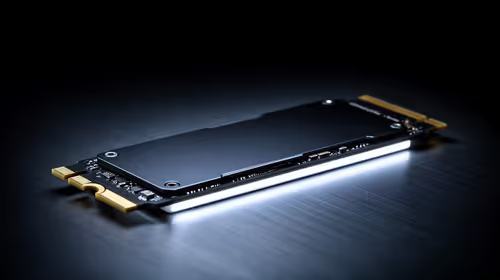
The cheapest 1TB NVMe SSD is available at Evetech from R2,599 including VAT, with 21 drives in stock. 1TB PCIe Gen4 is the current sensible default for a gaming or work PC.
Read more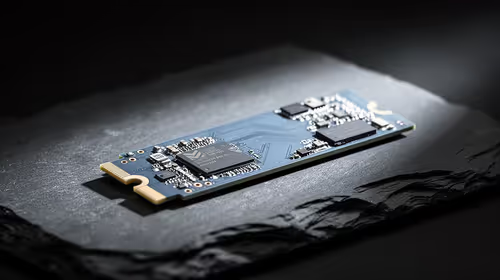
The cheapest 2TB NVMe SSD is available at Evetech from R4,999 including VAT, with 21 drives in stock. 2TB is now the comfortable capacity for a real gaming library.
Read more
Wi-Fi 7 vs Wi-Fi 6e for cinematic story games comes down to router support, latency goals, device compatibility, and coverage. SA buyers should match the choice to the real network setup.

The real world difference between PCIe 5.0 and PCIe 4.0 for MMO and live-service games is usually about loading, patches, and headroom. SA players should weigh NVMe speed, GPU lanes, CPU limits, and platform cost.
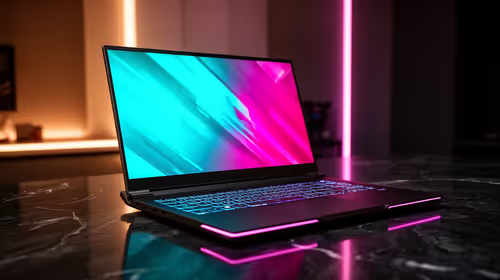
Windows 11 gaming laptop dead pixel checks begin with a full-screen colour test. This how to fix dead pixel windows 11 gaming laptop guide helps SA users compare settings, drivers, external screens, and warranty routes.
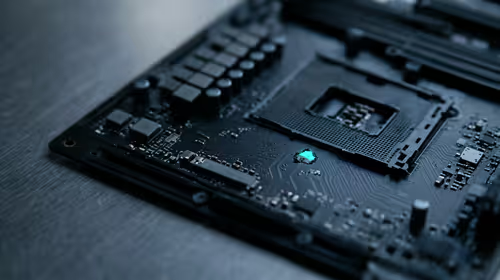
AM5 motherboard stuck pixel fixes in South Africa start with panel, cable, GPU output, and Windows checks. Use a clean test path before blaming the motherboard or replacing screen hardware.

FPS drops blamed on a wireless mouse often point to input, driver, USB, network, or system-load checks. Use a quick SA-friendly troubleshooting flow to isolate software, firmware, thermals, storage, and game settings before replacing hardware.

How to fix fps drops on steam deck starts with power profile, shader cache, storage health, and per-game settings. For South Africa, check charger quality, heat, and download stability before assuming the handheld needs repair. Retest after updates.

How to fix low FPS after an RTX 5080 build upgrade starts with driver cleanup, display settings, thermals, and power mode. For SA gamers, verify GPU usage, PCIe speed, RAM profile, and CPU limits before changing parts.
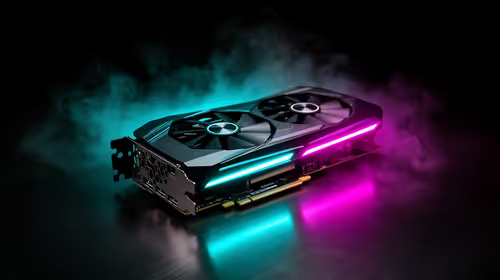
Hollow Knight Silksong at 4K needs a GPU matched to settings, VRAM, CPU balance, and monitor goals. Use this SA guide to compare tiers without treating FPS target or prices as fixed.
The best SSD for gaming is available at Evetech from R1,599 including VAT, with 58 drives in stock. A PCIe Gen4 NVMe drive at 500GB to 1TB is the recommended pick for most gamers.
The best streaming PC range is available at Evetech from R20,684 including VAT, with 22 models in stock. Every build pairs a multi-core CPU with an NVENC or Quick Sync capable GPU, so streaming and gaming can run on one machine without stealing frame rate.
The RTX 5070 is available at Evetech from R11,899 including VAT, with 18 models in stock and most cards priced between R11,899 and R14,000. It is the current 1440p value pick in the NVIDIA 50-series.
16GB DDR5 RAM is available at Evetech from R3,799 including VAT, with 22 modules in stock. It is the sensible baseline for budget and esports builds.