

Best RTX 5070 Under R25,000 in South Africa 2026
Top RTX 5070 Under R25,000 picks evaluated on performance, value & SA availability with current Rand pricing from Evetech.
Read more- Convert internal SATA hard drive to external: evaluate form factor and speed; - Choose an enclosure or adapter; - Install, test and secure the drive; - Configure fast backups 📦⚡ Convert internal SATA hard drive to external for portable high-speed backups.
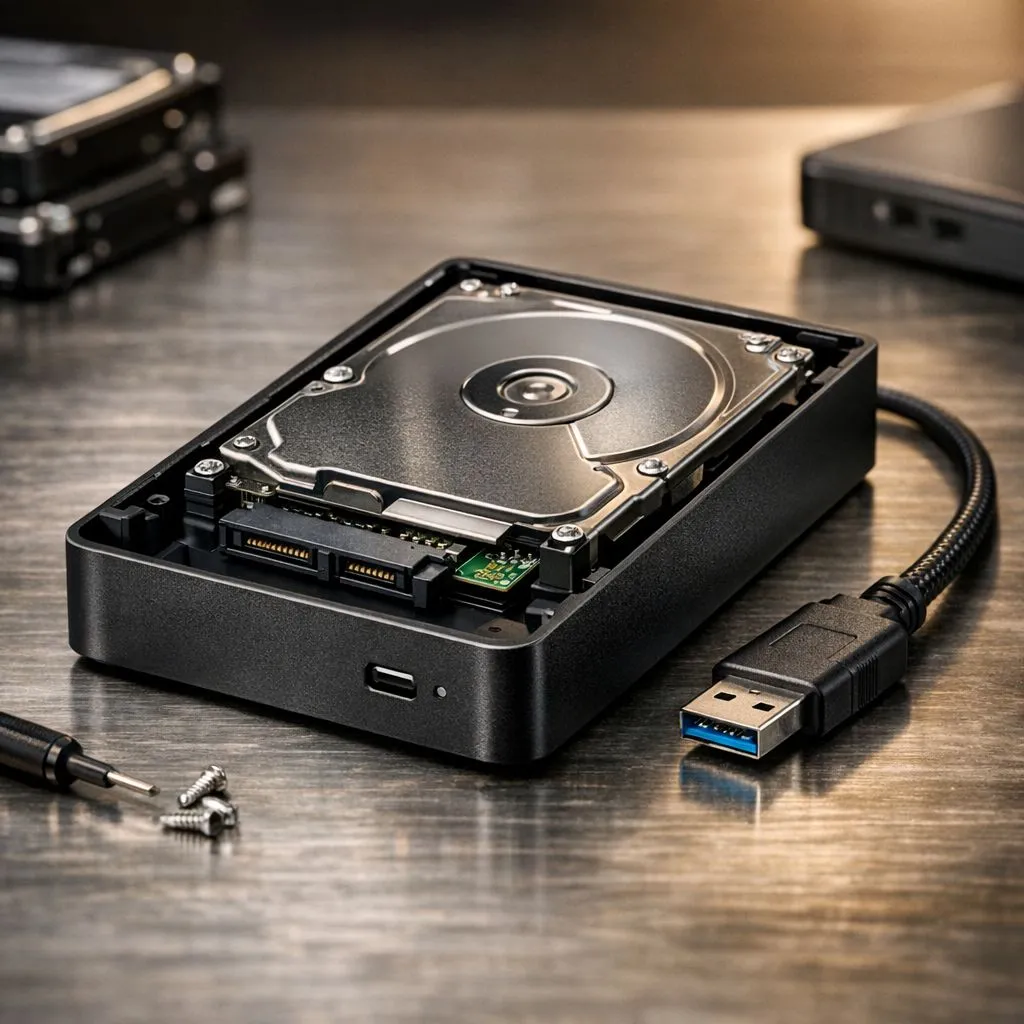
Got an old PC gathering dust under your desk in Joburg? Don't let that perfectly good storage go to waste. You can easily convert internal SATA hard drive to external storage, giving you a fast backup solution for your Steam library or work files. It is a budget-friendly way to recycle hardware without spending thousands on a brand-new drive 🔧.
Many of us have older laptops or desktops with 2.5-inch or 3.5-inch drives just sitting there. Instead of letting them rot, putting them into an enclosure turns them into portable powerhouses. Most modern solid state drives use the same SATA connection as older mechanical disks, making the process incredibly simple. Whether you are saving photos or backing up your OS, this DIY project saves you serious Rands.
The first step to convert internal SATA hard drive to external use is picking the right housing. If you are pulling a drive from a laptop, you will likely need a 2.5-inch enclosure. These are usually powered by the USB port itself. For desktop drives, which are 3.5-inch, you will need an enclosure with its own power adapter.
If you prefer a ready-made solution, looking for external form factor drives ensures maximum portability right out of the box. However, if you already have the hardware, the enclosure route is much cheaper. Reliable brands like ADATA SSDs offer great value if you decide to buy a fresh drive to put into a mobile setup ⚡.
The process is surprisingly mechanical. First, ensure your old drive is clean and free of dust. Slide it into the SATA connector inside the enclosure... you should feel a firm click. Secure any screws provided and plug it into your PC.
If the drive doesn't show up immediately, you might need to use "Disk Management" in Windows to assign it a new drive letter. This is also a good time to format it to NTFS or exFAT to ensure it works across different devices. While Western Digital drives are legendary for their longevity in these scenarios, almost any functioning SATA drive will work perfectly for secondary storage.
When formatting your newly converted drive, choose the exFAT file system if you plan on moving files between a Windows PC and a MacBook. It avoids the file-size limits of older systems and ensures your backup is accessible no matter which device you are using during a load-shedding scramble.
While converting an old drive is great for backups, it won't match the speed of modern tech. If you find your old SATA drive is too sluggish for modern gaming, checking out portable external SSDs might be a better long-term move for your setup.
For those chasing extreme speed in their main rig, upgrading to Gen 5 NVMe drives is the ultimate play 🚀. These drives offer speeds that make SATA look like a snail... but for a simple, cost-effective backup, your old internal drive is still a champion ✨.
Ready to Secure Your Data? Whether you're repurposing old gear or looking for the latest high-speed storage, we have the best deals in South Africa. Explore our massive range of SSD and storage specials and find the perfect hardware to keep your files safe and your games running fast.
Yes — use a SATA to USB enclosure or adapter that matches your drive's form factor to create a portable external backup drive.
Choose a USB-C or USB 3.1 Gen 2 SATA enclosure to maximize transfer rates and get high-speed backups.
Often yes — format to NTFS, exFAT, or APFS depending on your OS to ensure full compatibility and reliable backups.
Yes, an internal SATA SSD in a USB-C enclosure will outperform HDDs for backup tasks thanks to faster random and sequential speeds.
A SATA to USB adapter works for temporary use; an enclosure offers protection, cooling, and better portability for regular backups.
Use your OS eject/safely remove option, wait for activity to stop, and avoid unplugging during transfers to protect data.
Verify 2.5" vs 3.5" size, SATA interface version, power needs, and the enclosure's USB protocol to ensure compatibility.
Top RTX 5070 Under R25,000 picks evaluated on performance, value & SA availability with current Rand pricing from Evetech.
Read more
Core i5-14600K + B760 + RTX 5060 Build Under. Full parts list, Rand pricing & expected performance. Build confidently with SA-available components.
Read more
Top Valorant Settings for RTX 5070: FPS Optimisation picks evaluated on performance, value & SA availability with current Rand pricing from Evetech.

RDNA 3.5 Graphics in Ryzen AI 400? Can You Game. Plain-English explanation of what it means, why it matters & how it affects your buying decisions in SA.

GPU Price Index : December Report. Current stock data & price tracking for SA buyers. See what is available and where prices are heading.
RX 9070 XT Elden Ring Nightreign at 4K: FPS. Real-world benchmark data, FPS numbers & performance analysis. What SA gamers can actually expect.
Core i5-14600K + B760 + RTX 5060 Build Under. Full parts list, Rand pricing & expected performance. Build confidently with SA-available components.

RX 7600 Apex Legends at 4K: FPS Benchmark. Real-world benchmark data, FPS numbers & performance analysis. What SA gamers can actually expect.

RX 7900 XTX GTA 6 at 4K: FPS Benchmark & Optimal. Real-world benchmark data, FPS numbers & performance analysis. What SA gamers can actually expect.

Head-to-head comparison of RTX 5070 vs RX 9070 XT: Gaming Performance for SA gamers. Performance benchmarks, Rand pricing & which delivers better value.
Top RTX 5070 Under R25,000 picks evaluated on performance, value & SA availability with current Rand pricing from Evetech.
Core i5-14600K + B760 + RTX 5060 Build Under. Full parts list, Rand pricing & expected performance. Build confidently with SA-available components.
Top Monitor for RX 9070: Resolution & Refresh Rate picks evaluated on performance, value & SA availability with current Rand pricing from Evetech.
Valorant Settings on RX 9060 XT: Performance. Real-world benchmark data, FPS numbers & performance analysis. What SA gamers can actually expect.