

Best Intel Keyboard Under R3000 in SA 2026
Top Intel Keyboard Under R3000 picks evaluated on performance, value & SA availability with current Rand pricing from Evetech.
Read moreMaster your Corsair FRAME 4500X cable management with our expert tips. Achieve a showroom-ready look 🖥️, improve airflow, and tidy up that RGB wiring spaghetti 🔌. Learn how to route cables efficiently for a professional finish.
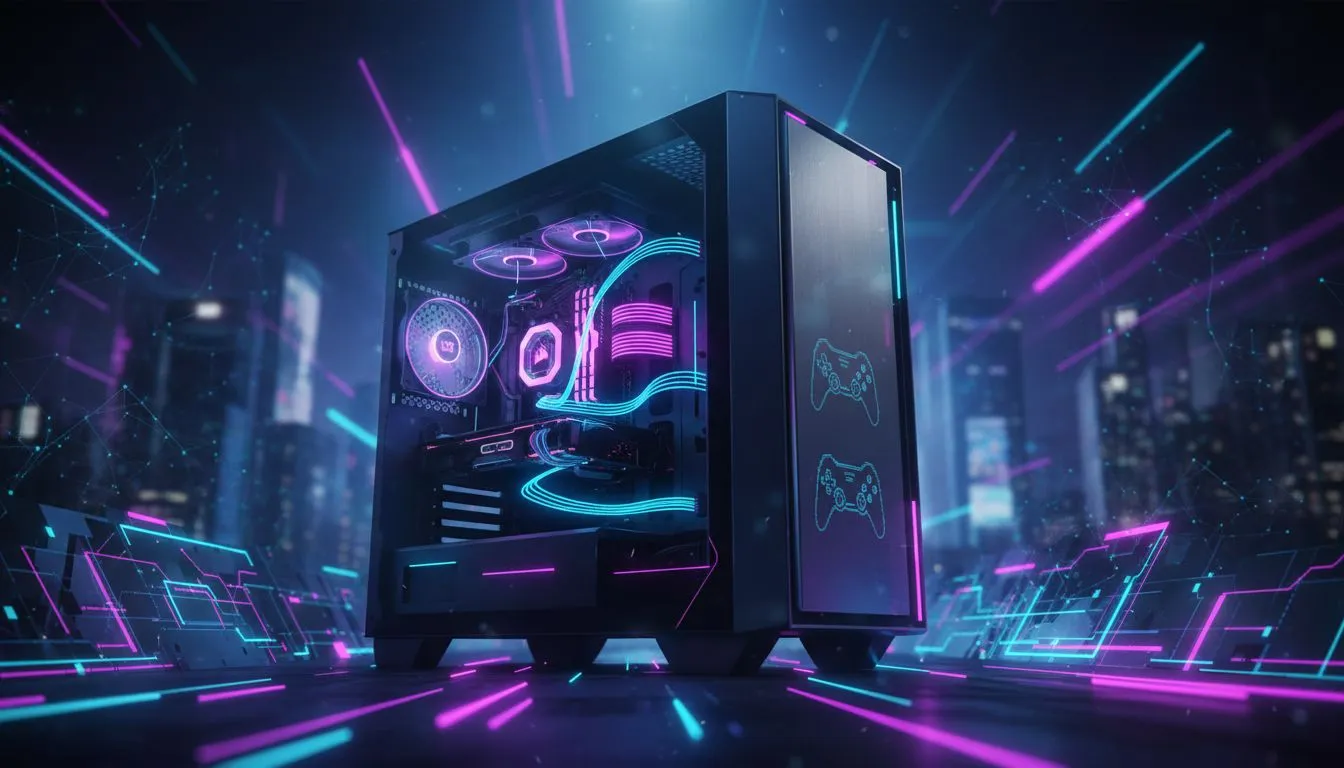
So, you’ve got your hands on the stunning Corsair iCUE LINK 4500X RGB PC Case. Brilliant choice! It’s a showcase chassis designed to make your high-end components look epic. But let's be honest, nothing ruins a beautiful glass-panel view faster than a chaotic nest of cables. This guide is your new best friend, offering a straightforward approach to Corsair FRAME 4500X cable management for a build so clean, it’ll look professionally done.
Before you plug in a single cable, take a moment to appreciate the genius of the 4500X’s dual-chamber design. This isn't just for looks; it's the foundation of incredible cable management. The main chamber is for your show-off hardware—motherboard, GPU, and cooling. The second, hidden chamber is where the magic happens. It houses your PSU and drives, and more importantly, provides ample space to route and hide every single wire.
This separation is key to a stress-free experience. Familiarise yourself with the rubber grommets and routing cutouts. These are the pathways from the back chamber to your components. Planning which cables go where is the first step to achieving that flawless look. You can see all the technical details and layout options on the official Corsair iCUE LINK 4500X RGB page.
This is where your Corsair FRAME 4500X cable management journey truly begins. The goal here is function over form, as it will be hidden. Group cables that are heading in the same direction. Start with the thickest ones first, like the 24-pin motherboard power cable.
Both work, but for a build you might upgrade later, reusable velcro straps are fantastic. They let you easily add or remove components without snipping old ties and starting over. For permanent, ultra-tight bundles in hidden areas, nothing beats a classic zip tie. Use what works for you!
With the back sorted, the front chamber should feel incredibly spacious. This is where precision matters. Connect your main power cables (CPU and 24-pin) to the motherboard. For your graphics card, route the PCIe power cables through the grommet directly below or beside the GPU for the shortest, cleanest path.
The Corsair iCUE LINK ecosystem, which this case is built for, simplifies things even further by daisy-chaining fans and components, drastically reducing the number of cables you need to manage. When you're picking out your parts, pairing this case with other iCUE LINK gear is a massive advantage. It's always a good idea to see how these parts work with the latest PC components to ensure maximum compatibility and aesthetic flow.
A clean, powerful PC is the heart of any great setup, but a truly optimised workspace often extends beyond the tower. Once your desktop masterpiece is complete, you might find you need a powerful portable machine for when you're on the go. Syncing your digital life between a beastly desktop and a sleek laptop creates a seamless workflow. You can often find some of South Africa's best laptop deals that complement a high-end desktop without breaking the bank. It's worth checking out the latest laptop new arrivals or even exploring our current laptop specials to round out your tech arsenal.
Ready to Build Your Masterpiece? A clean setup starts with the right case and components. With this Corsair FRAME 4500X cable management guide, you're ready to build a PC that performs as good as it looks. Explore our massive range of new arrival components and find everything you need to conquer your cable chaos.
Use the dedicated routing channels and velcro straps behind the motherboard tray to bundle cables tightly, keeping the main chamber clean.
Yes, tidying up wires in your Corsair FRAME 4500X improves airflow, helping fans cool components more efficiently during heavy loads.
You need zip ties, velcro straps, and flush cutters. Custom sleeved cables can also enhance the look of your Corsair build.
Route PCIe cables through the bottom grommet or side cutouts of the 4500X to minimize slack and avoid blocking GPU fans.
Tuck unused lengths into the PSU shroud basement of the Corsair FRAME 4500X, ensuring they do not block the power supply fan.
Absolutely. The Corsair FRAME 4500X offers ample space behind the tray to accommodate the extra length of sleeved cable extensions.
Top Intel Keyboard Under R3000 picks evaluated on performance, value & SA availability with current Rand pricing from Evetech.
Read more
Top Budget Hall Effect Keyboards Under R2,000 picks evaluated on performance, value & SA availability with current Rand pricing from Evetech.
Read more
Top Nvidia Keyboard Under R5000 picks evaluated on performance, value & SA availability with current Rand pricing from Evetech.
Read more
Top ASUS Keyboard Under R3000 picks evaluated on performance, value & SA availability with current Rand pricing from Evetech.
Read more
Top Wireless Keyboard Under R3000 picks evaluated on performance, value & SA availability with current Rand pricing from Evetech.
Read more
Top Samsung Keyboard Under R5000 picks evaluated on performance, value & SA availability with current Rand pricing from Evetech.
Read more
Snapdragon X2 NPU Explained: How 80 TOPS Changes. Plain-English explanation of what it means, why it matters & how it affects your buying decisions in SA.

HBM? High Bandwidth Memory Used in GPUs and AI. Plain-English explanation of what it means, why it matters & how it affects your buying decisions in SA.

How much should you spend on sim racing accessories in South Africa for a realistic setup? We break down budgets by quality tiers, so you buy smart gear and avoid overspending 🎮💸

G-Sync and FreeSync? Variable Refresh Rate. Plain-English explanation of what it means, why it matters & how it affects your buying decisions in SA.

AMD Laptop: Value. SA-focused analysis with local pricing data, real-world insights & actionable buying advice.

How MacBook Neo Handles 30+ Chrome Tabs with Only. SA-focused analysis with local pricing data, real-world insights & actionable buying advice.

Why Apple Put 8GB RAM in MacBook Neo: The A18 Pro. SA-focused analysis with local pricing data, real-world insights & actionable buying advice.

Upgrade your work laptop with a New Motherboard. Step-by-step instructions with SA-specific tips, common pitfalls to avoid & expert recommendations.

MacBook Pro 16-Inch M5 Max: Complete Specs,. Everything you need to know with SA pricing, step-by-step instructions & expert recommendations.

Travelling With a MacBook: Travellers. Everything you need to know with SA pricing, step-by-step instructions & expert recommendations.

Back-to-School Parent Guide: Laptops. Everything you need to know with SA pricing, step-by-step instructions & expert recommendations.

MacBook Air 13-Inch M5: Complete Specs, Features. Everything you need to know with SA pricing, step-by-step instructions & expert recommendations.