

Best RTX 5090 Under R12000 in South Africa 2026
Top RTX 5090 Under R12000 picks evaluated on performance, value & SA availability with current Rand pricing from Evetech.
Read moreMaster DDR5 memory overclocking to unlock peak performance for your AMD B850 build. Follow our expert guide to safely increase RAM speeds, tighten timings, and gain a competitive edge in your favorite games. 🚀 Unlock your PC's true potential today! ⚡
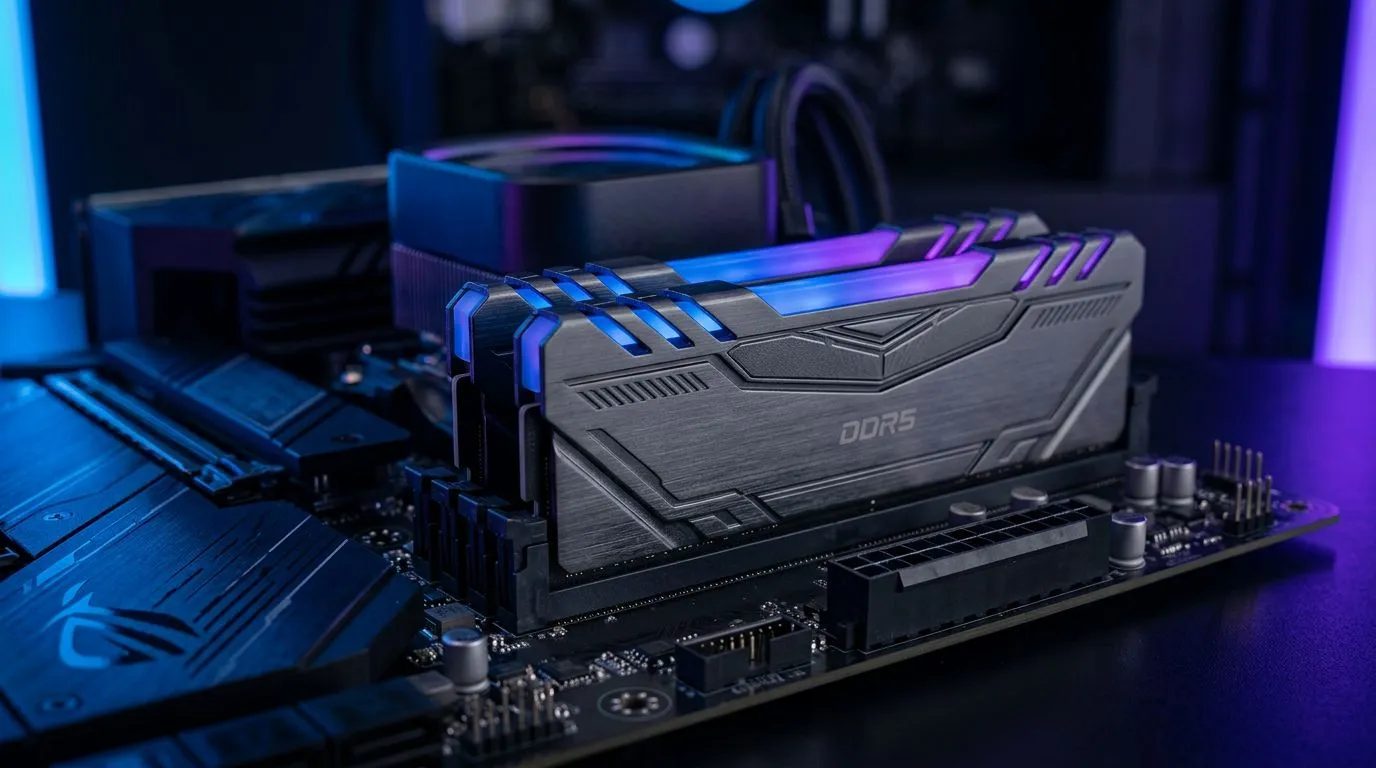
If your AMD B850 build feels “almost” right… it’s usually not the GPU. It’s often memory speed. DDR5 tuning can help you squeeze steadier frame pacing, quicker shader compilation, and faster game load times… especially in memory-sensitive titles.
In South Africa, where every rand counts, overclocking is the cleanest upgrade path when you’re not ready for a full platform change. Let’s get your DDR5 stable and fast, without turning your PC into a science experiment 🔧.
DDR5 overclocking usually targets a few things:
A common mistake? Chasing the highest number first. Instead, treat tuning like tuning a car:
Reality check: stability matters more than benchmarks. In games, a “fast but unstable” system shows up as stutters, crashes, or corrupted installs.
On your AMD system, start with EXPO (or your kit’s rated profile) and then only change one variable at a time. Run a stability test after each change. This keeps troubleshooting simple and prevents you from guessing what caused an instability.
Here’s a practical order of operations that works for most DDR5 kits on modern AMD boards.
Before changing any memory settings:
If you’re building on an AMD motherboard, you’ll find a lot of useful board options and configurations in our AMD motherboards range: AMD motherboards for your build
Go into BIOS and:
At this point you’re not “overclocking”, you’re using what the kit is already validated for. It’s the safest place to start.
Use a two-stage approach:
If you notice random crashes or even a single game database error, back down one step and retest.
Once your kit boots reliably with EXPO:
If you can’t get stable after one change, reset to EXPO defaults and repeat with smaller steps. Think “small wins”, not “all at once”.
Voltage can help DDR5 run stable at higher clocks, but it can also create extra heat and stress.
If your board is high quality and well-cooled, you’ll have a better tuning experience overall.
Memory overclocking behaviour depends on both the CPU’s IMC and the motherboard’s memory topology.
If you’re comparing platforms or already have an Intel part lying around, you may want to understand the difference in motherboard ecosystem too: Intel motherboards
But if your goal is purely to maximise what you built on AMD, your board choice still matters. For buyers trying to balance performance with affordability, you may also like our guidance on cost-effective options: Cheap Intel & AMD-based motherboards
This often points to instability from timings or voltage changes.
That mismatch can happen. Memory errors might show up differently depending on workload.
There’s a point of diminishing returns. If you’re fighting instability after multiple careful attempts, it might be easier to:
It’s not “giving up”. It’s choosing reliability.
If you want a DDR5 tuning path that matches your exact hardware, start by choosing the right motherboard first. Then we can help you pair it with memory that behaves well at rated speeds... and pushes further when it’s worth it.
Ready to Find Your Perfect Match? The Mac vs Windows debate is complex, but for maximum power, choice, and value in South Africa, Windows is hard to beat. Explore our massive range of laptop specials and find the perfect machine to conquer your world.
Yes, when done incrementally using BIOS tools like AMD EXPO, DDR5 memory overclocking is safe. Always monitor temperatures and run stability tests after changes.
The most effective method is enabling AMD EXPO profiles in the BIOS, which automatically optimizes DDR5 memory overclocking settings for your specific RAM kit.
Yes, reducing latency through tighter RAM timings can significantly improve minimum frame rates and overall system responsiveness during intensive gaming.
Use software like MemTest86 or TestMem5 to verify that your DDR5 memory overclocking settings are error-free during heavy system workloads.
While most modern motherboards allow it, extreme voltages can cause damage. Stick to XMP/EXPO profiles to maintain stability and prevent hardware issues.
Most B850 boards support DDR5 memory overclocking, though higher-end models often provide better power delivery for reaching higher stable frequencies.
Top RTX 5090 Under R12000 picks evaluated on performance, value & SA availability with current Rand pricing from Evetech.
Read more
When Will the RTX 6090 Launch in South Africa Detailed answer with SA data, expert analysis & practical recommendations for local buyers.

Top Valorant Settings for RTX 5070: FPS Optimisation picks evaluated on performance, value & SA availability with current Rand pricing from Evetech.

RDNA 3.5 Graphics in Ryzen AI 400? Can You Game. Plain-English explanation of what it means, why it matters & how it affects your buying decisions in SA.

GPU Price Index : December Report. Current stock data & price tracking for SA buyers. See what is available and where prices are heading.

Core i5-14600K + B760 + RTX 5060 Build Under. Full parts list, Rand pricing & expected performance. Build confidently with SA-available components.

RX 7600 Apex Legends at 4K: FPS Benchmark. Real-world benchmark data, FPS numbers & performance analysis. What SA gamers can actually expect.

RX 7900 XTX GTA 6 at 4K: FPS Benchmark & Optimal. Real-world benchmark data, FPS numbers & performance analysis. What SA gamers can actually expect.

Head-to-head comparison of RTX 5070 vs RX 9070 XT: Gaming Performance for SA gamers. Performance benchmarks, Rand pricing & which delivers better value.
GPU Setup Guide Gamers. Clear setup instructions with SA-specific considerations, troubleshooting tips & recommended components.
Top RTX 5090 Under R12000 picks evaluated on performance, value & SA availability with current Rand pricing from Evetech.
Call of Duty Warzone 2 Settings on RX 7600. Real-world benchmark data, FPS numbers & performance analysis. What SA gamers can actually expect.
GTA 6 Settings on RTX 5070 Ti: Performance. Real-world benchmark data, FPS numbers & performance analysis. What SA gamers can actually expect.