

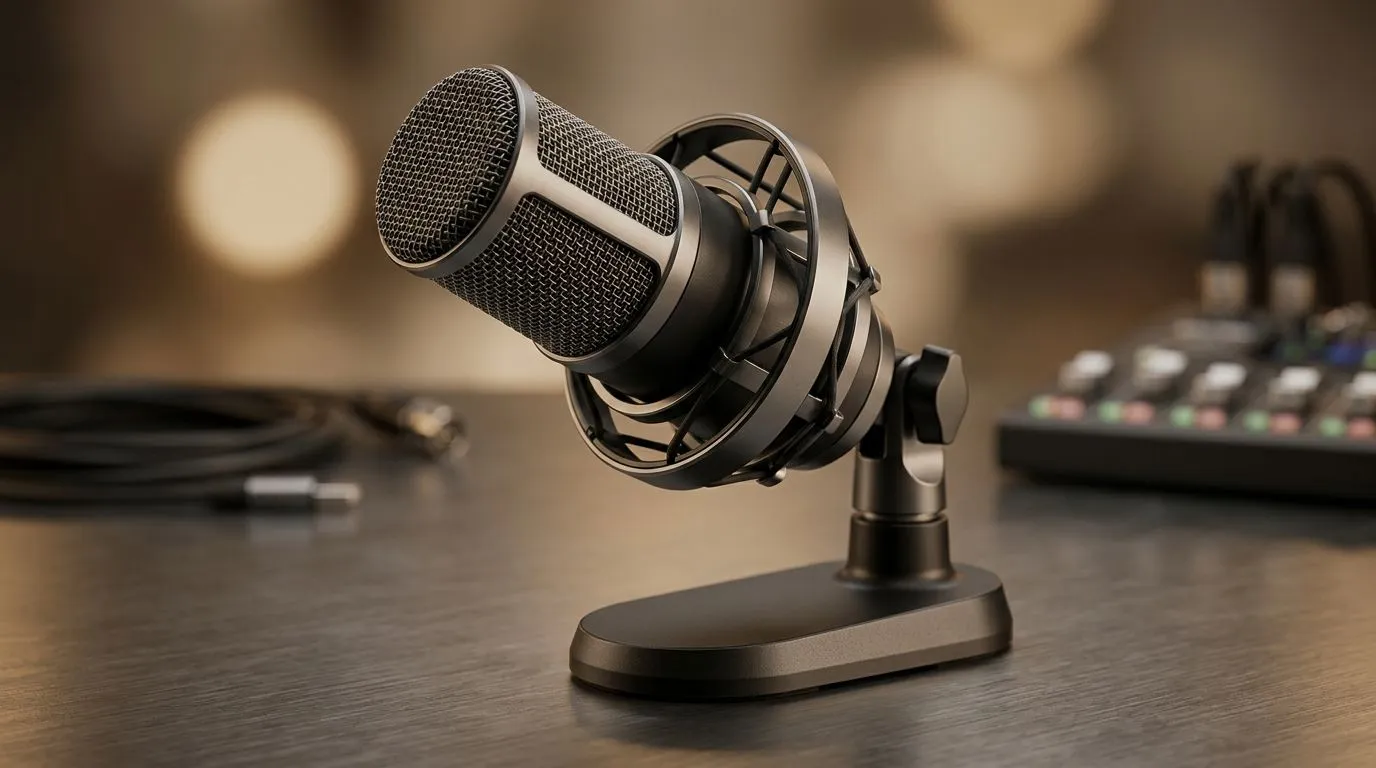
Desk Setup Tips for Tilt-Adjustable USB Microphones
South African gamers know the struggle. Your mic sounds sharp in one session, then picks up keyboard clacks, desk bumps, and Cape Town wind through an open window the next. A tilt-adjustable USB microphone can fix a lot of that... if your desk setup works with it, not against it. Get the angle right, and you get cleaner voice pickup, less strain, and a setup that looks as good as it sounds 🔧
Desk Setup Tips for Tilt-Adjustable USB Microphones That Improve Voice Clarity
A tilt-adjustable USB microphone is all about positioning. The goal is simple... keep the mic close enough for clear voice capture, but angled away from noise sources. That means your keyboard, mouse, speakers, and even the edge of the desk matter more than you think.
Start with the microphone height
Place the mic so the capsule sits just below mouth level, or level with your mouth when tilted upward. This helps reduce harsh plosives and keeps your voice natural. If you speak directly into the front of the mic, your breath can cause pops and distortion.
Keep the desk surface clean
A cluttered desk causes more than visual noise. It makes cable routing messy and encourages the mic to sit in the wrong spot. Leave space for the stand, a pop filter if you use one, and enough room so your forearms don’t knock the base during intense matches.
Reduce vibration at the source
If your desk is hollow or springy, every tap can travel into the mic stand. Use a solid mat or a small isolation pad under the base. It’s a small fix, but it helps a lot during late-night gaming or streaming sessions.
If your microphone sits too close to your keyboard, try moving it slightly off-axis rather than farther away. A small angle adjustment often reduces key noise without making your voice sound thin.
Desk Setup Tips for Tilt-Adjustable USB Microphones With Better Cable Management
Cable mess is one of the fastest ways to wreck a clean streaming desk. USB microphones are convenient, but the cable still needs planning. Route it behind the monitor arm or along the back edge of the desk. If the cable hangs loose, it can tug the mic and shift the tilt over time.
For readers building out a full content or gaming station, Evetech’s streaming essentials category is a useful place to start. If you’re already invested in a more premium creator look, the CORSAIR streaming essentials range offers matched gear that suits a more polished desk aesthetic. And if you want to add RGB ambience around the mic area, the Cololight streaming options can help frame your setup without overpowering it ✨
Avoid sharp cable bends
USB cables don’t like being crushed behind heavy monitors or bent tightly at the port. Give the connector some breathing room. It protects the cable and makes it easier to unplug when you need to move the mic.
Use strain relief where possible
A simple adhesive clip can stop the cable from pulling on the microphone body. That matters on tilt-adjustable models because repeated tugs can slowly change your preferred angle.
Desk Setup Tips for Tilt-Adjustable USB Microphones and Monitor Positioning
Your mic and monitor should work together. If your screen is too low, you’ll hunch forward. That pushes your face away from the mic and can make your voice sound uneven. If the monitor is too high, you may raise your shoulders and fatigue faster during long sessions.
Set the monitor so your eyes meet the top third of the screen. Then angle the mic toward your mouth without blocking your view. If you stream, leave enough space for a webcam above or beside the display. Evetech’s webcams selection is handy if you want a tighter camera framing without crowding the mic area.
Think in layers
Top layer: webcam or monitor edge.
Middle layer: microphone.
Base layer: keyboard and mouse.
That layered approach keeps the mic useful, visible, and out of the way during play.
Desk Setup Tips for Tilt-Adjustable USB Microphones for South African Gaming Rooms
Not every South African setup is a dedicated studio. Some are in shared rooms, small flats, or bedrooms that double as offices. That’s normal. The trick is to make the mic work in your real environment.
If your room gets noisy, point the back of the mic toward the main sound source. If your PC fans are loud, keep the microphone away from the tower. If you game late at night, soft furnishings like curtains and rugs can reduce room echo naturally. You don’t need a full acoustic treatment to get better results... just smart placement.
Test before you lock it in
Record a short voice note. Click the mouse. Tap the keyboard. Speak at your normal volume. Then adjust the tilt and distance until the sound is balanced. This takes two minutes and saves hours of frustration later.
Desk Setup Tips for Tilt-Adjustable USB Microphones That Feel Better Every Day
The best setup is the one you don’t have to fight. When the mic is positioned well, you stop thinking about it and start focusing on the game, the stream, or the work in front of you. That’s the real benefit here... less fiddling, more flow 🚀
If you’re upgrading your desk one piece at a time, start with the microphone position, then work outward. Small changes to angle, cable routing, and screen placement can make an everyday desk feel far more professional.
Ready to Find Your Perfect Match? The Mac vs Windows debate is complex, but for maximum power, choice, and value in South Africa, Windows is hard to beat. Explore our massive range of laptop specials and find the perfect machine to conquer your world.











