

Should You Buy a 240Hz monitor or Build a PC in South Africa?
Should You Buy a 240Hz monitor or Build a PC. Full parts list, Rand pricing & expected performance. Build confidently with SA-available components.
Read more- Check power & BIOS - Reseat GPU & cables - Update drivers & test Discrete GPU boot issues: quick, actionable steps to diagnose no-POST, black screen, or detection errors and restore your PC fast 🔧⚡
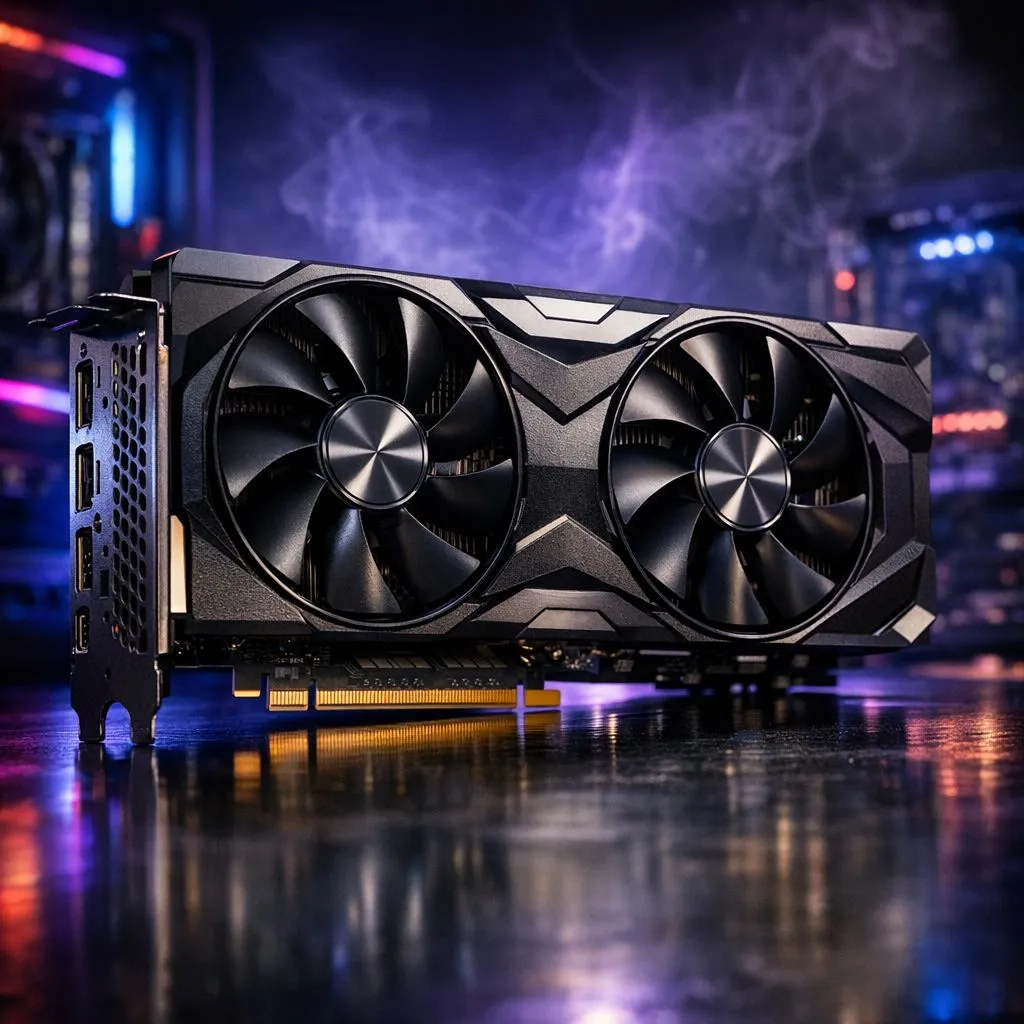
You have just finished assembling your dream gaming rig, but there is a problem. You hit the power button, the fans spin up, but your monitor remains pitch black. It is a classic South African gamer’s nightmare. Discrete GPU boot issues can turn a weekend of fragging into a tech support headache. Don't panic just yet... we are going to walk through how to fix these common graphics card hurdles 🔧.
Before diving into complex software fixes, start with the basics. Ensure your graphics card is seated firmly in the primary PCIe slot. Sometimes, a slight sag or a loose latch prevents a proper connection. Verify that the PCIe power cables from your PSU are plugged in tightly.
If you are buying a high-performance Intel CPU for your build, remember that "F-series" models do not have integrated graphics. This means if your discrete GPU has a handshake issue, you will not get any display output at all. Always double-check that your HDMI or DisplayPort cable is plugged into the GPU... not the motherboard.
Sometimes the motherboard is looking in the wrong place for video signals. Enter your BIOS using your old card or integrated graphics if available. Ensure the primary display output is set to "PCIe" or "PEG" rather than "Internal".
When browsing the latest AMD CPU options, ensure your motherboard BIOS is updated to the latest version. Older BIOS versions might not recognise newer discrete GPUs or might have stability issues with PCIe 4.0 or 5.0 lanes. A quick flash can often solve mysterious "no signal" errors ⚡.
If your PC refuses to post after installing a new GPU, try clearing the CMOS. Remove the silver coin-shaped battery from the motherboard for 30 seconds while the power is off. This resets the BIOS to factory defaults, often forcing the motherboard to re-detect all connected hardware from scratch.
Modern GPUs are power-hungry beasts. If you have recently upgraded to one of the powerhouse 14-core Intel processors, your total system draw might be pushing your power supply to the limit. If the GPU does not receive enough "clean" power during the boot sequence, it may fail to initialise.
Similarly, if you are running an AMD Ryzen 7 series processor with multiple M.2 NVMe drives, check your motherboard manual. Some boards share bandwidth between the GPU slot and storage slots. Populating too many drives can sometimes cause the GPU to drop to lower lane speeds or fail to boot entirely... especially on budget-friendly chipsets.
If you manage to get into Windows using a secondary output, use Display Driver Uninstaller (DDU). This tool wipes every trace of old drivers that might be conflicting with your new hardware. Install the latest drivers directly from the manufacturer's website to ensure maximum stability 🚀.
Ready to Upgrade Your Visual Experience? Troubleshooting can be tough, but the right hardware makes all the difference. For the best deals on components and expert advice in South Africa, we have you covered. Explore our massive range of GPU and PC component specials and build a rig that boots perfectly every time.
Often due to insufficient PSU power, missing PCIe cables, or BIOS conflicts. Check power connections, reseat the GPU, and enable PCIe as primary display.
Black screens can come from driver conflicts, wrong output, faulty card, or BIOS issues. Try other ports, safe mode drivers, and reseat the GPU.
Enter BIOS/UEFI to view PCIe devices, check POST codes, or enable 'PCIe first'. You can also test the card in another system.
Yes. BIOS updates add GPU compatibility and fix detection bugs. Back up settings and follow your motherboard guide when flashing.
Yes. Swap PCIe slots and test the GPU on another PC to isolate whether the card or motherboard is at fault.
Absolutely. Insufficient wattage or faulty 6/8-pin PCIe connectors can prevent boot. Verify PSU specs and try a known-good unit.
Boot to safe mode, use DDU to uninstall drivers, then reinstall the latest drivers. This often resolves 'gpu not detected at boot' errors.
Should You Buy a 240Hz monitor or Build a PC. Full parts list, Rand pricing & expected performance. Build confidently with SA-available components.
Read more
Should You Buy a VA monitor or Build a PC. Full parts list, Rand pricing & expected performance. Build confidently with SA-available components.
Read more
Every spec on PCIe 5.0 explained in plain English. What matters for gaming and creator work in 2026, what's marketing fluff, and how each number translates to real-world performance.

A head-to-head look at WiFi 7: real-world performance, ZAR pricing and which option delivers better value for SA builders. The clear answer — no fluff.

Everything you need to set up and tune PCIe 5.0 properly: the prep work, the settings that actually matter, and the mistakes to skip. Written for SA builders in 2026.

Everything you need to set up and tune X870E Motherboard properly: the prep work, the settings that actually matter, and the mistakes to skip. Written for SA builders in 2026.

Wondering what a 512GB SSD capacity really holds? This guide breaks down how many games, photos, and documents fit on 512GB, with real-world ranges 📦💾

Every spec on vrm explained in plain English. What matters for gaming and creator work in 2026, what's marketing fluff, and how each number translates to real-world performance.

Every spec on motherboard explained in plain English. What matters for gaming and creator work in 2026, what's marketing fluff, and how each number translates to real-world performance.

Premium vs Midrange Motherboards in South Africa: real-world performance, SA pricing, power draw and which one delivers better value for your build for SA buyers. The clear answer — without the fluff.
Wondering what a 512GB SSD capacity really holds? This guide breaks down how many games, photos, and documents fit on 512GB, with real-world ranges 📦💾
Every spec on PCIe 5.0 explained in plain English. What matters for gaming and creator work in 2026, what's marketing fluff, and how each number translates to real-world performance.
A head-to-head look at WiFi 7: real-world performance, ZAR pricing and which option delivers better value for SA builders. The clear answer — no fluff.

Every spec on USB4 explained in plain English. What matters for gaming and creator work in 2026, what's marketing fluff, and how each number translates to real-world performance.