

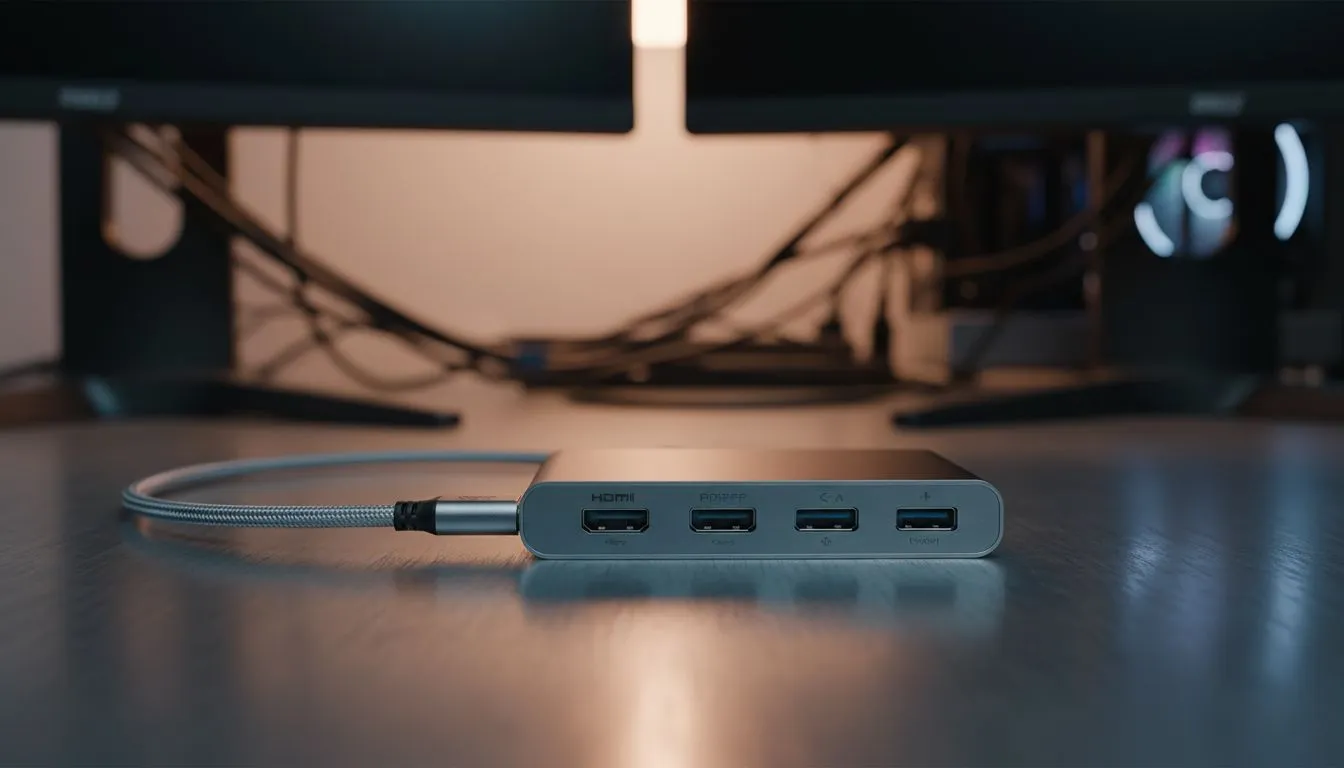
Unleash Your Workspace: Dual Displays from One USB-C Port (Windows & Mac Guide)
Ever feel cramped on a single screen while gaming, working, or creating? For South African tech enthusiasts and busy professionals, juggling multiple apps on one display can be a real productivity killer. What if we told you that unlocking a powerful dual monitor setup could be as simple as plugging in a single USB-C cable? Forget the cable spaghetti and complicated setups; we're diving deep into how to achieve a seamless dual display setup from one USB-C port for both Windows and Mac users. Get ready to transform your desktop! 🚀
The Magic Behind One Cable: USB-C and DisplayPort Alt Mode
The secret sauce to getting dual displays from a single USB-C port lies in a clever technology called DisplayPort Alternate Mode (Alt Mode). Essentially, your USB-C port isn't just for data and power anymore; it can also transmit video signals directly. When paired with the right docking station or adapter, this allows your laptop to output to two external monitors using just one connection. It's truly a game-changer for decluttering your desk and boosting your workflow.
Why Go Dual? The Productivity & Gaming Boost You Deserve
Think about it:
- For Gamers: Keep your Discord chat or game guide open on one screen while your epic adventure unfolds on the other.
- For Creatives: Edit video timelines on your main monitor, with preview windows and asset folders neatly arranged on a secondary display.
- For Professionals: Have your primary work application on one screen and emails, spreadsheets, or research documents on the other. No more constant alt-tabbing!
The efficiency gains are undeniable, making a USB-C dual display setup an essential upgrade for anyone serious about their digital life.
Setting Up Dual Displays on Windows via USB-C
Windows offers robust support for multiple monitors. Here’s a quick guide:
- Connect Your Hardware: Plug your USB-C docking station or adapter into your laptop's USB-C port. Then, connect your two monitors to the docking station using HDMI, DisplayPort, or DVI cables as required.
- Power On: Ensure all monitors are powered on.
- Item
- Optimise Refresh Rates: For gamers, ensure your monitors are running at their optimal refresh rates in the "Advanced display settings."
Productivity Pro Tip ⚡
On Windows, use the PowerToys FancyZones utility to create custom snap layouts for your windows. It's a lifesaver for managing multiple apps on an ultrawide monitor, letting you organise your timeline, preview window, and asset folders perfectly for video editing.
Mastering Dual Monitors on Mac via USB-C
Mac users, especially those with Apple Silicon (M1, M2) chips, have some specific considerations, but achieving a dual display setup from one USB-C port is still very achievable.
- Hardware Connection: Similar to Windows, connect your USB-C docking station to your Mac, then attach your monitors to the dock.
- Item
- Apple Silicon Note: Early M1 MacBooks (Air, 13-inch Pro, Mac mini) natively support only one external display. To get dual displays from a single USB-C port on these models, you'll need a DisplayLink-compatible docking station. Newer M1 Pro/Max/Ultra and M2 Pro/Max/Ultra chips offer much broader native multi-display support. Always check your specific Mac model's specifications.
Choosing the Right Hardware: Docking Stations vs. Adapters
To successfully connect two monitors via USB-C, you'll likely need a dedicated docking station or a multi-port adapter.
- USB-C Docking Stations: These are the ultimate solution. They connect to your laptop with a single USB-C cable and provide a plethora of ports: multiple video outputs (HDMI, DisplayPort), USB-A ports for peripherals, Ethernet, SD card readers, and often Power Delivery (PD) to charge your laptop simultaneously. For serious setups, exploring our range of Evetech docking stations under R2000 offers excellent value and capability.
- USB-C Multi-port Adapters: More compact and portable, these typically offer fewer ports but can still manage dual video outputs. They're great for on-the-go professionals. If you're on a tighter budget but still need that dual-screen magic, check out our docking stations and adapters under R1000.
When choosing, consider:
- Video Outputs: Ensure the dock has the right ports (HDMI, DisplayPort) for your monitors.
- Power Delivery (PD): Does it charge your laptop? This eliminates another cable.
- Additional Ports: Do you need extra USB ports, Ethernet, or card readers?
- Compatibility: Verify it supports your laptop's USB-C version and operating system.
Evetech stocks a wide array of solutions, including popular and reliable brands like Promate docking stations, known for their robust build and versatile connectivity options. You can find a comprehensive selection of docking stations and adapters to suit any need and budget.
Troubleshooting Common Dual Display Hiccups
Even with the best gear, sometimes things don't go perfectly. Here are quick fixes for typical issues:
- Item
- Item
- Item
Elevate Your Setup Today!
Achieving dual displays from one USB-C port is a transformative upgrade for any setup, whether you're battling foes in Helldivers 2 or crunching numbers for a presentation. It streamlines your desk, boosts your productivity, and offers a far more immersive computing experience. With the right USB-C dual display setup, your only regret will be not doing it sooner! ✨
Ready to Power Up Your Productivity? Don't let a single screen limit your potential. Upgrade your workspace with the perfect solution to achieve dual displays from one USB-C port. Explore Evetech's massive range of docking stations and adapters today and find the ideal hub to connect your world.











