

Breathing New Life Into Your Legacy Displays
We have all been there. You have upgraded your primary rig, but that old, reliable monitor is gathering dust in the garage. While modern setups lean heavily on DisplayPort or HDMI, many of us still have perfectly functional VGA screens sitting in storage. Setting up a dual monitor workstation using HDMI to VGA is a cost-effective way to boost your screen real estate without breaking the bank. It is the perfect weekend project for any South African tech enthusiast looking to maximise productivity on a budget. 🔧
Understanding the Signal Conversion Challenge
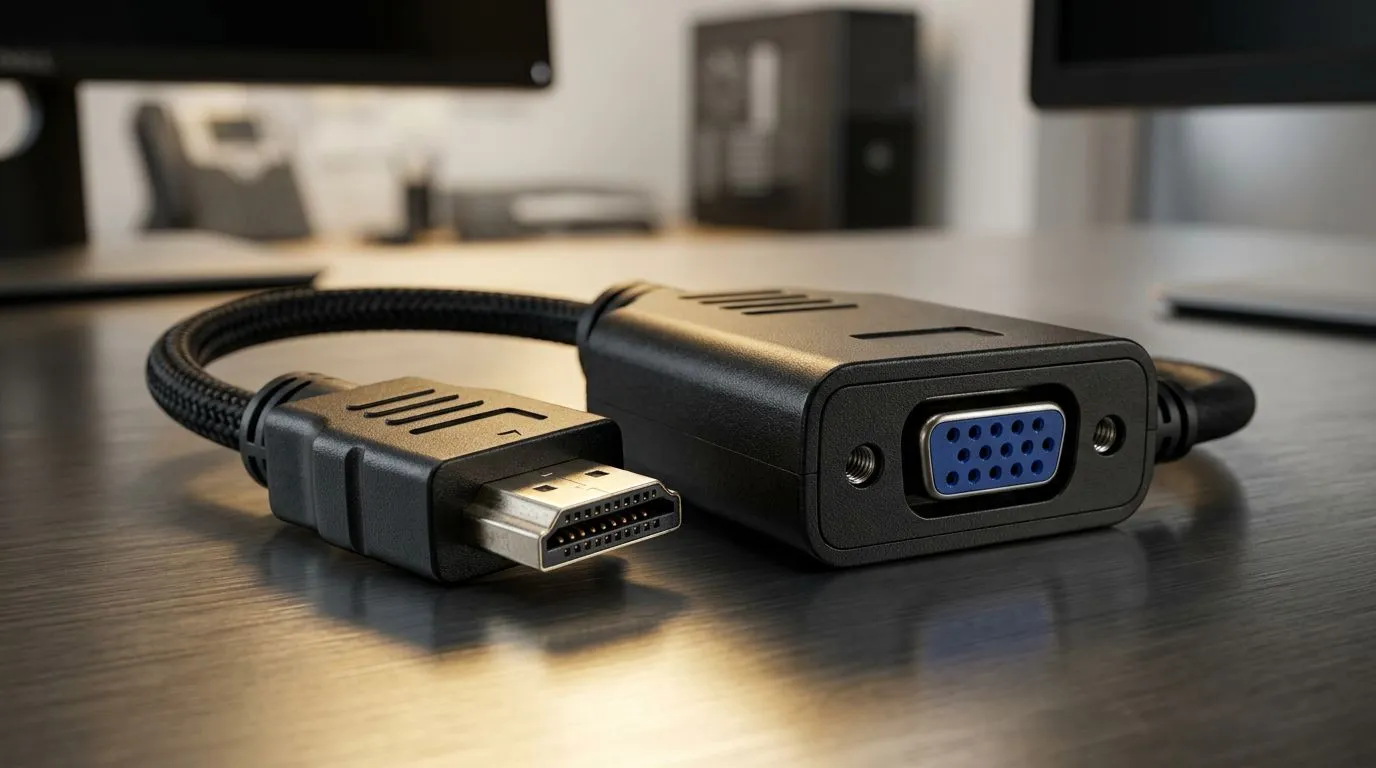
The primary hurdle when connecting modern hardware to legacy screens is that HDMI carries a digital signal, while VGA remains strictly analog. You cannot simply use a passive cable; you need an active adapter. These small, affordable devices contain a built-in chipset that converts the digital video data into an analog format your older monitor can understand. Before you start, ensure you have browsed our latest gaming accessories to see if a dedicated docking station or hub might offer a cleaner cable management solution for your desk.
Step-by-Step Setup for Your Dual Monitor Rig
Once you have your active adapter, the physical installation is straightforward. Plug the HDMI end into your graphics card or laptop, and connect your VGA cable to the adapter. Windows 10 and 11 are excellent at detecting new displays automatically. If your screen remains blank, press Windows Key + P to toggle your projection settings to "Extend." If you are looking to upgrade your entire peripheral ecosystem, check out our current gaming accessories deals to find mice and keyboards that match your new, expanded workspace. ⚡
Productivity Pro Tip ⚡
On Windows, use the PowerToys FancyZones utility to create custom snap layouts for your windows. It's a lifesaver for managing multiple apps on an ultrawide monitor, letting you organise your timeline, preview window, and asset folders perfectly for video editing.
Optimising Your New Dual Monitor Workstation
With both screens running, you should head into your display settings to align them virtually. Dragging the monitor icons to match their physical position on your desk prevents your mouse from getting "stuck" at the edge of a screen. Remember that VGA has a lower resolution ceiling compared to modern standards, so keep your primary gaming or design work on your main HDMI monitor. For those looking to complete their setup with high-quality cables or adapters, explore our full range of high-performance components to ensure you are getting the crispest signal possible. 🚀
Ready to Find Your Perfect Match? Whether you are building a budget-friendly dual monitor setup or a high-end battlestation, we have the gear to help you succeed. Explore our massive range of gaming and productivity peripherals and find the perfect components to conquer your world.











