

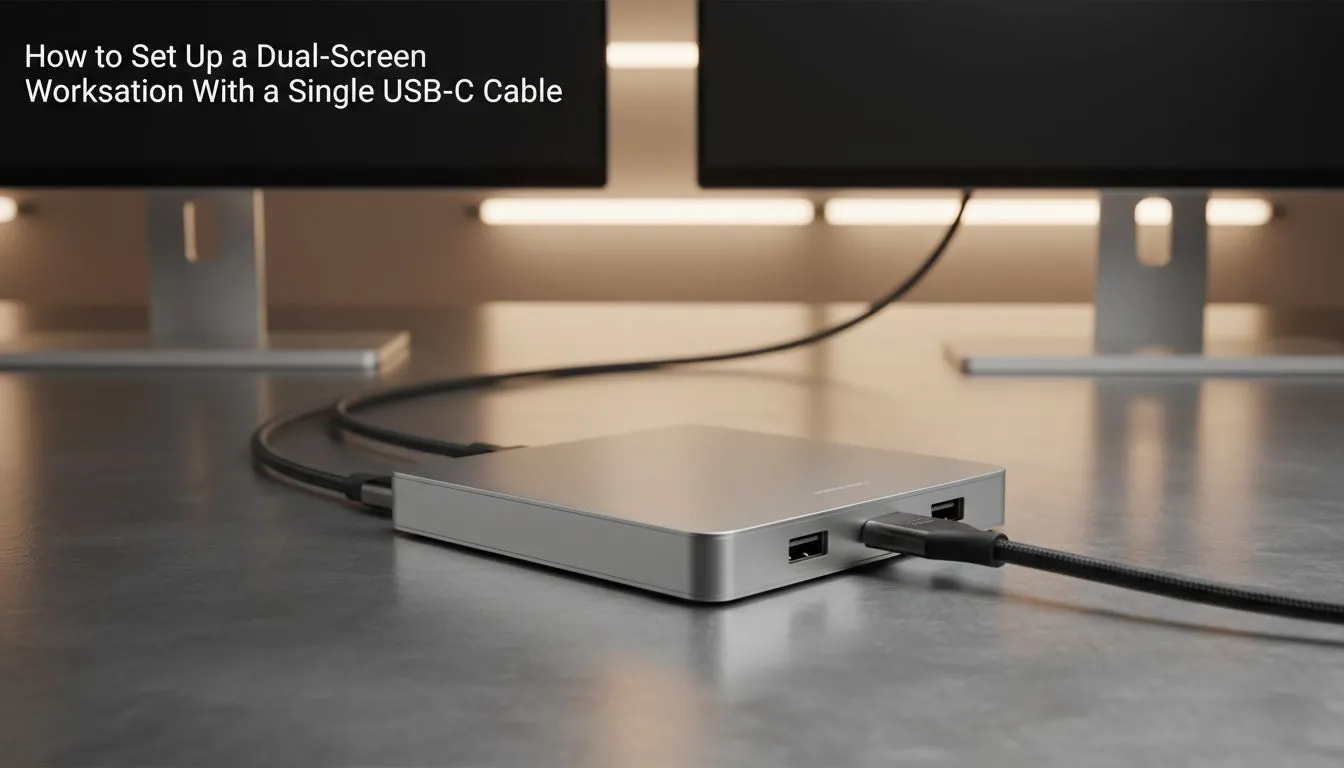
Tired of the cable spaghetti behind your desk? We get it. In South Africa, a clean, powerful setup is the dream for any gamer or creator. What if you could drive two monitors, charge your laptop, and connect peripherals with just one cable? That’s the magic of a dual monitor setup with USB-C. It’s not just about looking tidy; it’s about creating a streamlined command centre where you can focus on what matters... winning. ✨
The Magic of a Single Cable: Why USB-C is King
For years, connecting multiple monitors meant a mess of HDMI, DisplayPort, and power cables. USB-C changes all that. A single, powerful USB-C port (specifically one that supports Thunderbolt 3/4 or DisplayPort Alt Mode) can handle everything at once:
- Video: Send high-resolution video signals to one, two, or even three displays.
- Power: Charge your laptop with up to 100W of Power Delivery, eliminating the need for a separate power brick.
- Data: Transfer files at lightning-fast speeds from external drives.
- Peripherals: Connect your mouse, keyboard, and headset through a single hub.
This single-cable dual-screen solution is the ultimate way to declutter your desk and simplify your life.
Your Checklist for a Flawless Dual Monitor Setup with USB-C
Before you dive in, let’s make sure you have the right gear. Getting this right from the start saves a lot of headaches later. Think of it as your pre-build checklist. 🔧
Here’s what you’ll absolutely need:
- A Compatible Laptop or PC: The key is the port itself. You need a USB-C port that supports DisplayPort Alternate Mode (DP Alt Mode) or is a Thunderbolt 3 or 4 port. A standard data-only USB-C port won't work for video.
- Two Compatible Monitors: Most modern monitors with DisplayPort or HDMI will work perfectly when connected via a dock. If you plan to daisy-chain (more on that below), you'll need monitors that specifically support DisplayPort 1.2 Multi-Stream Transport (MST).
- The Right Connection Method: You’ll either use a USB-C hub/docking station or daisy-chain your monitors.
You can find all the essential PC components on our site, but first, let's figure out the best way to connect them.
How to Connect Your Dual Screens with a Single USB-C Cable
There are two primary ways to achieve a dual monitor setup using USB-C. One is technically elegant, and the other is universally practical.
Method 1: Daisy-Chaining Your Monitors
Daisy-chaining involves connecting your laptop to the first monitor, and then connecting the first monitor directly to the second one. It's a super clean method that minimises cables.
To make this work, you need:
- A laptop with a USB-C port that supports DisplayPort 1.2 MST.
- A first monitor with both a DisplayPort "In" and a DisplayPort "Out" port.
- A second monitor with a DisplayPort "In" port.
This method is sleek, but hardware compatibility is crucial. If you're looking for the right gear, be sure to check out the latest gaming accessories deals to find compatible displays and cables for less.
Method 2: Using a USB-C Dock or Hub (The Easiest Route)
This is the most popular and reliable method. A USB-C docking station or hub acts as a central breakout box for all your connections. You plug one USB-C cable into your laptop, and the dock provides multiple video outputs (like HDMI and DisplayPort), USB-A ports, an Ethernet jack, and more.
It’s the simplest way to guarantee a working USB-C dual monitor setup. Just plug your monitors and peripherals into the dock, connect the dock to your laptop, and you're ready to go. 🚀
Check Your Port's Power ⚡
Not all USB-C ports are created equal. To run a dual monitor setup, your laptop's port must support either DisplayPort Alternate Mode (DP Alt Mode) or Thunderbolt 3 4. Check your laptop's official specs page or look for a small DisplayPort (D) or lightning bolt (ϟ) icon next to the port itself. This is non-negotiable!
Troubleshooting Your USB-C Dual Monitor Setup
Running into issues? Don't stress. Most problems with a dual monitor setup over USB-C are easy to fix.
- One Monitor Isn't Detected: Ensure your dock or cables support the resolutions and refresh rates you need. A 4K monitor requires more bandwidth than a 1080p one. Also, check Windows Display Settings to make sure the second display is set to "Extend these displays".
- Screen Flickering: This is often a sign of a poor-quality cable that can't handle the data bandwidth. Is one screen flickering or not turning on at all? Before you panic, start with the basics. Sometimes, upgrading to certified gaming accessories like a high-bandwidth USB-C cable can solve the problem instantly.
- Laptop Not Charging: Check that your dock and cable support Power Delivery (PD) and that the dock's power adapter is plugged in and providing enough wattage for your laptop.
By following this guide, you can finally achieve that clean, powerful, and productive single-cable dual-screen workspace you've been dreaming of.
Ready to Declutter and Dominate? A clean, powerful dual monitor setup is within reach. From high-refresh-rate displays to the perfect docks and cables, we've got everything you need to build your ultimate command centre. Explore our massive range of gaming accessories and create the workspace you deserve.











