

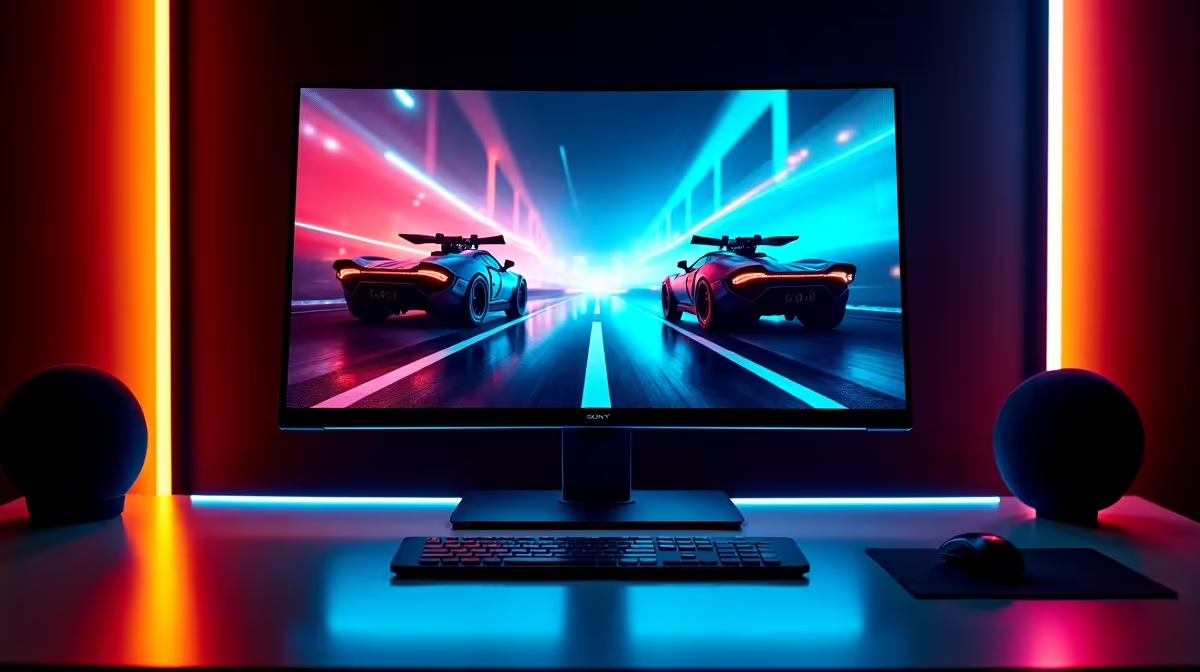
You just dropped some serious ZAR on a beautiful new 165Hz screen. You boot up your favourite competitive shooter... but everything feels sluggish. Sound familiar? The culprit is rarely your graphics card. You are likely facing a frustrating cable bottleneck. Fixing display limitations when HDMI or DisplayPort versions restrict refresh rate performance is incredibly common in South Africa. Luckily... it is also very easy to resolve.
Why cables restrict refresh rate performance ⚡
Not all cables are created equal. You might have the most powerful graphics card on the market. However... if you use an outdated cable, your frames will suffer. Both HDMI and DisplayPort standards have evolved massively over the years.
For example, an old HDMI 1.4 cable can handle 1080p at 144Hz. Try pushing that same cable to 1440p, and you will be permanently stuck at 60Hz. DisplayPort 1.2 faces similar hurdles. It works beautifully for standard HD but completely chokes when you upgrade to modern resolutions. If you are browsing for premium gaming monitors, you must factor the correct cabling into your overall budget.
Identifying your HDMI or DisplayPort versions
Before buying anything new, check your current hardware ports. A chain is only as strong as its weakest link. Plugging a brand-new DisplayPort 1.4 cable into an older 1.2 port means you only get 1.2 speeds.
This is especially crucial if you want to push maximum pixels. Gamers investing in crisp 4K monitors need HDMI 2.1 or DisplayPort 1.4 to unlock those buttery smooth high refresh rates. Without the right standard, your monitor simply cannot receive data fast enough to draw the frames.
Cable Checker Pro Tip 🔧
Always inspect your physical cable for printed text. If your HDMI cable says 'High Speed' instead of 'Ultra High Speed', it is likely an older version holding back your frame rates. Replace it to unlock your screen's true potential.
Fixing display limitations on your PC 🚀
So... how do you actually solve this? First, ensure you are plugging your cable directly into your dedicated graphics card. Never plug it into your motherboard. Many gamers make this simple mistake and lose out on massive performance gains.
Next, upgrade your cables to match your hardware specs. If you recently bought one of our pre-built gaming PCs, it likely features modern DisplayPort 1.4a or HDMI 2.1 outputs. Buy a VESA-certified cable that matches those exact specs to ensure maximum bandwidth.
Finally, tell Windows to actually use those frames. Right-click your desktop and navigate to Display Settings. Scroll down to Advanced Display. From there, manually select your highest refresh rate from the drop-down menu. Windows defaults to 60Hz out of the box... so you have to force the change.
With a few simple tweaks, you can optimise your setup perfectly. If you need hardware upgrades to push those frames even higher, keep an eye on our weekly tech specials for unbeatable ZAR value.
Ready to Upgrade Your Visuals? Do not let outdated hardware hold back your gaming experience. For maximum performance and unbeatable value in South Africa, Evetech has you covered. Explore our massive range of monitor specials and find the perfect screen to conquer your world.











