

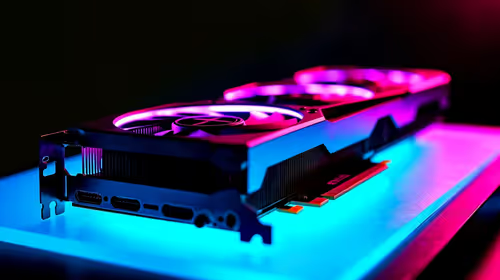
Best Intel GPU Under R3000 in SA 2026
Top Intel GPU Under R3000 picks evaluated on performance, value & SA availability with current Rand pricing from Evetech.
Read moreCommon issues with fixing display output issues and the fixes that actually work in 2026. Diagnose the root cause fast with this practical SA-ready checklist — no generic advice.
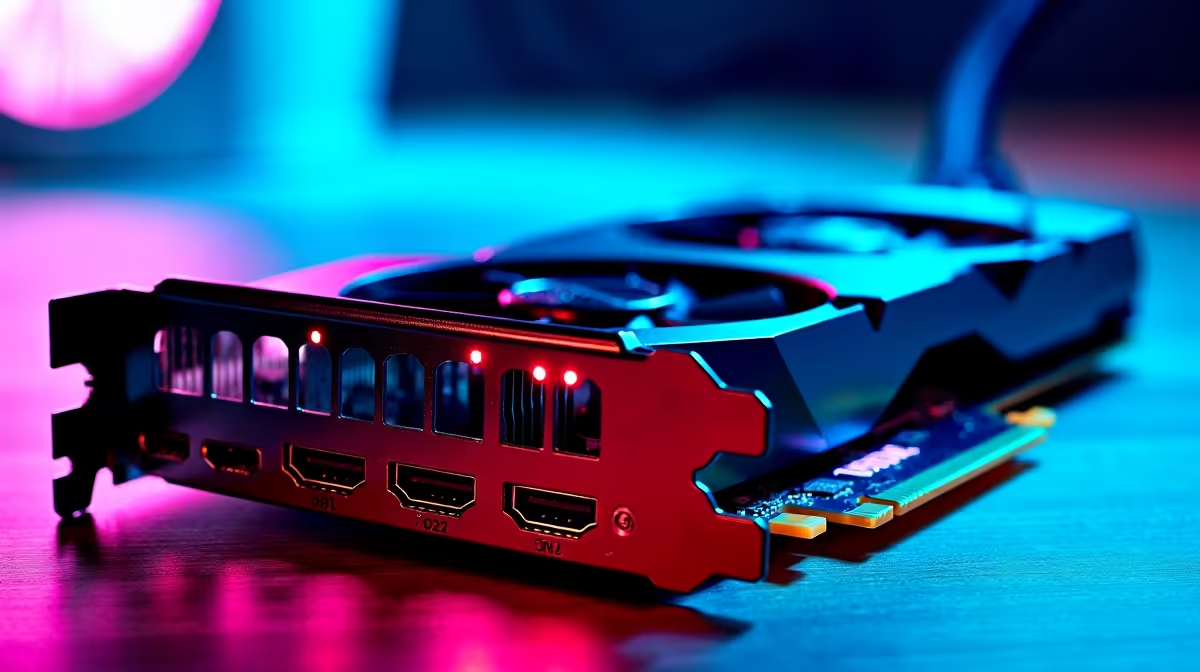
You just dropped serious ZAR on a fresh build. You plug in your shiny new screen, boot up, and... nothing. Just a stubborn "No Signal" message floating in the dark. Fixing display output issues with HDMI and DisplayPort 2.1 connections does not have to be a nightmare. Let us get those pixels pushing properly.
Modern displays require massive data speeds to function. HDMI 2.1 and DisplayPort 2.1 push billions of pixels every single second. Using an old cable from your dusty spares box will definitely cause problems. You might experience random black screens... or severe flickering during gameplay.
If you recently upgraded to high-resolution 4K and 5K monitors, you absolutely need certified cables. A standard HDMI 2.0 cable simply cannot handle the bandwidth required for 4K at 144Hz. Always verify that your cable carries the official VESA or HDMI Ultra High Speed certification. Do not compromise on cheap cables when your visuals depend on them.
Sometimes the hardware is perfect but the software is confused. Many modern displays ship with older port standards enabled by default. Manufacturers do this to maximise compatibility with older graphics cards.
Dive into your on-screen display menu. Look for the port settings and manually switch the input to version 2.1. If you are shopping for reliable gaming monitors, check the manufacturer website for firmware updates. A simple monitor firmware flash can resolve lingering handshake issues between your screen and graphics card.
Always ensure your DisplayPort cable clicks securely into your graphics card. A loose connection is the number one cause of random signal dropouts during intense gaming sessions.
Your hardware needs the latest instructions to function correctly. Outdated graphics drivers are notorious for causing blank screens. Boot into Windows using a basic cable if necessary. Then download the latest software directly from AMD or Nvidia.
Sometimes the issue lies deeper within the operating system. If you bought one of our expertly assembled pre-built gaming PCs, all drivers are usually updated out of the box. However... automatic Windows updates can occasionally overwrite your dedicated display drivers. Using a tool like Display Driver Uninstaller for a clean installation often solves the most stubborn connection errors.
If you still have no signal, it is time to check the physical components. Power down your system completely. Reseat your graphics card by carefully taking it out and clicking it back into the motherboard slot. Ensure the PCIe power cables are firmly connected to the GPU.
If your setup is getting old, perhaps it is time for a fresh start. You can always find incredible value by browsing our latest tech specials to replace failing parts. Resolving these modern display connection faults is usually just a matter of patience. Follow these steps and you will be back in the game.
Ready to Upgrade Your Visuals? Troubleshooting outdated hardware can be incredibly frustrating. If you want maximum performance and reliability in South Africa, a fresh setup is the best route. Explore our massive range of PC deals and find the perfect machine to conquer your gaming world.
The monitors, tools and accessories referenced in this article are stocked at Evetech.co.za with local SA warranty, ZAR pricing and nationwide delivery.
Most issues trace back to a small set of root causes — BIOS settings, power delivery, driver state or physical install. The article walks through each one in order of likelihood.
In most cases, yes. The fixes here are BIOS-level, settings-level or setup-level — hardware replacement is a last resort, not a first step.
Following the article's diagnostic order, most users isolate the root cause in under 30 minutes without needing bench testing or part swaps.
Only after working through the non-destructive checks. The article calls out the specific symptoms that do point to a hardware fault and need a warranty claim.
Top Intel GPU Under R3000 picks evaluated on performance, value & SA availability with current Rand pricing from Evetech.
Read more
Top AMD GPU Under R5000 picks evaluated on performance, value & SA availability with current Rand pricing from Evetech.
Read more
Top RTX 4090 Under R5000 picks evaluated on performance, value & SA availability with current Rand pricing from Evetech.
Read more
Top Samsung GPU Under R15000 picks evaluated on performance, value & SA availability with current Rand pricing from Evetech.
Read more
Top RTX 4060 Laptop Under R30,000 picks evaluated on performance, value & SA availability with current Rand pricing from Evetech.
Read more
Snapdragon X2 NPU Explained: How 80 TOPS Changes. Plain-English explanation of what it means, why it matters & how it affects your buying decisions in SA.

HBM? High Bandwidth Memory Used in GPUs and AI. Plain-English explanation of what it means, why it matters & how it affects your buying decisions in SA.

How much should you spend on sim racing accessories in South Africa for a realistic setup? We break down budgets by quality tiers, so you buy smart gear and avoid overspending 🎮💸

G-Sync and FreeSync? Variable Refresh Rate. Plain-English explanation of what it means, why it matters & how it affects your buying decisions in SA.

AMD Laptop: Value. SA-focused analysis with local pricing data, real-world insights & actionable buying advice.

How MacBook Neo Handles 30+ Chrome Tabs with Only. SA-focused analysis with local pricing data, real-world insights & actionable buying advice.

Why Apple Put 8GB RAM in MacBook Neo: The A18 Pro. SA-focused analysis with local pricing data, real-world insights & actionable buying advice.

Upgrade your work laptop with a New Motherboard. Step-by-step instructions with SA-specific tips, common pitfalls to avoid & expert recommendations.
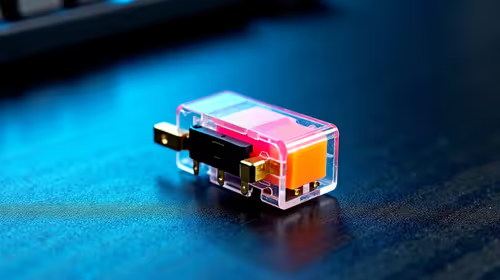
Glorious Keyboard Switches Explained: Which. Plain-English explanation of what it means, why it matters & how it affects your buying decisions in SA.
Winter Keyboard Buying Guide. Everything you need to know with SA pricing, step-by-step instructions & expert recommendations.
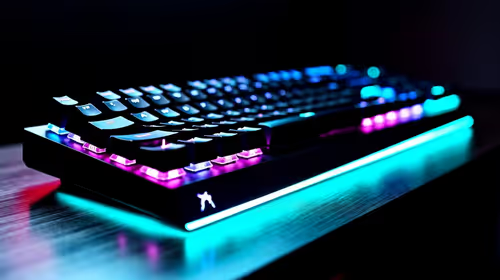
Keyboard Buying Guide. Everything you need to know with SA pricing, step-by-step instructions & expert recommendations.
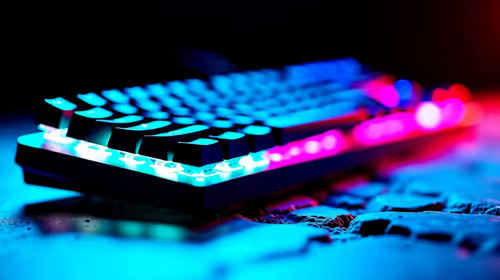
LGBTQ+ Gamers Keyboard Guide: January Edition. Everything you need to know with SA pricing, step-by-step instructions & expert recommendations.