

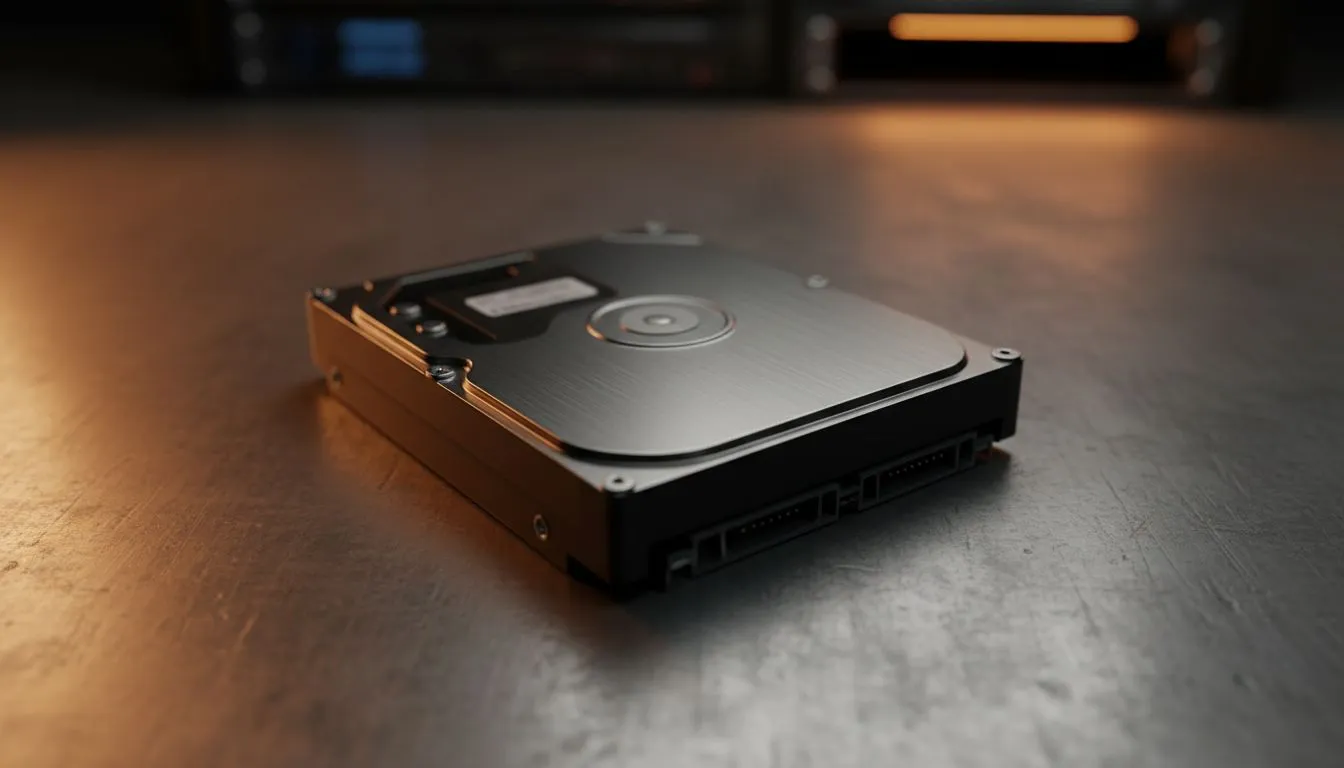
Just unboxed a massive new drive for your Steam library? Whether you are upgrading your rig or adding extra storage for those 100GB Warzone updates, knowing how to format internal hard drive Windows: Partition and Setup is essential. It is the difference between a sleek, organised system and a drive that simply refuses to show up in File Explorer. 🔧
Initialising Your New Hardware
Before you can store a single byte, Windows needs to recognise the physical hardware. Once you have installed one of your new solid state drives, boot up your PC and right-click the Start button. Select 'Disk Management'. If the drive is brand new, a pop-up will ask you to initialise the disk.
For any modern gaming PC, always select GPT (GUID Partition Table). It is the modern standard that supports larger drive sizes and better reliability. If you have splashed out on the latest Gen 5 NVME SSDs, GPT is mandatory to ensure you get the full speed and features your hardware offers. ⚡
How to Partition Your Drive Like a Pro
Once initialised, your drive will appear as 'Unallocated Space' with a black bar. Right-click this space and select 'New Simple Volume'. This starts the wizard where you decide how to partition the space.
Many South African gamers prefer splitting a large drive into two sections: one for the Windows OS and another for games. This makes it much easier to reinstall Windows later without losing your entire game library. High-quality drives from Western Digital handle these logical splits beautifully, maintaining high performance across both volumes.
Storage Pro Tip ⚡
When naming your new partitions, use clear labels like 'Games' or 'Media' instead of just 'Local Disk'. It makes managing your library much easier when you are browsing through multiple drives in Steam or Epic Games Launcher.
Choosing the Right Format Settings
During the setup wizard, you will be asked to choose a file system. For an internal drive in South Africa, NTFS is the only real choice. It supports large file sizes and includes security features that keep your data stable during unexpected power cuts.
If you were setting up a portable external SSD, you might consider exFAT for compatibility with consoles. However, for internal use, NTFS is king. If you are using budget-friendly ADATA drives for bulk storage, NTFS ensures your data remains indexed and searchable. 🚀
Finalising the Setup
After choosing your format and drive letter, click 'Finish'. Windows will perform a quick format, and your drive will turn healthy and blue in the Disk Management window. It is always wise to keep a backup of your critical installers on a dedicated external form factor drive just in case you ever need to re-partition your main system. ✨
Ready to Upgrade Your Storage? Mastering your drive setup is just the start. If your current storage is feeling a bit cramped, we have the fastest drives in the country ready for your next build. Explore our massive range of SSD specials and find the perfect speed boost for your gaming rig.











