

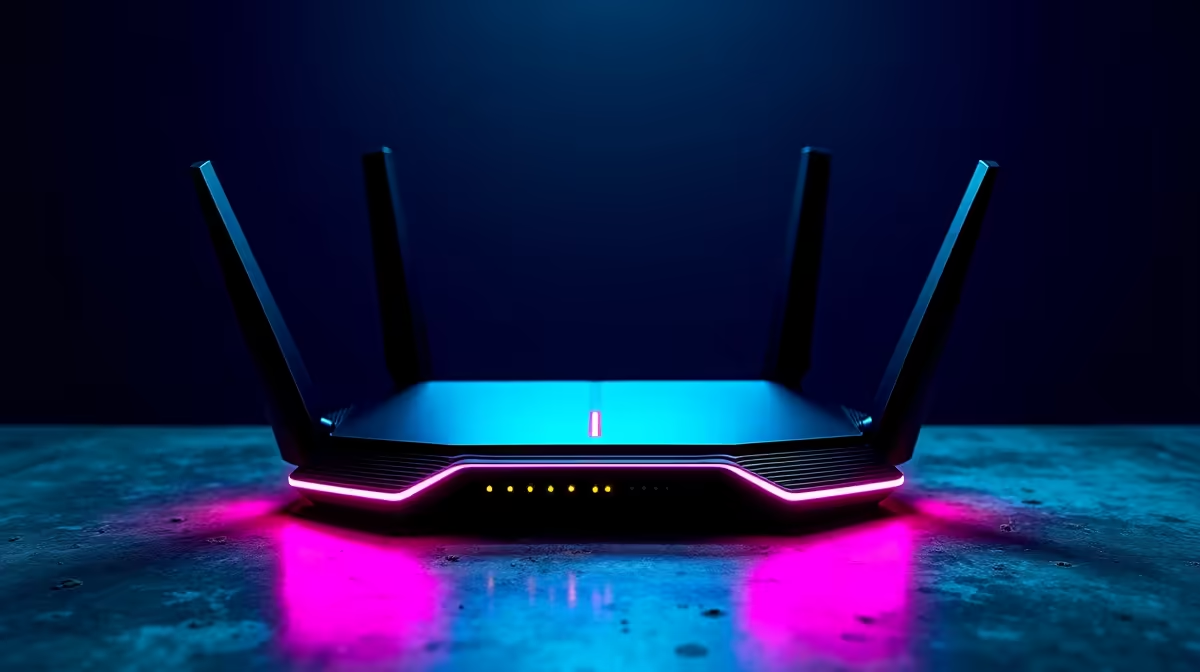
You’re one kill away from clutching the round. Then it happens. The connection stutters, your screen freezes for a split second, and you’re staring at a respawn timer. 😤 We’ve all been there. In South Africa, where home internet is often shared between streaming, downloads, and your crucial gaming session, that battle for bandwidth is real. This is where gaming QoS routers become your secret weapon for achieving true speed stability.
What is QoS and Why Does it Matter for Gamers?
Think of your internet connection as a busy highway. When everyone in the house is online, it creates a traffic jam. Quality of Service, or QoS, is like having your own dedicated fast lane. It’s a feature built into modern routers that lets you prioritise specific types of traffic.
For gamers, this is massive. A good gaming QoS router inspects all the data packets moving through your network and gives priority to the ones from your game. This means your inputs and the game server’s responses get to skip the queue, drastically reducing lag (ping) and jitter, even when your sibling starts streaming Showmax in 4K. A stable connection starts with a solid foundation of modern wireless networking hardware.
How Gaming QoS Routers Boost Your Speed & Stability 🚀
Let’s be clear: QoS doesn’t magically increase the speed you buy from your fibre provider. Instead, it optimises how that speed is used. This focus on stability over raw speed is what separates a frustrating gaming experience from a smooth one.
A standard router treats all traffic equally. A download, a video call, and your Apex Legends match all fight for attention. But a router with effective QoS ensures your game's data packets are handled first. This leads to:
- Lower Ping: Faster, more consistent communication with the game server.
- Reduced Packet Loss: Fewer instances of data getting lost in transit, which causes stuttering.
- Minimal Jitter: A more predictable and stable flow of data.
Upgrading is the most direct path to unlocking these benefits. You can explore a powerful range of wireless routers specifically built to handle the demands of a modern smart home and gaming setup.
Unlocking Performance: A Quick Guide to Setting Up QoS
Getting your QoS settings dialled in is usually simpler than you think. While the interface varies by brand (like ASUS, TP-Link, or Netgear), the basic steps are similar:
- Log In: Access your router's admin panel by typing its IP address (often 192.168.0.1 or 192.168.1.1) into your browser.
- Find the QoS Menu: Look for a tab named "QoS," "Traffic Manager," or "Gaming."
- Enable and Prioritise: Turn on QoS. Most gaming routers have a one-click "Gaming" mode. For more control, you can prioritise your PC or console by its specific MAC or IP address, ensuring it always gets first dibs on bandwidth. ✨
="Pro Tip: Go Wired When Possible! 🔧" , For the absolute best stability, nothing beats a direct Ethernet connection to your rig. If your PC is too far from the router for a cable, investing in a high-quality [wireless adapter](https: www.evetech.co.za PC-Components buy-wireless-adapters-139.aspx) that supports the latest Wi-Fi 6 6E standards is your next best move to minimise latency.
What if a New Router Isn't Enough?
Sometimes, the problem isn't just traffic congestion; it's physical distance. If your gaming setup is in a room far from the router, you might be fighting a weak Wi-Fi signal. In these cases, even the best gaming QoS router can't overcome the laws of physics.
This is where you can bolster your network. If you live in a larger double-storey house or have thick brick walls (a classic South African home feature), the signal might struggle to reach every corner. A simple and effective solution is to install a wireless range extender to amplify the signal and eliminate those frustrating dead zones for good.
Ready to Conquer Lag? Stop letting your network dictate your K/D ratio. Take control of your connection with a router built for victory. Shop our range of wireless routers now for performance that leaves lag in the dust.











