

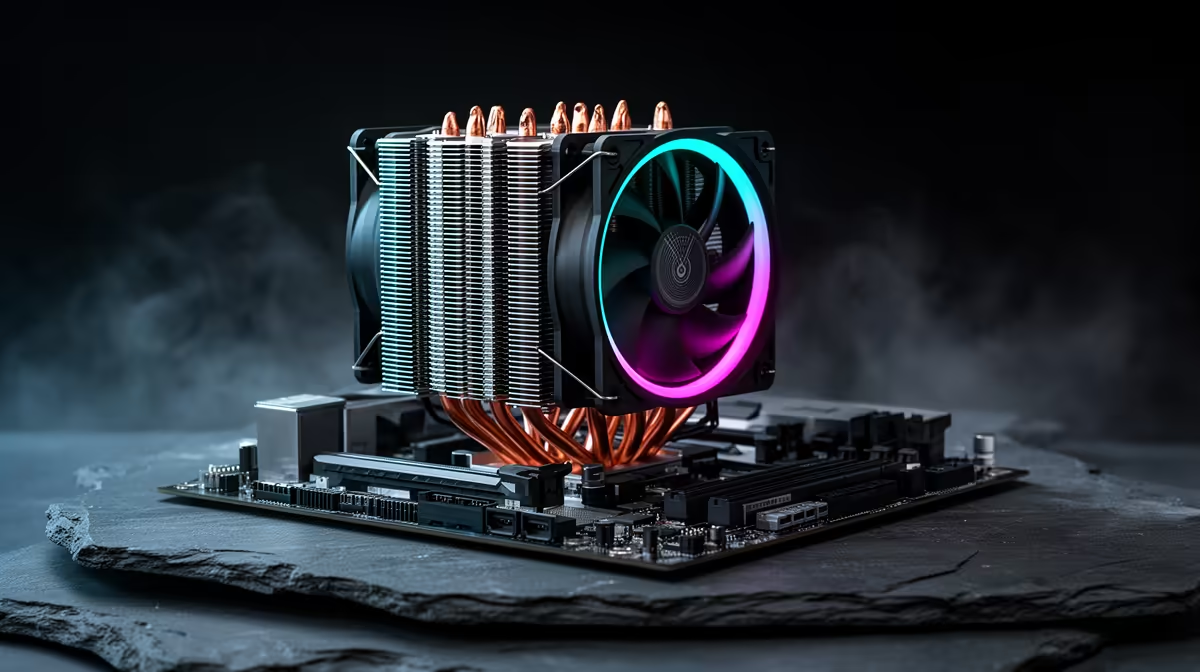
That heart-in-your-throat moment… hovering a new CPU cooler over your prized processor. We've all been there. One wrong move and you could be looking at bent pins or a PC that runs hotter than a summer's day in the Karoo. But don't stress! Learning how to install a CPU cooler safely is easier than you think. This guide will walk you through the process, step-by-step, ensuring your new hardware runs cool and quiet from the get-go.
Your Pre-Flight Checklist Before Installing a CPU Cooler
Before you even think about unscrewing anything, let's get prepped. A smooth installation is all about having the right gear on hand. Rushing this step is how mistakes happen.
Here’s what you’ll need:
- Your New CPU Cooler: Obvious, but make sure it includes all its mounting hardware.
- Screwdrivers: A decent Phillips head screwdriver is usually all you need.
- Thermal Paste: Most coolers come with pre-applied paste or a small tube. If not, you'll need to buy some.
- Isopropyl Alcohol (90%+) & Lint-Free Cloths: Essential for cleaning your CPU surface.
- Your Cooler's Manual: Seriously, read it! Each model has its own quirks.
Proper preparation involves more than just tools; it's about understanding all the available thermal solutions for your PC build to ensure you've made the right choice. 🔧
How to Install a CPU Cooler: A Step-by-Step Guide
Alright, tools at the ready? Let's get to the main event. We'll cover the general process that applies to most modern coolers.
1. Prepare Your Motherboard and CPU
If you're upgrading, first remove the old cooler. Gently twist it to break the thermal paste's seal before undoing the screws or clips. Once it's off, use a lint-free cloth with a bit of isopropyl alcohol to wipe the CPU's integrated heat spreader (IHS) until it's completely clean and shiny. ✨
For a new build, your job is easier. Just make sure the CPU is correctly seated and the retention arm is down. Now, you’ll likely need to install a backplate or standoffs onto the motherboard, as per your manual's instructions.
2. Apply the Thermal Paste
This is the step that makes many builders nervous, but it's simple. If your cooler has paste pre-applied, you can skip this. If not, apply a small, pea-sized dot (about the size of a grain of rice) to the centre of the CPU. That's it. Don't spread it. The pressure from the cooler will do that for you, ensuring an even layer without air bubbles.
3. Mount the Cooler Safely
This is the most critical part of a safe CPU cooler installation.
- Carefully remove the plastic protective film from the cooler's base! It’s the #1 mistake new builders make.
- Align the cooler's mounting screws with the standoffs or backplate on your motherboard.
- Lower it straight down onto the CPU. Avoid sliding it around.
- Tighten the screws in a star or "X" pattern, a few turns at a time. Do not tighten one screw all the way down before starting the others. This ensures even pressure across the CPU, which is vital for performance and safety.
- Stop when the screws are snug. Don't over-tighten them.
4. Connect the Fan Cable
The final step is connecting the cooler's fan cable to the CPU_FAN header on your motherboard. It's usually located near the CPU socket. If you're installing an AIO liquid cooler, you'll also have a pump cable to connect, often to a header labelled AIO_PUMP or W_PUMP.
With so many models available, it's worth exploring a wide variety of CPU coolers in South Africa to see which mounting system you prefer.
Check Your Clearance!
Before buying a big air cooler, measure the space in your case. Check the cooler's height spec against your case's max CPU cooler height. Also, make sure it won’t block your RAM slots. A little planning saves a lot of hassle.
Air Coolers vs. AIO Liquid Coolers: Installation Differences
While the core principles are the same, the installation process varies slightly between air and liquid cooling.
- Air Coolers: These are generally more straightforward. You mount the tower directly onto the CPU and clip on the fan(s). The main challenge is often their bulk, which can make working in a tight case a bit tricky. Luckily, there are many excellent CPU air coolers available locally designed for easy installation.
- AIO Liquid Coolers: These have a few extra steps. You have to mount the pump block to the CPU (same as an air cooler), but you also need to install the radiator and its fans to your PC case. This requires a bit more planning for placement and airflow, but top-tier CPU liquid coolers in South Africa often deliver superior thermal performance.
Final Checks: Did the Installation Work? 🌡️
You've done it! But before you jump into a 10-hour gaming session, it's wise to check your work.
- Boot into BIOS/UEFI: As soon as your PC boots, hit the 'Del' or 'F2' key to enter the BIOS. Find the hardware monitor section and check your CPU temperature. At idle, it should be somewhere between 30-50°C.
- Listen: Do you hear the fan spinning? Are there any weird grinding or clicking noises?
- Stress Test: Once in your operating system, run a CPU-intensive program (like Cinebench) for a few minutes while monitoring temperatures with software like HWMonitor. If temps stay well below your CPU's maximum (usually ~95°C), your installation is a success. 🚀
Ready for a Cooler PC? A safe installation is the first step to unlocking peak performance. Browse our best CPU cooler deals in South Africa for performance that leaves lag in the dust.











