


Best SSD for Gaming in South Africa - Updated July 2026
The best SSD for gaming is available at Evetech from R1,599 including VAT, with 58 drives in stock. A PCIe Gen4 NVMe drive at 500GB to 1TB is the recommended pick for most gamers.
Read moreConnect a portable monitor to your Steam Deck for a bigger screen via the handheld's USB-C port, which outputs video through DisplayPort Alt Mode with no accessories beyond a compatible cable. A mini-HDMI adapter works for monitors lacking USB-C input.
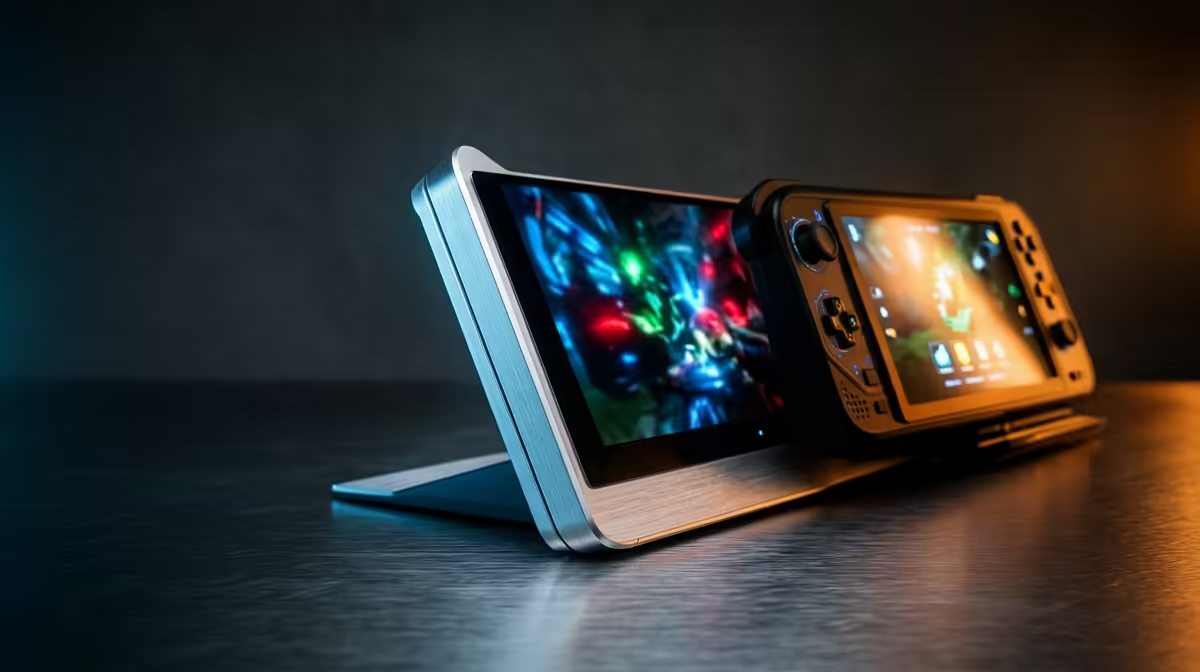
The Steam Deck's small screen is its biggest compromise, and the fix is hiding in plain sight on the top edge of the handheld. Connecting a portable monitor to your Steam Deck for a bigger screen takes nothing more than the right cable, because the USB-C port already carries video out. No dock, no special hardware, just a larger display and a much more comfortable view of your games.
The Steam Deck outputs video through its USB-C port using DisplayPort Alt Mode, so a portable monitor with USB-C input needs only a single compatible cable. For a monitor with HDMI instead, a USB-C to HDMI adapter or a mini-HDMI adapter bridges the gap. Setup takes a couple of minutes.
Before buying anything, look at what your portable monitor accepts. The cleanest setup is a monitor with a USB-C input that supports video. In that case one USB-C to USB-C cable carries both the picture and, on many monitors, the power loop too.
If your monitor only has HDMI or mini-HDMI, you will need a USB-C to HDMI adapter. This is common and cheap, and it does not reduce quality. Note which HDMI size your monitor uses so you buy the matching adapter the first time.
Match the cable to the path you identified in step one.
Whichever path you take, the Steam Deck does the same thing on its side: it sends a DisplayPort signal out of the USB-C port. The adapter simply converts that into the shape your monitor expects.
Plug the cable into the Steam Deck's USB-C port and into the monitor. If the monitor draws power over USB-C, you have a decision to make: a single port now carries both video and the monitor's power, which can drain the Deck during long sessions.
For anything beyond a short play session, connect a USB-C hub or dock so the Deck charges while it outputs to the screen. Many portable monitors also have their own power input, in which case you power the monitor separately and keep the Deck on its own charger. Either way, plug the Deck into power if you plan to play for a while.
Once connected, the Steam Deck usually detects the external monitor automatically and mirrors or extends to it. If the picture does not appear, open the display settings from Quick Settings and confirm the external display is selected, then set the resolution and refresh rate the monitor supports.
For the best experience, switch to Desktop Mode if you want a full second-screen workflow, or stay in Gaming Mode for a straightforward bigger-screen play session. Pair the Deck with a Bluetooth or USB controller and a keyboard if you want it to behave like a small console at the desk.
A portable monitor turns the Steam Deck into a genuinely flexible machine: a handheld on the couch and a desktop-style gaming setup wherever you can plug in. Choose a monitor with USB-C video to keep the cabling to a single lead, and add a small hub so the Deck stays charged through long sessions. If you want to compare panel sizes and refresh rates against full-size options, the monitor best sellers give a sense of what is popular right now.
No. The USB-C port outputs video directly through DisplayPort Alt Mode, so a single compatible cable to a USB-C monitor is enough. A dock or hub only becomes useful when you also want to charge the Deck and add more ports.
Yes. Use a USB-C to HDMI adapter between the Deck and the monitor. For a mini-HDMI input, use a USB-C to mini-HDMI adapter instead. Neither reduces image quality.
If the monitor takes power over the same USB-C cable, it can. Use a hub or dock so the Deck charges while outputting, or power the monitor from its own supply and keep the Deck on its charger for longer sessions.
Open the display settings from Quick Settings and confirm the external monitor is selected, then set a resolution and refresh rate the monitor supports. Reseating the cable also resolves most no-signal cases.
Want a bigger screen for your Steam Deck? Browse the portable monitor range at Evetech, pick a panel with USB-C video for single-cable simplicity, and add a small hub so your Deck stays charged through every long session.
No. The USB-C port outputs video directly through DisplayPort Alt Mode, so a single compatible cable to a USB-C monitor is enough. A dock or hub only becomes useful when you also want to charge the Deck and add more ports.
Yes. Use a USB-C to HDMI adapter between the Deck and the monitor. For a mini-HDMI input, use a USB-C to mini-HDMI adapter instead. Neither reduces image quality.
If the monitor takes power over the same USB-C cable, it can. Use a hub or dock so the Deck charges while outputting, or power the monitor from its own supply and keep the Deck on its charger for longer sessions.
Open the display settings from Quick Settings and confirm the external monitor is selected, then set a resolution and refresh rate the monitor supports. Reseating the cable also resolves most no-signal cases.
The best SSD for gaming is available at Evetech from R1,599 including VAT, with 58 drives in stock. A PCIe Gen4 NVMe drive at 500GB to 1TB is the recommended pick for most gamers.
Read more
The best streaming PC range is available at Evetech from R20,684 including VAT, with 22 models in stock. Every build pairs a multi-core CPU with an NVENC or Quick Sync capable GPU, so streaming and gaming can run on one machine without stealing frame rate.
Read more
The RTX 5070 is available at Evetech from R11,899 including VAT, with 18 models in stock and most cards priced between R11,899 and R14,000. It is the current 1440p value pick in the NVIDIA 50-series.
Read more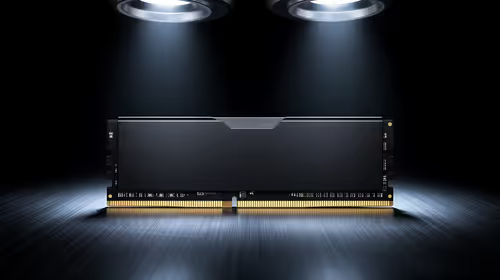
16GB DDR5 RAM is available at Evetech from R3,799 including VAT, with 22 modules in stock. It is the sensible baseline for budget and esports builds.
Read more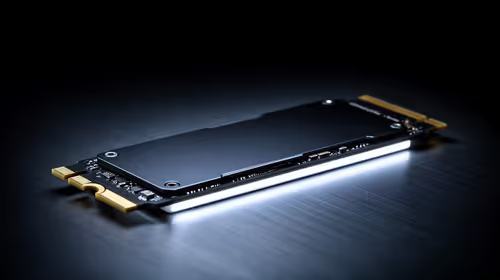
The cheapest 1TB NVMe SSD is available at Evetech from R2,599 including VAT, with 21 drives in stock. 1TB PCIe Gen4 is the current sensible default for a gaming or work PC.
Read more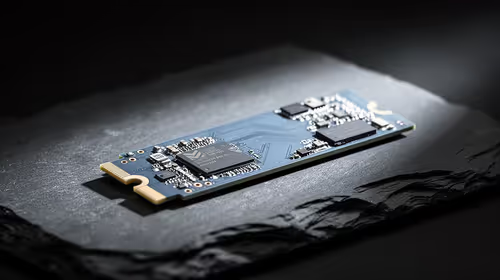
The cheapest 2TB NVMe SSD is available at Evetech from R4,999 including VAT, with 21 drives in stock. 2TB is now the comfortable capacity for a real gaming library.
Read more
Wi-Fi 7 vs Wi-Fi 6e for cinematic story games comes down to router support, latency goals, device compatibility, and coverage. SA buyers should match the choice to the real network setup.

The real world difference between PCIe 5.0 and PCIe 4.0 for MMO and live-service games is usually about loading, patches, and headroom. SA players should weigh NVMe speed, GPU lanes, CPU limits, and platform cost.
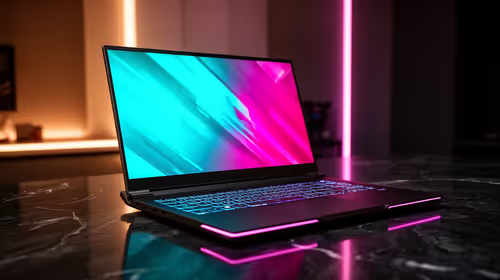
Windows 11 gaming laptop dead pixel checks begin with a full-screen colour test. This how to fix dead pixel windows 11 gaming laptop guide helps SA users compare settings, drivers, external screens, and warranty routes.
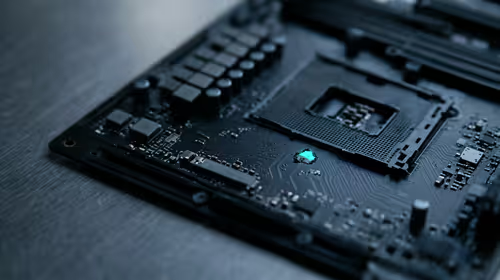
AM5 motherboard stuck pixel fixes in South Africa start with panel, cable, GPU output, and Windows checks. Use a clean test path before blaming the motherboard or replacing screen hardware.

FPS drops blamed on a wireless mouse often point to input, driver, USB, network, or system-load checks. Use a quick SA-friendly troubleshooting flow to isolate software, firmware, thermals, storage, and game settings before replacing hardware.

How to fix fps drops on steam deck starts with power profile, shader cache, storage health, and per-game settings. For South Africa, check charger quality, heat, and download stability before assuming the handheld needs repair. Retest after updates.

How to fix low FPS after an RTX 5080 build upgrade starts with driver cleanup, display settings, thermals, and power mode. For SA gamers, verify GPU usage, PCIe speed, RAM profile, and CPU limits before changing parts.
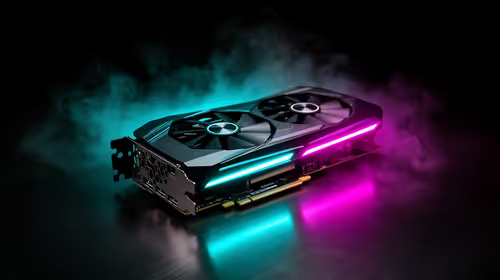
Hollow Knight Silksong at 4K needs a GPU matched to settings, VRAM, CPU balance, and monitor goals. Use this SA guide to compare tiers without treating FPS target or prices as fixed.
The best SSD for gaming is available at Evetech from R1,599 including VAT, with 58 drives in stock. A PCIe Gen4 NVMe drive at 500GB to 1TB is the recommended pick for most gamers.
The best streaming PC range is available at Evetech from R20,684 including VAT, with 22 models in stock. Every build pairs a multi-core CPU with an NVENC or Quick Sync capable GPU, so streaming and gaming can run on one machine without stealing frame rate.
The RTX 5070 is available at Evetech from R11,899 including VAT, with 18 models in stock and most cards priced between R11,899 and R14,000. It is the current 1440p value pick in the NVIDIA 50-series.
16GB DDR5 RAM is available at Evetech from R3,799 including VAT, with 22 modules in stock. It is the sensible baseline for budget and esports builds.