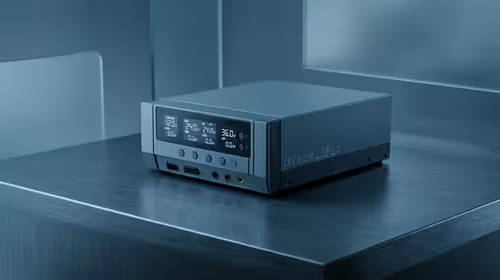
A brand-new NAS ships with the single most predictable login an attacker could ask for: a user literally named "admin". Bots scanning the internet do not need to guess the username, only the password, which hands them half the puzzle for free. Disabling the default admin account removes that easy target and is one of the highest-value security moves you can make on a Synology or QNAP box. Here is the full process, done safely so you never lock yourself out.
Quick Answer
Create a new administrator with a custom username, log in as that account, then deactivate the built-in "admin" account in user settings. This kills the most brute-forced login target on the device. On both Synology and QNAP it takes about ten minutes, with one caveat: some SSH and Telnet access on QNAP still depends on the default account.
Before you start
Do not delete or rename the default admin. The supported move is to create a replacement and deactivate the original. Renaming it can break services that expect that account name, and deleting it outright can strand settings that were tied to it.
You will need physical or local-network access to the NAS and the current admin password. Set aside a strong, unique password for the new account and store it somewhere safe before you begin, because you are about to make it your only way in.
A solid NAS is the foundation here, and if you are still choosing hardware, the diskless NAS enclosures at Evetech cover the Synology and QNAP units this guide applies to.
Step-by-step: lock down the NAS
- Log in as the current admin. Open the web interface (DSM for Synology, QTS for QNAP) using the existing admin account. You need its privileges to create the replacement.
- Create a new administrator account. Go to Control Panel then User and Group on Synology, or the Users panel on QNAP. Add a user with a name that is not "admin", "administrator" or "root". Give it a long, unique password.
- Grant full admin rights. On Synology, add the new user to the "administrators" group. On QNAP, assign it to the "administrators" user group. Confirm the account can reach Control Panel and storage settings.
- Log out, then log back in as the new account. This is the critical test. If the new administrator cannot fully manage the device, fix it now, while you still have the old admin available as a fallback.
- Deactivate the built-in admin. Back in user settings, select the "admin" account and disable or deactivate it. On Synology this is a clean toggle. On QNAP, note that disabling the default admin can affect SSH and Telnet logins, so if you rely on command-line access, plan an alternative before flipping it.
- Update any device that used the old login. Backup clients, mapped network drives, mobile apps and cameras that connected as "admin" must be repointed to the new account. Remove the saved old connection first, then reconnect with the new credentials.
Harden a little further while you are in there
Disabling admin closes the obvious door, but a few extra settings make the rest of the house harder to enter:
- Turn on the auto-block or account-lockout policy so repeated failed logins ban the source IP.
- Enable two-step verification or 2FA on the new administrator account.
- Change the default management ports away from their well-known numbers.
- Keep the NAS firmware current, since most exploited holes are already patched.
If you are pairing the NAS with fast cache or boot storage, the most popular SSDs at Evetech are a quick way to see what local buyers trust for reliability.
Frequently Asked Questions
Why disable the default admin account at all?
Because its username is universal knowledge, attackers only have to guess the password. Removing that fixed target means a brute-force bot now has to guess both a username and a password, which dramatically raises the effort and is a known defence against ransomware entry.
Can I just rename the admin account instead?
It is not recommended. Renaming can break services and scripts that reference the default account name. The supported approach on both Synology and QNAP is to create a new named administrator and deactivate the original.
Will disabling admin break anything on my NAS?
On Synology it is generally clean once you have a working replacement admin. On QNAP, the default admin is tied to some SSH and Telnet access, so plan an alternative for command-line logins before you disable it.
What happens to my backups and mapped drives?
Any client that authenticated as "admin" must be updated to the new account. Remove the old saved connection first, then reconnect using the new administrator credentials, or those tasks will start failing silently.
Should I add two-factor authentication too?
Yes. Disabling admin removes the easy target, and 2FA on the new account closes the gap if a password ever leaks. Together with an auto-block policy and current firmware, they form a sensible baseline for any home or small-office NAS.
Securing a NAS you already own, or shopping for one built to be locked down properly? Start with the diskless NAS enclosures at Evetech and pair it with reliable drives so your storage is both safe and fast.