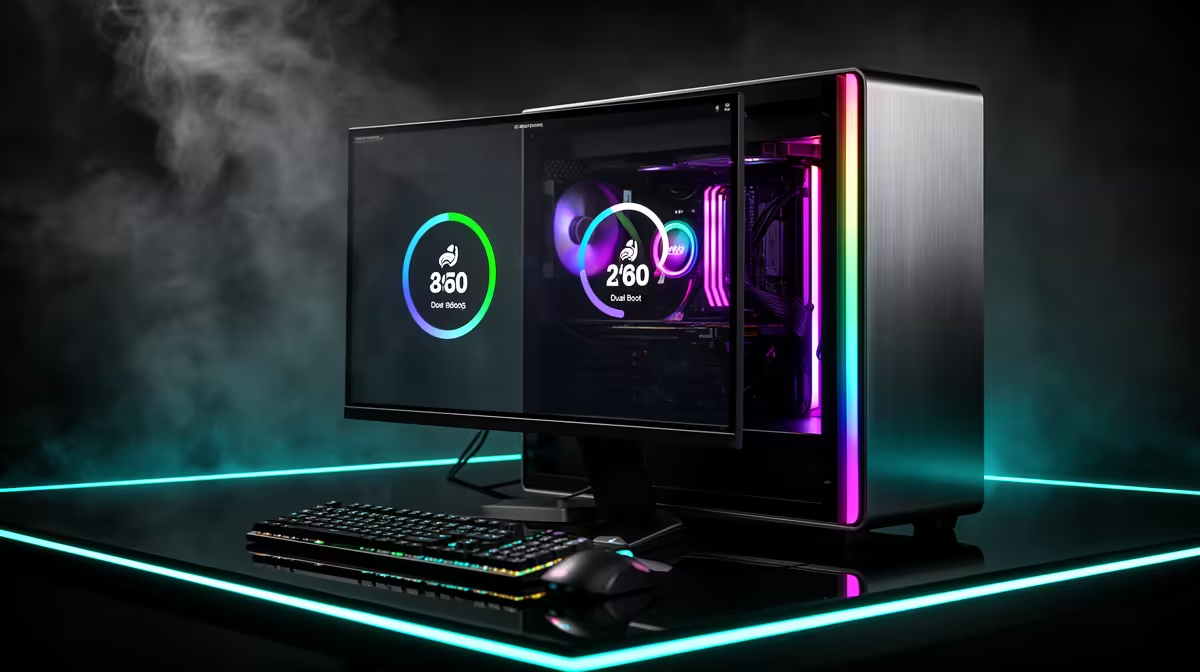
Running Linux for its gaming performance gains while keeping Windows on hand for the titles that demand kernel-level anti-cheat is a genuinely useful setup, and it is entirely doable on one machine. The reliable way to dual-boot SteamOS and Windows is to give each operating system its own SSD, which stops a Windows update from quietly trampling the Linux bootloader and leaving you stranded on a black screen.
Quick Answer
Install SteamOS and Windows on separate SSDs, one OS per drive. This keeps Windows from overwriting the GRUB bootloader during its updates, which is the single most common cause of a broken Linux dual-boot. With two drives you choose your OS from the boot menu and each one stays self-contained.
Why a Dedicated SSD per OS Matters
The classic dual-boot headache is Windows reclaiming the boot process during a major update and erasing or bypassing GRUB, the Linux bootloader. When both systems share one drive, that conflict is hard to avoid. Put each OS on its own SSD and the problem largely disappears, because Windows touches its drive and SteamOS touches its own.
This is the foundation the whole guide rests on. Before you start, make sure you have a second SSD installed and that you can see both drives in your motherboard's boot menu. Note that SteamOS on desktop hardware is still maturing, and the community-built Bazzite is a popular, well-supported alternative that follows the same dual-boot logic. Plenty of handheld and small-form gaming hardware in the handheld gaming consoles range ships with this kind of Linux gaming setup out of the box, which is a good reference point for how it behaves.
Step-by-Step: Dual-Booting Safely
Work through these in order, and do not skip the backup.
- Back up your data first. Anything involving partitions and bootloaders carries risk. Copy important files off both target drives before you touch anything.
- Install Windows first, on its own SSD. With only the Windows drive connected if possible, do a clean install. Letting Windows go first means it sets up its boot files without competing with Linux, and you add Linux to the boot picture afterwards.
- Fit and identify the second SSD. Once Windows is running, install or connect the second drive for SteamOS. Confirm both drives appear in your firmware so you know the hardware is seen before you begin the Linux install.
- Install SteamOS or Bazzite on the second SSD. Boot the Linux installer from a USB stick and, when it asks where to install, choose the dedicated second drive explicitly. Do not let it install onto or alongside the Windows drive. This is where keeping the drives separate pays off.
- Let GRUB land on the Linux drive. During install, GRUB sets itself up to manage booting. With each OS on its own SSD, GRUB lives on the Linux drive and does not have to wrestle with the Windows boot files.
- Set your boot order and test both. In your motherboard firmware, set the default boot device and confirm you can reach both Windows and SteamOS, either through GRUB or by picking the drive in the boot menu. Reboot into each one at least once to be sure.
- Keep a recovery USB handy. Even with the two-drive approach, a recovery stick for each OS is cheap insurance. If a future update ever does disturb the boot order, you can repair it quickly instead of reinstalling.
Living With the Dual-Boot
Day to day, you pick your OS at boot: SteamOS or Bazzite for the performance and the couch-friendly Big Picture style experience, Windows for the games whose anti-cheat refuses to run on Linux. Because the drives are separate, a Windows update changing its own boot files no longer takes Linux down with it.
A couple of habits keep things smooth. After a big Windows update, check that your boot menu still lists both systems and fix the order in firmware if needed. Keep enough free space on each SSD for updates, and if you find yourself short, browsing the PC best-sellers is a quick way to see what storage and complete systems are currently worth pairing with a dual-boot rig.
Frequently Asked Questions
Why install Windows before SteamOS?
Installing Windows first lets it set up its boot files cleanly without competing with Linux. You then add SteamOS or Bazzite afterwards, and GRUB takes over the boot menu, which is the order least likely to cause conflicts.
Can I dual-boot on a single SSD instead?
You can, but it is riskier. On a shared drive, a Windows update can overwrite or bypass GRUB and break the Linux boot. A dedicated SSD per OS avoids that conflict, which is why it is the recommended approach.
What if a Windows update breaks my boot menu?
With two drives the OS itself is intact; usually only the boot order needs fixing in your motherboard firmware. A recovery USB for each system lets you repair the bootloader quickly if needed, without reinstalling anything.
Is SteamOS or Bazzite better for this?
SteamOS on general desktop hardware is still maturing, so many users pick Bazzite, a community build that delivers a similar Linux gaming experience with broad hardware support. Both follow the same dual-boot, one-SSD-per-OS method.
Why keep Windows at all if Linux performs well?
Some games use kernel-level anti-cheat that will not run on Linux. Keeping Windows on its own drive gives you a fallback for exactly those titles while you game on Linux the rest of the time.
Building a rig that can swing between Linux performance and Windows compatibility? Explore the handheld gaming consoles range at Evetech for ready-made Linux gaming hardware, or spec a dual-SSD desktop of your own.