Quick Answer
Blurry text after a Ryzen 7 9800X3D build upgrade is a display settings matter, not the new CPU, which has no effect on text rendering. Set the monitor to native resolution, fix Windows scaling, and run ClearType. A high-refresh monitor to pair with a Ryzen 7 9800X3D at Evetech starts near R6,000.
The CPU Does Not Render Text Sharpness
The Ryzen 7 9800X3D is a top gaming CPU, but it plays no part in how crisp your text looks, that is decided by your monitor, GPU, and Windows scaling settings. A fresh build or Windows install can default to non-native resolution or unsuitable scaling, which softens text. The CPU upgrade caused no blur; it simply coincided with a settings reset. The fix is entirely in Windows display settings and ClearType, with the processor playing no role.
Post-Upgrade Text Sharpening
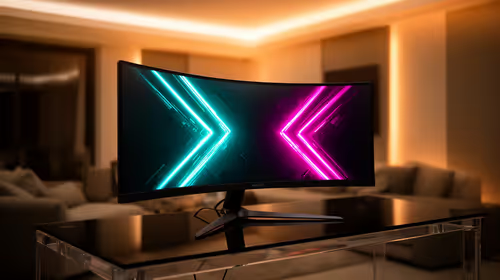
In Windows display settings, set the monitor to its native resolution, never a lower one, which always blurs text. Choose scaling to suit the panel, commonly 125% on a 27-inch 1440p or 150% on a 4K display, so text is readable and crisp. Run the ClearType Text Tuner to optimise sub-pixel rendering. Reseat the display cable in case the build disturbed it. Restart any blurry apps after changing scaling so they redraw sharply at the new value.
Per-App and Driver Fixes
Install the latest GPU drivers cleanly after the build, since a stale driver can leave display settings odd. For individual blurry apps, override high-DPI scaling in their compatibility settings to let the app or system handle it. Keep browser page zoom at 100% and let Windows scaling control size. Sign out and back in after major scaling changes. With native resolution, correct scaling, and ClearType tuned, text on your Ryzen 7 9800X3D build is crisp everywhere.
FAQ
Did the Ryzen 7 9800X3D upgrade blur my text?
No. The CPU has no effect on text rendering, which depends on the monitor, GPU, and Windows scaling. A fresh build or install likely reset display settings to defaults that soften text; correcting them fixes it.
What scaling should I use?
Commonly 125% on a 27-inch 1440p panel or 150% on a 4K display keeps text readable and crisp. Always run the monitor at its native resolution, since a lower resolution blurs text regardless of the scaling you choose.
How do I fix one blurry app?
Open the app's properties, go to the compatibility tab, click high-DPI settings, and override scaling to be handled by the application or system. Restart the app so it redraws at the correct sharpness afterwards.
Pro Tip
After the Ryzen 7 9800X3D upgrade, set native resolution with sensible scaling and run ClearType; the CPU has no bearing on text sharpness.