Quick Answer
Blurry text is fixed through display checks, not by replacing the DDR5 build. Set native resolution, confirm Windows scaling at 100% or 125%, run ClearType, and match refresh rate to the panel. The DDR5 build can explain when the problem was noticed, but text clarity comes from the monitor, cable, GPU output, and operating system.
Lock The Display To Native Mode
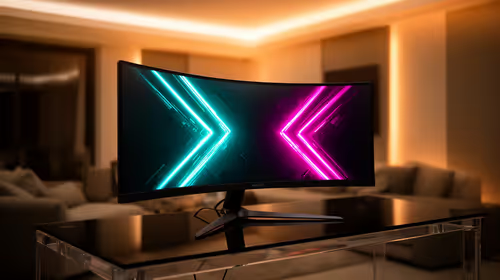
Set the panel to its native resolution first: 1920x1080, 2560x1440, 3440x1440, or the handheld panel resolution. In Windows 11, check Display settings, then scaling at 100% or 125% and run ClearType. If text becomes sharp here, the DDR5 build did not cause the problem.
Check Sharpness, HDR, And Cable Path
Reset monitor sharpness to a neutral value, often around the middle of the range. Turn HDR off for the desktop test if SDR text looks washed out, then compare HDMI and DisplayPort. A weak cable can force a lower colour format, making small text look smeared even on a strong DDR5 build.
Add Useful SA Buyer Evidence
Use a related reference such as Corsair Vengeance DDR5-6000 32GB kit, but keep the test on the screen. Check 1920x1080 or 2560x1440 at 60Hz, 144Hz, or 165Hz, and compare HDMI or DisplayPort where available. Broad SA monitor bands often start around R2,000-R3,500, with 1440p high-refresh options commonly higher. Evetech listings can help later, but first separate panel fault, cable issue, Windows scaling, and monitor setting. Keep one full-screen photo, one close-up, the resolution, refresh rate, and whether the mark appears in the monitor menu.
Use The Context Without Chasing The Wrong Part
For SA support, keep the invoice, serial number, and photos in normal room light. Match the result to the symptom: fixed black dot, stuck coloured dot, soft text, flicker, or cable artifact.
FAQ
Can a DDR5 build make text blurry?
Usually no. Text clarity is controlled by resolution, scaling, cable format, monitor sharpness, HDR, and ClearType. The DDR5 build may only be the timing clue.
What Windows 11 setting should I check first?
Check native resolution first, then scaling and ClearType. A 1440p monitor running a non-native 1080p signal can look worse than an entry display running correctly.
When should I replace the monitor?
Escalate only after native resolution, another cable, another port, and the monitor menu test still show poor clarity. If menu text is also soft, the monitor setup or panel is more likely than Windows alone.
Practical check
Set native resolution and run ClearType before shopping; if the monitor menu is sharp but Windows text is soft, check scaling or cable format before the DDR5 build.