Quick Answer
Ghosting on a DDR5 build in South Africa is a monitor-side issue, not a memory fault. RAM has no role in pixel response; smearing comes from a reset refresh rate or wrong overdrive. Set the panel to its rated refresh, overdrive to Normal, and use a DisplayPort 1.4 cable to clear it.
Memory Does Not Cause Ghosting
DDR5 memory affects system speed, not how your monitor draws moving images, so it cannot cause ghosting. The smear behind moving objects is set by the panel's pixel response, overdrive and refresh rate. On a fresh DDR5 build, the usual reason smearing appears is that Windows reverted the display to 60Hz after assembly, which makes a high-refresh monitor look smeary until you restore the correct rate.
Set Refresh, Overdrive And Sync
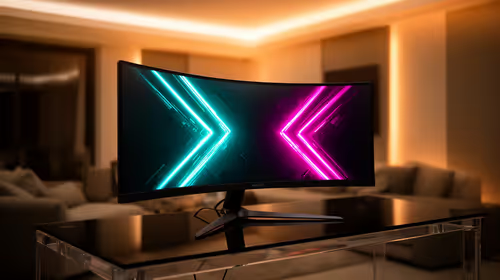
Open Windows display settings and select the monitor's full rated refresh, whether 144Hz, 165Hz or 240Hz. In the monitor menu, set overdrive to Normal or Medium to balance response without inverse ghosting. Use a DisplayPort 1.4 cable from the GPU so the panel runs at full speed, and enable FreeSync to keep motion clean when frame rates dip, which steadies the experience across demanding scenes.
FAQ
Can DDR5 RAM cause ghosting?
No. Memory affects system performance, not pixel response. Ghosting is a monitor issue, usually from a refresh rate reset to 60Hz or the wrong overdrive setting after a build.
How do I fix smearing after building a DDR5 PC?
Set the monitor to its full rated refresh in Windows, tune overdrive to Normal, and use a DisplayPort 1.4 cable from the GPU. Enabling FreeSync keeps motion clean during frame dips.
Does refresh rate affect ghosting?
Strongly. A high-refresh panel forced to 60Hz updates far less often and smears moving objects. Restoring the rated refresh removes most apparent ghosting on its own.
Display tip
DDR5 is not the cause. Set the monitor to its rated refresh, overdrive to Normal, and use DisplayPort 1.4 from the GPU with FreeSync on for clean, trail-free motion.