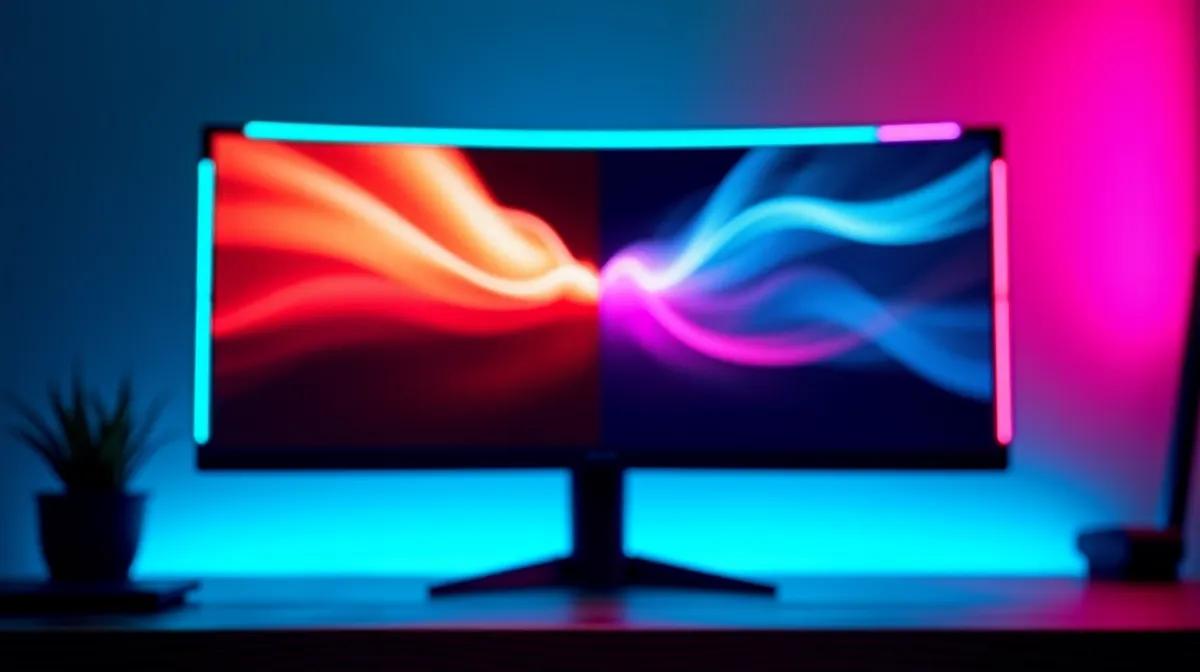
Screen tearing happens when your GPU sends frames to your monitor out of sync with its refresh cycle, creating a visible horizontal split where part of one frame and part of the next show at the same time. It's one of the most common visual issues in PC gaming, and the good news is that every modern fix — from free software toggles to hardware-based adaptive sync — actually works. Here's every method available in 2026, what each one costs in performance, and which one to use for your specific setup.
🎮 Why Screen Tearing Happens
Your monitor refreshes its image at a fixed rate — typically 60, 144, or 165 times per second (measured in Hz). Your GPU, meanwhile, renders frames as fast as it can, which varies constantly depending on what's happening in-game. When your GPU finishes a new frame halfway through the monitor's refresh cycle, the display shows the top half of the old frame and the bottom half of the new one. That visible line where the two frames meet is the tear.
Tearing is most noticeable during fast horizontal camera movement — panning across a landscape, flicking your aim in a shooter, or driving at speed. It's less visible in slow-paced games but can be distracting once you've noticed it.
The core of the problem is a timing mismatch. Every fix on this list addresses that mismatch in a different way, with different trade-offs between visual smoothness, input latency, and performance cost.
⚡ Method 1: VSync (Free, Built Into Every Game)
What It Does
VSync (vertical synchronisation) forces your GPU to wait until the monitor is ready for a new frame before delivering one. It caps your frame rate to your monitor's refresh rate — 60 FPS on a 60Hz monitor, 144 FPS on a 144Hz monitor — and eliminates tearing completely.
The Trade-Off
The cost is input lag. When your GPU finishes a frame early, it sits in a buffer waiting for the monitor's next refresh cycle. That waiting period adds 10–30ms of latency, which is noticeable in competitive shooters and fast-paced games. In single-player titles or strategy games, most players won't feel the difference.
There's a second gotcha: if your GPU can't consistently hit your monitor's refresh rate, VSync forces it down to the next division. On a 60Hz monitor, if your frame rate dips below 60, VSync snaps it down to 30 FPS, causing severe stuttering. This makes VSync a poor choice for systems that aren't comfortably exceeding their monitor's refresh rate.
When to Use VSync
Turn VSync on if you're playing single-player games, your FPS stays well above your refresh rate, and you don't have access to FreeSync or G-Sync. It's the simplest fix — every game supports it, and it costs nothing.
🔧 Method 2: Triple Buffering (Softens VSync's Downsides)
Triple buffering adds a third frame buffer to the rendering pipeline. Instead of your GPU waiting idle when VSync holds a frame, it starts rendering the next frame into the third buffer. This reduces the stuttering that occurs when VSync drops from 60 to 30 FPS, because the GPU always has a buffer to work on.
Triple buffering improves the VSync experience but doesn't eliminate its input lag — it adds a tiny amount more, in fact. Think of it as VSync with smoother frame delivery. It's worth enabling whenever VSync is on, but it won't solve VSync's fundamental latency penalty.
Not every game exposes this option. In OpenGL games, triple buffering works as expected. In DirectX titles, you may need to force it through your GPU driver's control panel — NVIDIA Control Panel or AMD Adrenalin Software.
🖥️ Method 3: FreeSync (AMD Adaptive Sync — Best Free Solution)
How It Works
FreeSync flips the equation: instead of capping your GPU's output to match the monitor, it adjusts the monitor's refresh rate to match your GPU's frame output in real time. If your GPU renders a frame in 8ms, the monitor refreshes after 8ms. If the next frame takes 11ms, the monitor waits 11ms. This eliminates tearing without adding the input lag of VSync.
FreeSync is AMD's implementation of the VESA Adaptive Sync standard, and in 2026 it works with both AMD and NVIDIA GPUs. It's also royalty-free, meaning monitor manufacturers don't pay licensing fees to include it. This makes FreeSync monitors significantly cheaper than G-Sync equivalents — most monitors sold in South Africa above R3,000 include FreeSync support.
What You Need
You need a FreeSync-compatible monitor (check for the FreeSync or Adaptive Sync label) and a GPU that supports it. AMD Radeon GPUs from the RX 400 series onward and NVIDIA GTX 10-series and newer GPUs all work with FreeSync monitors. Enable it in your monitor's OSD menu and in your GPU driver settings. Browse FreeSync monitors at Evetech to compare options across price points.
FreeSync Range Matters
Every FreeSync monitor has a supported range — for example, 48–144Hz. Tearing can still occur if your frame rate drops below the lower bound. Higher-end monitors offer wider ranges (sometimes 30–165Hz via LFC, or Low Framerate Compensation), which keeps adaptive sync active even during heavy scenes.
💪 Method 4: G-Sync (NVIDIA's Premium Solution)
G-Sync does the same thing as FreeSync — dynamic refresh rate matching — but uses a dedicated hardware module inside the monitor. This module handles the synchronisation at the hardware level rather than relying on the monitor's built-in scaler, which historically delivered a more consistent experience with fewer flicker issues at low frame rates.
The premium comes with a cost: G-Sync monitors typically run R2,000–R5,000 more than comparable FreeSync models. In 2026, the performance gap between G-Sync and high-quality FreeSync Premium monitors has narrowed significantly. For most gamers, FreeSync Premium offers a nearly identical experience at a lower price point.
G-Sync is worth the premium if you're playing competitively at high refresh rates (240Hz+) and want the absolute smoothest experience with zero compromises. For everyone else, FreeSync is the smarter financial choice.
🎯 Method 5: Frame Limiters (Underrated and Effective)
In-Game and External Limiters
Capping your frame rate just below your monitor's refresh rate — say, 141 FPS on a 144Hz monitor — reduces tearing without any synchronisation technology. This works because your GPU never gets ahead of your monitor's refresh cycle by more than a fraction of a frame. The remaining tear line is so small it's virtually invisible.
You can set frame limits through in-game settings, NVIDIA Control Panel (Max Frame Rate), AMD Adrenalin (Frame Rate Target Control), or third-party tools like RTSS (RivaTuner Statistics Server). RTSS is considered the most precise frame limiter available and adds less than 1ms of latency.
Combining With Adaptive Sync
The optimal setup in 2026 combines adaptive sync (FreeSync or G-Sync) with a frame rate cap set 3–5 FPS below your monitor's maximum refresh rate. This keeps your GPU within the adaptive sync range, eliminates tearing, and minimises input lag. For competitive gamers, adding NVIDIA Reflex (in supported titles) further reduces the render queue, shaving additional milliseconds off input latency.
Screen Tearing Fix Pro Tip ⚡
The best anti-tearing setup for most gamers in 2026 is FreeSync G-Sync ON + VSync ON in the driver (not in-game) + a frame rate cap set 3 FPS below your monitor's max refresh rate via RTSS or the driver. This combination eliminates tearing, prevents VSync's input lag penalty, and keeps your GPU within the adaptive sync window. It works on both NVIDIA and AMD setups.
🏆 Method 6: NVIDIA Reflex and Reflex 2 (Latency-Focused)
NVIDIA Reflex is a latency reduction technology built into supported games. It optimises the render pipeline so that frames are rendered just in time for display, reducing the queue of pre-rendered frames that cause input lag. Reflex doesn't fix tearing directly — it works alongside VSync or G-Sync to maintain low latency while those technologies handle the tearing.
Reflex 2, introduced with the RTX 50 series, adds Frame Warp technology that applies last-moment mouse input data to frames just before they're displayed. NVIDIA reports up to 75% latency reduction compared to not using Reflex. If you own an NVIDIA GPU and play competitive titles, enabling Reflex is a no-brainer — it's free performance with zero visual downside.
🇿🇦 Which Method Should SA Gamers Choose?
For most South African gamers, the answer is straightforward: buy a FreeSync monitor and use it with adaptive sync enabled. FreeSync monitors are widely available at Evetech from R3,000 upward, and since FreeSync works with both AMD and NVIDIA GPUs, it's a universal solution.
If you're on a tight budget and gaming on an older 60Hz monitor without adaptive sync, VSync combined with triple buffering and a frame limiter set to 57–58 FPS will significantly reduce tearing without requiring new hardware.
For competitive players who want every millisecond of advantage, a 240Hz+ FreeSync Premium monitor paired with NVIDIA Reflex and a frame cap at 237 FPS delivers the best combination of tear-free visuals and minimal input lag available in 2026.
Check Evetech's gaming monitor range to find FreeSync and G-Sync compatible displays at various price points and sizes.
Ready to Eliminate Screen Tearing?
A FreeSync monitor is the most cost-effective upgrade for tear-free gaming. Browse Evetech's range of gaming monitors — from budget 1080p panels to premium 4K displays — with local warranty and delivery across South Africa. Shop Gaming Monitors at Evetech.