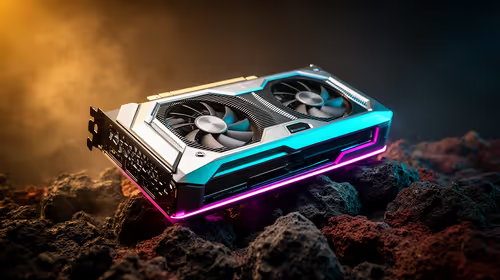
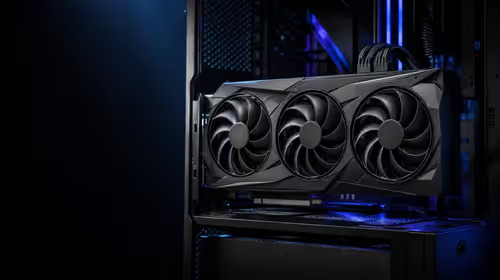
Is your gaming PC starting to sound like a jet engine during a Johannesburg summer? You’re not alone. When temperatures rise, so do the chances of thermal throttling… that sneaky culprit that slashes your frame rates just when you’re about to clutch the round. But don’t sweat it. Learning how to improve PC cooling isn’t just for pro builders; it’s the key to unlocking consistent performance and protecting your hardware. This guide will show you how.
The Ground Rules: Mastering Airflow and Cleanliness
Before you even think about buying new hardware, the biggest gains in PC cooling often come from simple maintenance. Think of it as the foundation for a cool and quiet system. If you get this right, every other step becomes more effective.
Why Your PC Hates Dust
Dust is the number one enemy of good PC cooling. It settles on your components, fans, and heatsinks, acting like an insulating blanket. This traps heat, forcing your fans to spin faster and louder just to keep temperatures under control. Over time, this can reduce the lifespan of your CPU and GPU.
A quick clean every few months can make a world of difference.
- Power Down: Completely shut down and unplug your PC.
- Get Outside: Take your PC to a well-ventilated area, preferably outdoors.
- Use Compressed Air: Use short, controlled bursts of compressed air to blow dust out of your case, fans, and heatsink fins. Never use a vacuum cleaner, as it can create static electricity that damages components.
- Wipe Down: Use a microfibre cloth to wipe down fan blades and flat surfaces.
Regular cleaning is vital for any rig, from entry-level budget gaming PCs to high-end custom builds. It’s the cheapest way to improve your PC’s thermal performance.
Tidy Cables, Tidy Thermals
That "rat's nest" of cables inside your case isn't just an eyesore; it's a major obstacle to airflow. Messy cables can block intake fans and disrupt the intended path for air to travel over your hot components and out the exhaust.
A few minutes of cable management can significantly improve PC cooling. Route cables behind the motherboard tray, use zip ties to bundle them together, and ensure a clear, unobstructed path from your front intake fans to your rear exhaust.
Hardware Upgrades for Better PC Cooling
If you’ve cleaned your PC and managed your cables but still aren't happy with the temperatures, it might be time for a hardware upgrade. These PC cooling solutions offer a more direct approach to tackling heat.
More Than Just Lights: The Power of Case Fans 🌬️
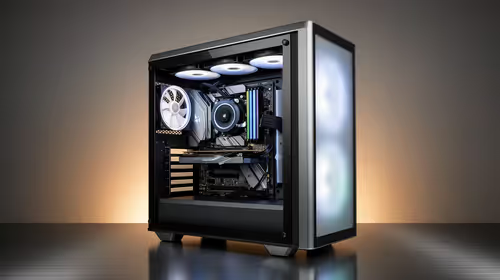
Your case fans create the airflow that your entire system relies on. A common and effective setup is to have fans at the front pulling cool air in (intake) and a fan at the back pushing hot air out (exhaust). This creates a wind tunnel effect, constantly replacing the hot air inside your case with cool ambient air. If your case has empty fan slots, adding one or two more can be a cost-effective way to lower temperatures. Even many excellent PCs under R20k can benefit from an extra exhaust fan to boost their cooling potential.
Quick Tip: Positive vs. Negative Pressure ⚡
Aim for slightly more intake than exhaust. This creates positive pressure inside the case, which helps to push air (and dust) out of unfiltered cracks and vents, keeping your PC cleaner for longer. For example, two intake fans and one exhaust fan is a great starting point.
Beyond the Stock Cooler: CPU Cooling Solutions
The cooler that came with your CPU is designed to be… adequate. It’ll do the job at stock speeds, but it often struggles under heavy gaming loads, leading to high temperatures and noise. Upgrading your CPU cooler is one of the most effective ways to improve component cooling.
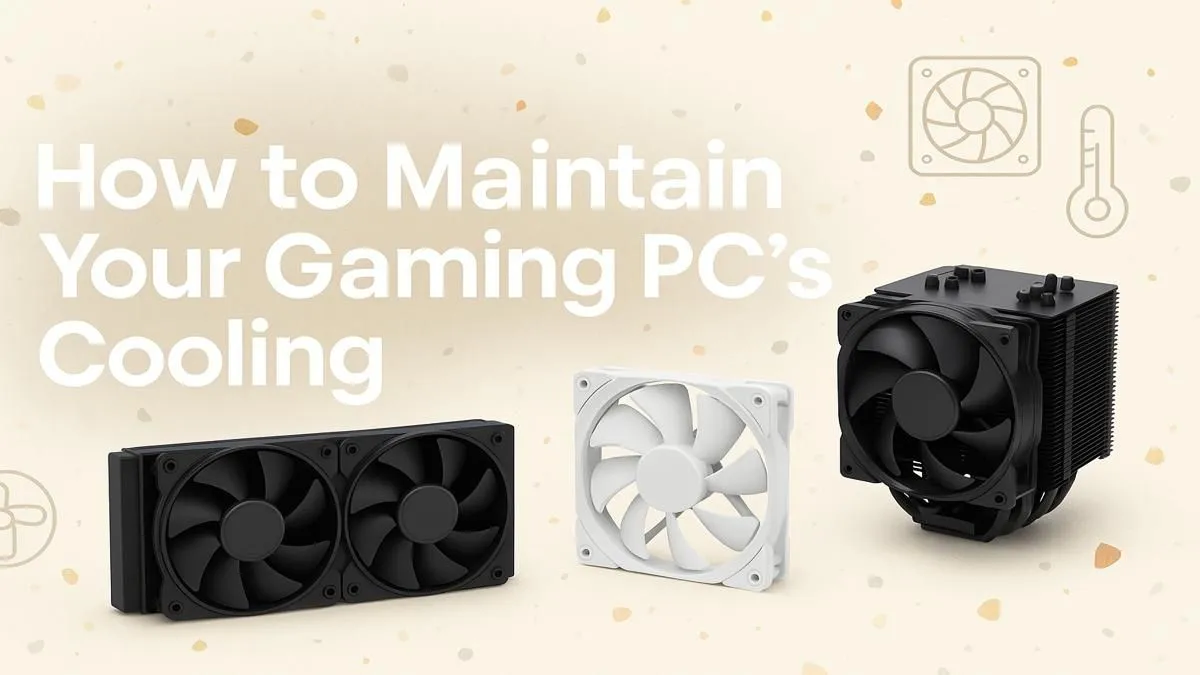
- Air Coolers: These use a heatsink with metal fins and a fan to draw heat away from the CPU. Larger tower coolers offer fantastic performance that can even rival liquid cooling.
- AIO Liquid Coolers: All-in-One (AIO) coolers use liquid to transfer heat from the CPU to a radiator, where it's dissipated by fans. They often provide superior cooling performance and can look incredibly clean in a build.
High-performance rigs, like these powerful gaming PCs above R20k, almost always feature an upgraded cooling solution to keep their powerful processors in check.
Fine-Tuning for Peak Cooling Performance 🔧
With the right hardware in place, a few software tweaks can help you achieve optimal PC cooling, balancing low temperatures with quiet operation.
Take Control with Custom Fan Curves
Your motherboard's BIOS or software like MSI Afterburner allows you to set custom "fan curves." This tells your fans how fast to spin at certain temperatures. Instead of letting them ramp up to 100% suddenly, you can create a gradual curve that keeps the system cool without sounding like a hurricane. Many of our pre-built PC deals come with expertly configured fan curves right out of the box, ensuring a great thermal experience from day one.
Your Case and Your Room Matter
Finally, don't forget the environment. A PC case with a mesh front panel will always have better airflow than one with a solid glass front. When choosing a new rig, look for cases designed with thermals in mind. Furthermore, the temperature of your room has a huge impact. You can't cool a 60°C CPU with 30°C room air as effectively as you can with 20°C air. Keeping your room cool and ensuring your PC has space to breathe (not stuffed in a tight cabinet) is a crucial final step. It’s a factor we consider in all our best gaming PC deals, ensuring the chassis matches the power of the components inside.
Ready for a Cooler, Faster Gaming Experience?
Mastering your PC's cooling is key to unlocking its full potential. But if your current rig is still running hotter than a braai in December, it might be time for an upgrade. Explore our massive range of gaming PCs and find a professionally built machine engineered for maximum performance.