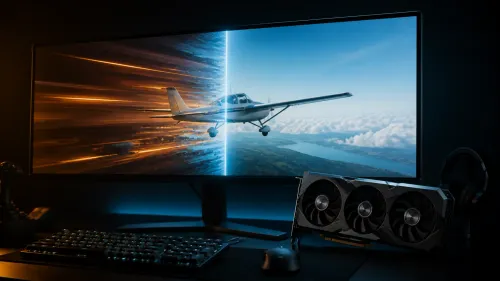
So, you're staring at your PC, wondering why Baldur's Gate 3 runs more like a PowerPoint presentation. We've all been there. In South Africa, a full rig upgrade can cost a fortune, but what if the biggest performance boost is just one component away? Learning how to install a budget graphics card is the single most effective way to level up your gaming experience without emptying your wallet. It's simpler than you think... let's get you sorted. 🚀
Before You Begin: A Pre-Installation Checklist
Jumping straight into the installation is a rookie mistake. A few minutes of prep work can save you hours of headaches. Before you even think about buying a new GPU, run through this quick checklist to ensure a smooth upgrade.
### Check Your Power Supply (PSU)
Your PSU is the heart of your PC. A new graphics card needs enough juice to run properly. Check the wattage on the side of your PSU and look for any available 6-pin or 8-pin PCIe power connectors. Most product pages for NVIDIA and ATI graphics cards will list their power requirements. No point buying a beastly card if your system can't feed it.
### Measure Your PC Case
This sounds obvious, but you'd be surprised how many people buy a shiny new card only to find it won't physically fit inside their case. Grab a measuring tape and check the maximum GPU length your case supports. Modern cards, even budget ones, can be quite chunky, especially those with dual or triple-fan coolers.
### Avoid the CPU Bottleneck
Pairing a powerful new GPU with an ancient CPU is like putting racing tyres on a bicycle. Your processor needs to be able to keep up and feed the graphics card with data. You don't need the latest and greatest, but make sure your CPU isn't going to hold your new graphics card back.
Your Step-by-Step Budget Graphics Card Installation Guide 🔧
Alright, you've done your homework and your new card has arrived. It's time for the fun part! This budget graphics card installation process is straightforward. Take a deep breath; you've got this.
- Power Down & Unplug: Completely shut down your PC. Switch the power supply off at the back and unplug the main power cable from the wall. Safety first!
- Open Up: Place your PC on a flat, stable surface. Unscrew the side panel (usually the left one as you face the front) and set it aside.
- Remove the Old Card (If Applicable): If you're upgrading, first unplug any power cables going to your old GPU. Then, unscrew it from the case bracket. Finally, press the small clip at the end of the PCIe slot on the motherboard to release the card and gently pull it straight out.
- Seat the New Card: Line up your new card with the top-most long PCIe slot. Push it down firmly until you hear a satisfying "click" as the retention clip locks it in place. Screw it into the case bracket to secure it. Many popular MSI graphics cards have a satisfyingly solid feel when they click into place.
- Connect Power: If your new card requires extra power, plug in the 6-pin or 8-pin PCIe cables from your power supply.
- Close Up & Boot: Put the side panel back on, plug everything back in, and power on your PC. Your screen might stay blank for a moment or display at a low resolution... this is normal.
Pro Tip: Clean Drivers ✨
Before you physically swap the cards, it's best practice to completely uninstall your old graphics drivers. Use a free tool called Display Driver Uninstaller (DDU) in Windows Safe Mode. This wipes every trace of the old software, preventing conflicts and ensuring a clean start for your new GPU.
What to Look For in a Budget GPU
The market is packed with options, which can be confusing. For 1080p gaming, which is the sweet spot for budget builds, you have three main players to consider.
Team Green (NVIDIA) and Team Red (AMD) have been the go-to choices for years, offering fantastic value with cards like the RTX 3050 or the RX 6600. However, don't forget the newcomer, Team Blue. The latest Intel Arc graphics cards are shaking up the budget market, offering incredible performance for their price point in modern games.
For those looking for pure gaming value, the range of AMD Radeon graphics cards often provides the best frames-per-rand. Just be sure to avoid cards designed for professional work; while powerful, workstation graphics cards lack the gaming-specific driver optimisations you need and are a poor choice for a gaming rig.
Final Steps: Drivers and Testing
Once you've booted into Windows, your final job is to install the correct software. Head to the NVIDIA, AMD, or Intel website, find the support/drivers section, and download the latest package for your specific graphics card model.
Install the drivers, restart your PC one last time, and you're done! Fire up your favourite game, crank up the settings, and enjoy that silky-smooth frame rate. You've successfully completed your own budget graphics card installation. 💪
Ready to Boost Your FPS?
Installing a budget graphics card is the single best upgrade for any South African gamer. It's easier than you think and the performance leap is massive. Explore our huge range of graphics cards and find the perfect GPU to level up your rig today.