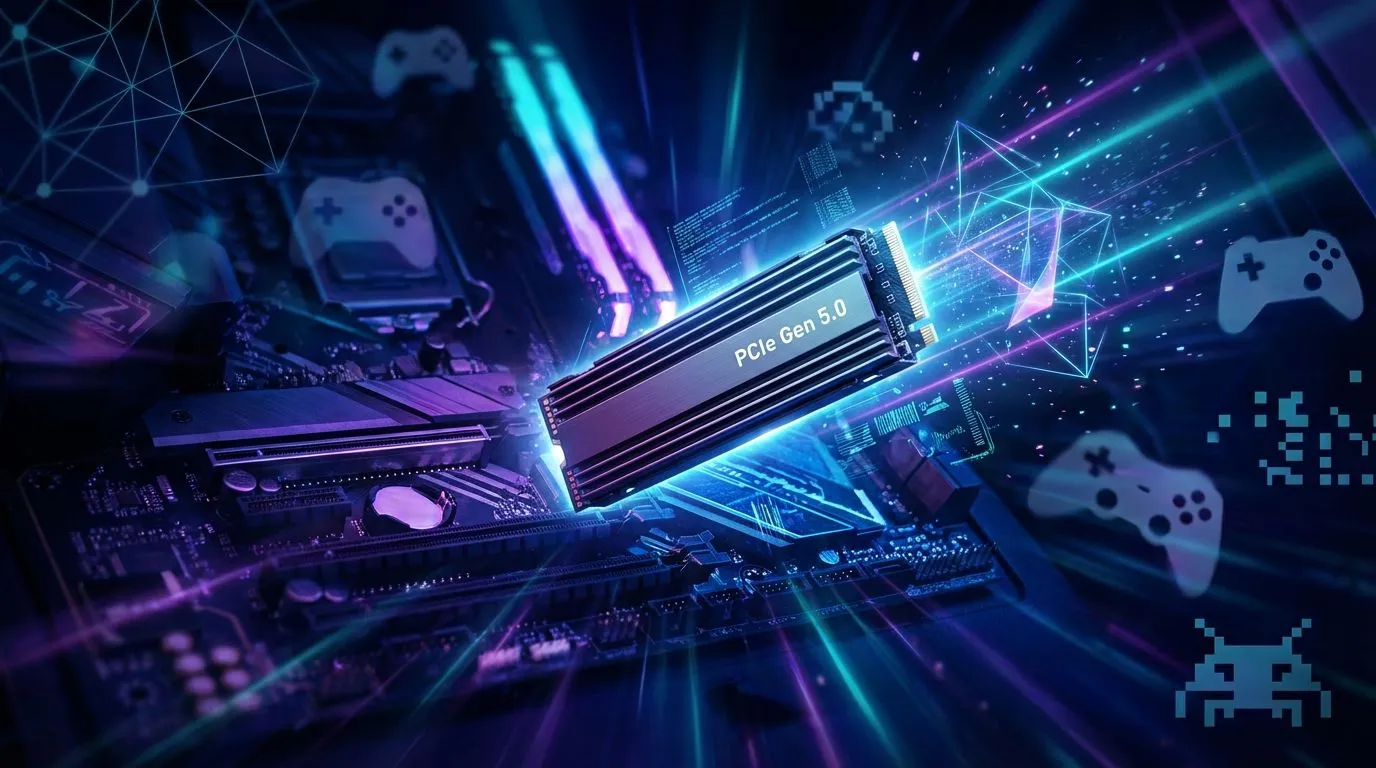
Tired of that loading screen spinning just a second too long? Even with a fast SSD, the next generation of games and creative apps demand more. Enter the PCIe 5.0 SSD... a true speed demon for your desktop PC. Learning how to install a PCIe 5.0 SSD is simpler than you might think, and this expert guide will show you exactly how to unleash its blistering performance in your South African rig. 🚀
Your Pre-Installation Checklist
Before you even open your PC case, a little prep work goes a long way. A smooth PCIe 5.0 SSD installation starts with having the right gear and knowledge. Let's make sure you're ready.
### Compatibility Check
First things first: does your rig support it? You'll need a compatible motherboard (typically Intel Z690/Z790 or AMD X670/B650 and newer) with a designated Gen5 M.2 slot. Check your motherboard's manual or product page to confirm. This is the most crucial step... no point buying a Ferrari engine for a Ford Fiesta, right?
### Essential Tools 🔧
You don't need a massive workshop. All you really need is:
- A Phillips-head screwdriver (usually a PH1 size).
- Your motherboard manual (for locating the correct M.2 slot).
- An anti-static wrist strap (optional, but highly recommended to protect your components).
How to Install Your PCIe 5.0 SSD: A Step-by-Step Guide
Alright, let's get down to business. Follow these steps carefully for a flawless installation.
### Step 1: Power Down and Prepare Your Workspace
Safety first! Completely shut down your computer and unplug it from the wall. Press the power button a few times to discharge any residual electricity. Move your PC to a well-lit area with plenty of space to work. If you have an anti-static strap, now's the time to put it on and clip it to a metal part of your PC case.
### Step 2: Locate the Primary Gen5 M.2 Slot
Open your PC case and find the M.2 slots on your motherboard. Your manual is your best friend here. The primary slot, usually closest to the CPU, is almost always the fastest one and the one you want for your new PCIe 5.0 drive. It will likely be covered by a heatsink, which you'll need to unscrew.
Cooling is Critical! ❄️
PCIe 5.0 SSDs run significantly hotter than their Gen4 predecessors. Always use the heatsink that comes with your motherboard or the SSD itself. Proper cooling is essential to prevent thermal throttling, which can drastically reduce those incredible speeds you paid for. Don't skip this step!
### Step 3: Insert and Secure the SSD
With the heatsink removed, you'll see the M.2 slot. Notice the small notch in the connector. Line up the gold contacts on your SSD with the slot and gently insert it at a 30-degree angle. It should slide in smoothly. Once it's seated, gently press the other end down towards the motherboard. It will line up with a small standoff. Use the tiny screw you removed earlier (or one from your motherboard box) to secure it in place. Don't overtighten it... just snug is perfect.
### Step 4: Re-attach the Heatsink and Close Up
Before you put the heatsink back on, make sure to remove any protective plastic film from the thermal pad. Place the heatsink back over the newly installed SSD and screw it back into place. Now you can close up your PC case, plug everything back in, and get ready for the final software step.
Post-Installation: Getting Windows to See Your New Drive
You've successfully completed the physical part of installing your new Gen5 SSD! But when you boot up, you won't see it in "My Computer" just yet. Don't panic, this is normal.
- Right-click the Start Menu and select "Disk Management".
- A window will pop up asking you to initialise the new disk. Choose GPT (GUID Partition Table) as it's the modern standard.
- You'll now see your drive listed as "Unallocated". Right-click the unallocated space and select "New Simple Volume".
- Follow the wizard's prompts. You can assign it a drive letter, give it a name (like "Games" or "Gen5 Speed"), and format it with the NTFS file system.
Once the format is complete, your lightning-fast new drive is ready for action! ✨ You can now install games or move files to it and experience truly next-level speeds. While the performance jump is massive, remember that even a top-tier PCIe 4.0 drive like the Klevv CRAS C925G still offers incredible value and speed for most gamers today. Brands like Klevv South Africa are pushing the boundaries of what's possible with storage.
Ready to Unleash Ludicrous Speed?
A fast SSD is one of the most impactful upgrades you can make, eliminating loading screens and speeding up your entire system. Explore our full range of high-speed SSDs and find the perfect drive to supercharge your PC today.