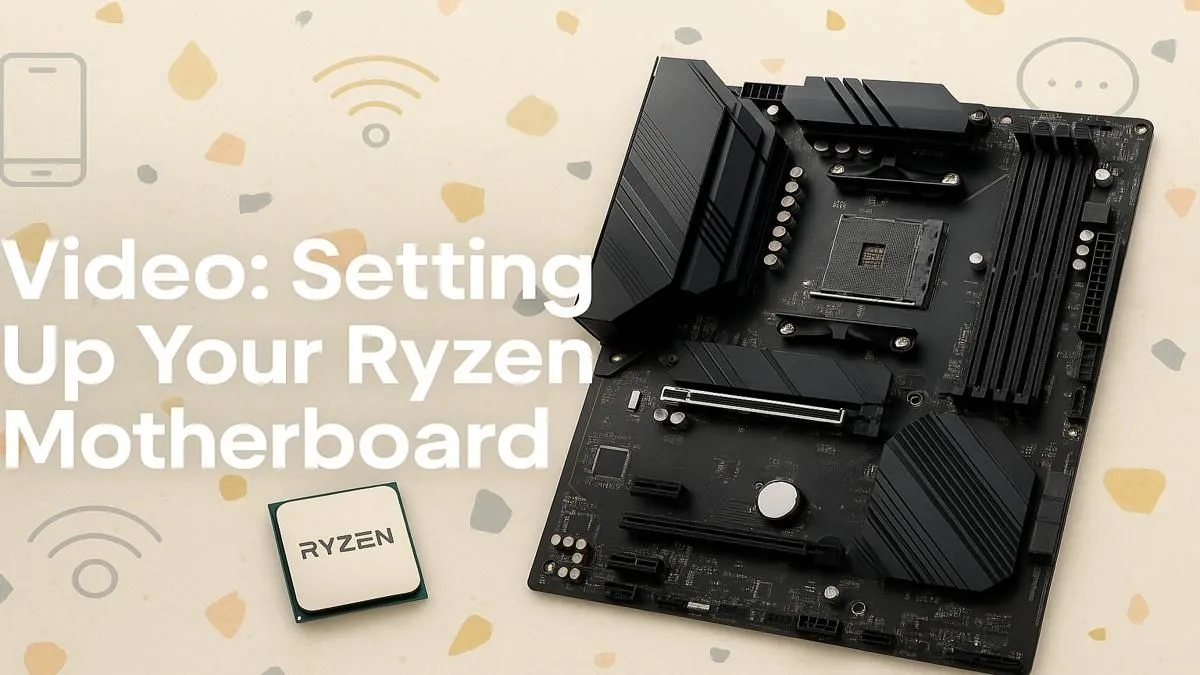
So, that shiny new box with your AMD Ryzen motherboard has just landed. The excitement is real, but so is that little voice asking, "What now?". Don't stress! Learning how to install a Ryzen motherboard is one of the most rewarding steps in any PC build. It’s the central nervous system of your new rig, and getting it right is easier than you think. This guide, complete with a step-by-step video, will turn that hesitation into pure building confidence. 🚀
Before You Begin: The Pre-Installation Checklist
A great build starts with good prep. Before you even touch the motherboard, let's get your station ready. Find a large, clean, non-conductive surface like a wooden table—definitely not the carpet! Ground yourself by touching a metal part of your PC case to discharge any static electricity.
Most importantly, make sure you have the right board for your build. If you're still deciding, you can browse our full range of AMD motherboards to find the perfect fit for your budget and performance needs.
Your toolkit should include:
- A Phillips head screwdriver (preferably with a magnetic tip).
- Your motherboard manual (this is your best friend!).
- Small containers for screws.
The Main Event: A Video Guide to Installing Your Ryzen Motherboard
For all the visual learners out there, watching the process unfold can make all the difference. This video covers every crucial step of a standard Ryzen motherboard installation, from unboxing to seating it in the case.
[YOUTUBE_VIDEO_PLACEHOLDER]
Even if you watch the video, we recommend reading the step-by-step breakdown below. It adds extra detail and tips that are easier to reference as you go.
Step-by-Step Ryzen Motherboard Installation Breakdown 🔧
Ready to get hands-on? Let's walk through the process of installing your AMD Ryzen motherboard, one simple step at a time.
Step 1: Prep the Motherboard & CPU
Carefully take the motherboard out of its anti-static bag, holding it by the edges. Place it on top of the box it came in; this creates a perfect, safe little workbench.
Next, locate the CPU socket. You'll see a small metal lever, or retention arm. Gently push it down, move it to the side to unhook it, and then lift it all the way up. This opens the socket, ready for the CPU.
Step 2: Install the Ryzen CPU
This is the most delicate part, but it's simple if you're careful. On your Ryzen CPU, find the tiny golden triangle in one corner. On the motherboard's CPU socket, you'll find a matching triangle.
Align these two triangles and gently lower the CPU straight down into the socket. It should drop in with zero force. If it doesn't, check the alignment again. Once it's seated, lower the retention arm back down and lock it into place. You're done!
Pro Tip: No Force Needed! ⚡
Never, ever force a CPU into the socket. The pins are incredibly delicate. If it doesn’t drop in smoothly, it’s not aligned correctly. Double-check the triangle markers on both the CPU and the motherboard socket. A gentle touch is all it takes for a perfect installation.
Step 3: Install the M.2 SSD & RAM
Most modern boards have at least one M.2 slot for super-fast storage. Unscrew the M.2 standoff, slide the drive in at a slight angle, then press it down and secure it with the screw.
For RAM, open the clips on the memory slots. Check your motherboard manual for which slots to use for a dual-channel setup (usually slots 2 and 4). Align the notch on the RAM stick with the notch in the slot, and press down firmly on both ends until the clips click into place. Even excellent value boards like the AMD B550 motherboards come packed with features like M.2 slots, making them a solid choice for any build.
Step 4: Mount the Motherboard in the Case
First, install your case's I/O shield (the metal plate for your ports) if it's not pre-installed. Then, ensure the motherboard standoffs are installed in your case in the correct positions—they should line up perfectly with the screw holes on your motherboard.
Carefully lower the motherboard into the case, aligning the ports with the I/O shield and the holes with the standoffs. Secure it with the provided screws, starting with the centre one. Don't overtighten them; just snug is perfect. For the latest Ryzen builds, the new AMD B850 motherboards offer a fantastic, modern platform to build upon.
Step 5: Connect Power & Front Panel Cables
This is the final hurdle. Connect the large 24-pin ATX power cable and the 4/8-pin CPU power cable from your power supply. They only fit one way.
Next are the fiddly front panel connectors for your case's power button, reset switch, and LEDs. Refer to your manual for the exact pin layout—it's labelled on the board itself, too. If you've opted for a premium experience with features like Q-Connectors, common on enthusiast-grade AMD X870 motherboards, this part is even easier.
And that's it! Your Ryzen motherboard is installed. ✨ Now you can move on to installing the GPU, connecting storage drives, and managing your cables.
Ready to Build Your Dream Ryzen Rig?
The heart of every great gaming PC is a powerful motherboard. Now that you know how to install one, the journey has just begun. Explore our massive range of PC components and find the perfect parts to conquer your world.