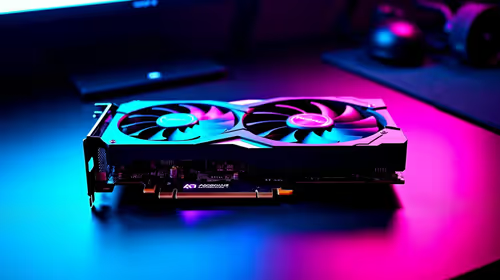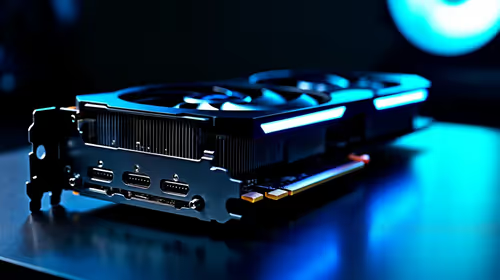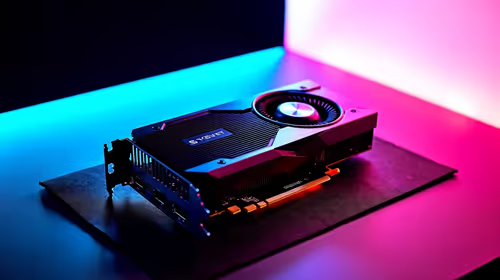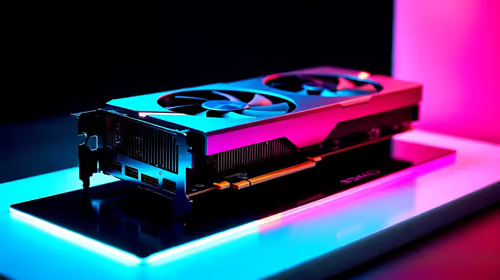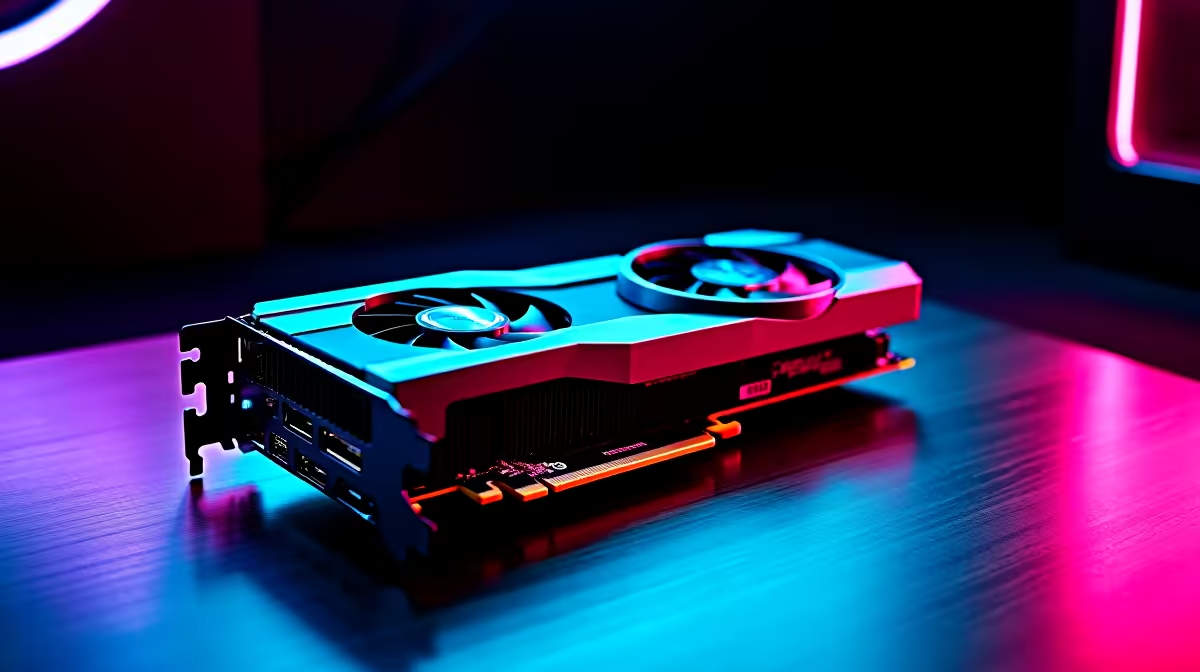
Dropping thousands of Rands on a next-gen graphics card only to leave performance on the table is a nightmare. If you want to optimise PCIe 5.0 GPU bandwidth for gaming and creative workloads, you need more than just a quick plug-and-play setup. South African gamers and creators must ensure their motherboards, processors, and BIOS settings work in perfect harmony to push every single frame.
Understanding the PCIe 5.0 Leap 🚀
The jump to PCIe 5.0 delivers staggering data transfer rates. We are talking up to 64 GB/s on an x16 slot. That is double what the previous generation offered. Whether you are rendering massive 4K video timelines or chasing 240Hz in competitive shooters, that bandwidth keeps your system fed. When looking at the latest graphics cards, matching them with a compatible Gen 5 motherboard is your first crucial step for peak performance.
Managing Your Motherboard Lanes
Here is where many builders stumble... lane sharing. Most consumer processors only have a limited number of PCIe 5.0 lanes available. Installing a Gen 5 NVMe SSD into the wrong slot is risky. Your motherboard might split your primary GPU lanes from x16 down to x8.
While modern NVIDIA GeForce graphics cards still perform incredibly well at x8 speeds, you want the full x16 connection for heavy creative workloads. Always check your motherboard manual before seating your storage drives. If you are upgrading your whole rig to avoid these bottlenecks, browsing the current graphics card deals can help you budget for the right tier of motherboard.
BIOS Tweaks for Maximum Throughput ⚡
Sometimes your motherboard will auto-detect the wrong PCIe generation. Boot into your BIOS and manually force the primary PCIe slot to Gen 5. While you are there, enable Resizable BAR. This allows your CPU to access the entire VRAM buffer at once rather than in tiny chunks.
It is a massive boost for 3D rendering and high-resolution gaming. If tinkering in the BIOS sounds a bit daunting, grabbing one of our pre-configured gaming PC deals means our technicians handle the complex optimisation for you.
Bandwidth Pro Tip 🔧
Use software like GPU-Z to verify your connection speed under load. Click the small question mark next to the 'Bus Interface' box to run a quick render test. This forces the card out of its idle state so you can confirm it is actually running at full PCIe 5.0 x16 speeds.
Power and Thermal Considerations ✨
Pushing maximum bandwidth means your card will draw serious power. Ensure you have an ATX 3.0 power supply with a native 12VHPWR cable to deliver clean, stable wattage. Thermal throttling will also tank your bandwidth speeds as the card automatically clocks down to protect itself. Keep your case airflow optimised. If you need to upgrade your chassis cooling or power supply to keep up, keep an eye on our weekly tech specials to save some hard-earned ZAR.
Ready to Unleash Next-Gen Performance? Building the ultimate workstation or gaming rig requires the right components and expert advice. Don't let older hardware bottleneck your creative vision. Explore our massive range of PC components and build a machine that dominates every workload.