Is your fibre connection feeling more like dial-up the moment you leave the room? You’re not alone. In South Africa, getting a stable, fast connection throughout your home can be a real mission. But don’t blame your ISP just yet! Knowing how to set up a home network correctly can turn laggy gaming sessions and buffering streams into a thing of the past. This step-by-step guide will show you how to get it done right. 🔧
Step 1: Choosing the Right Networking Gear
Before you plug anything in, you need the right tools. Your Internet Service Provider (ISP) likely gave you a modem/router combo. For basic browsing, it’s fine. But for a busy home with multiple devices, streaming 4K content, and intense online gaming, it might be the bottleneck.
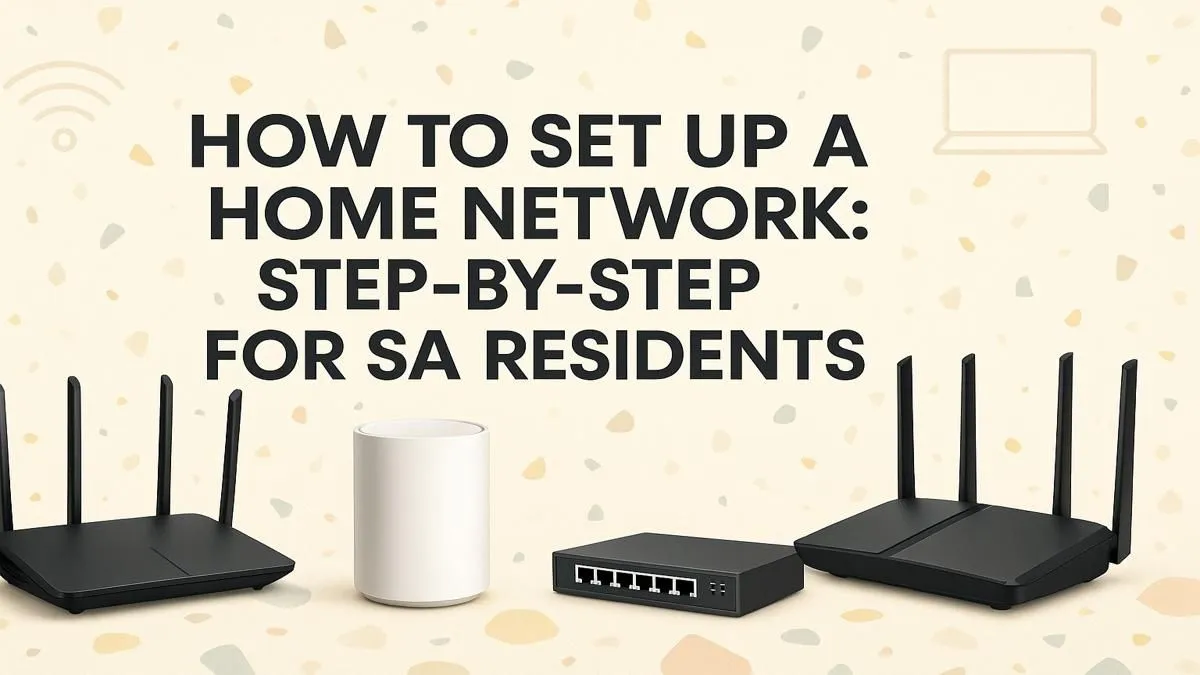
A dedicated, powerful router is the heart of a great home network setup. Look for models with Wi-Fi 6 (802.11ax) technology, which is designed for handling many connections at once without slowing down. Investing in one of our top-tier wireless routers can make a night-and-day difference to your speed and stability.
Step 2: The Physical Setup and Placement
Where you place your router is more important than you think. Don't hide it in a cupboard or at the far end of the house! For the best signal, follow these simple rules:
- Central Location: Place the router as close to the centre of your home as possible.
- Up High: Position it on a high shelf or mount it on a wall. Radio waves spread downwards and outwards.
- In the Open: Avoid placing it near thick walls (especially brick), metal objects, or other electronics like microwaves, which can interfere with the signal.
Connect the Ethernet cable from your fibre box or modem to the router's "WAN" or "Internet" port (it's often a different colour). Then, use another Ethernet cable to connect your computer to one of the "LAN" ports for the initial setup.
Step 3: Configuring Your Router's Settings
Now it's time to tweak the software. Open a web browser on your connected computer and type in your router's IP address (usually 192.168.0.1 or 192.168.1.1 – check the sticker on the router). Log in with the default username and password.
Once you're in, here are the three essential changes to make:
- Change the Admin Password: This is the password for the router itself. Leaving it as "admin" is a massive security risk.
- Set Your Wi-Fi Name (SSID) and Password: Choose a unique name for your network and a strong password using WPA3 or WPA2 security.
- Update Firmware: Check for any firmware updates and install them. These often include crucial security patches and performance improvements.
Wi-Fi Wizard Tip 🧙
Use a free app like "WiFi Analyzer" on your phone to see which Wi-Fi channels your neighbours are using. Most routers default to channels 1, 6, or 11. By manually setting your router to a less crowded channel in its admin settings, you can significantly reduce interference and boost your signal stability. It's a quick fix for mysterious connection drops!
Step 4: Optimising and Extending Your Wi-Fi Coverage 📶
Even with perfect placement, you might have Wi-Fi "dead zones" in your home. If your signal is weak in the bedroom or braai area, don't despair.
For those stubborn spots, a simple Wi-Fi range extender can be a lifesaver. It picks up your existing signal and rebroadcasts it, extending its reach. And for older desktops or devices without built-in Wi-Fi, a plug-and-play USB wireless adapter is the easiest way to get them connected without running long cables.
Step 5: Final Checks and Securing Your Network
With your home network setup complete, it's time for the final touches. Connect your devices to the new Wi-Fi network and run a speed test to check performance. It's also a great idea to set up a "Guest Network" if your router supports it. This lets visitors get online without giving them access to your main network and all your devices. ✨
Mastering your network is an ongoing process, and having the right hardware is key to a smooth online experience. For a complete overview of what's possible, browse our full wireless networking category.
Ready to Banish Buffering for Good?
A rock-solid home network is the backbone of modern gaming and entertainment. With the right gear and a few simple tweaks, you can enjoy the full speed you're paying for. Explore our massive range of networking gear and build the powerful, reliable home network you deserve.