Dropping into a virtual cockpit and turning your head to check an apex is the moment sim racing stops being a game and starts feeling like driving. Setting up VR for sim racing is a chain of three things done in order: the headset, the connection to your PC, and the in-game VR settings that keep a head-tracked cockpit rendering smoothly at around 90fps per eye.
Quick Answer
A working PC-VR sim racing setup needs a headset like the Quest 3, a stable Link or Air Link connection to a gaming PC, and a GPU strong enough to hold roughly 90fps per eye. Set it up in that order, then tune in-game render resolution down until frame rates stay locked before you chase visual quality.
Step One: Choose And Position The Headset
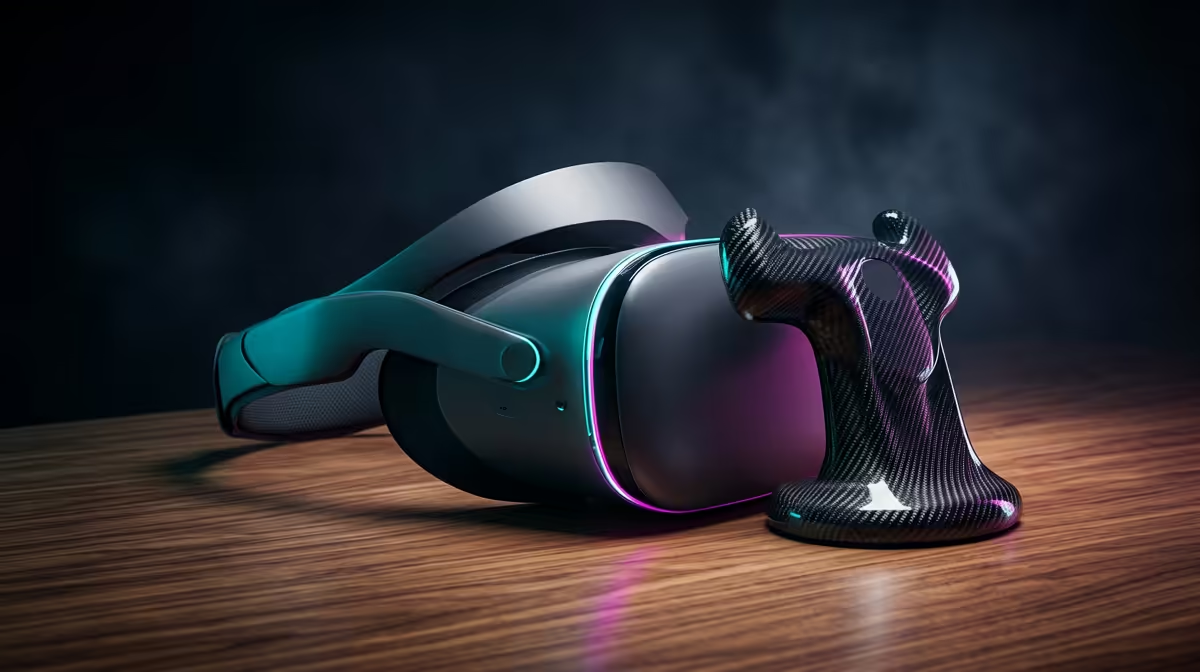
A standalone headset such as the Quest 3 doubles as a capable PC-VR display, which makes it the common starting point for sim racers in South Africa. It connects to your PC for the heavy rendering while the wheel and pedals stay plugged into the PC as usual.
Before any software, get the physical setup right. Set your play space as stationary or seated, and make sure the headset's cameras can see enough of the room to hold tracking steady. A racing rig that does not move helps the headset keep a rock-solid horizon, which matters enormously for comfort.
If you are still deciding on hardware, browsing the AR and VR glasses range at Evetech will show you what is currently stocked locally before you build the rest of the chain around it.
Step Two: Connect To Your PC
You have two routes to get the PC's rendered image onto the headset.
- Wired Link: a USB cable from headset to PC. This is the most stable option, lowest latency, and the one to start with. Use a good quality cable rated for data, not just charging.
- Air Link: a wireless connection over your home network. Convenient and cable-free, but it needs a strong 5GHz signal, ideally with the PC wired to the router and a dedicated band for the headset.
Begin wired. Once you have a clean, stutter-free session, you can experiment with Air Link if you want to lose the cable. Trying to debug both VR settings and a flaky wireless link at the same time is a recipe for frustration.
Step Three: GPU Headroom Is Not Optional
VR is punishing on a graphics card: the GPU must push a separate full-resolution frame to each eye at a high refresh rate simultaneously. Dropping below your target frame rate in VR does not just look bad, it can make you queasy, so a capable GPU is the part you should not skimp on.
A mid-to-upper tier modern GPU is the realistic floor for smooth sim-racing VR at sensible settings. If you are pairing a headset with a new build or an upgrade, it is worth checking how your card sits against current options in the PC components best sellers at Evetech so the headset is not starved of the frames it needs.
Step Four: In-Game VR Settings That Hold Frames
With the chain connected, launch your sim, iRacing, Assetto Corsa, or similar, and enable VR mode in the graphics or display menu. Then tune in this priority order:
- Set render resolution or supersampling first. Start lower than you think and raise it only while frame times stay flat.
- Lock to your headset's refresh rate target and watch the in-headset performance overlay rather than guessing.
- Pull heavy effects like mirrors, crowd detail, and high shadow settings down, since these cost frames for little gain in a cockpit view.
- Keep your eyes on a steady 90fps per eye where the headset supports it; consistency beats peak sharpness every time.
The goal is a frame rate that never dips mid-corner. A slightly softer image that holds 90fps feels dramatically better than a crisp one that stutters.
Frequently Asked Questions
Can a Quest 3 do PC sim racing?
Yes. The Quest 3 works as a PC-VR headset over a Link cable or Air Link, letting your gaming PC handle the rendering while you race. It is one of the most common choices for sim racers because it doubles as a standalone headset too.
Wired Link or Air Link for sim racing?
Start with wired Link for the most stable, lowest-latency connection. Air Link is convenient but depends on a strong 5GHz network, so set up and validate everything wired first, then try wireless if you want to drop the cable.
What frame rate do I need for comfortable VR racing?
Aim for a locked 90fps per eye where your headset supports it. A steady frame rate matters far more than maximum visual detail, because dips are what cause discomfort during fast head movement.
Why does my VR look blurry in the cockpit?
Usually render resolution is set too low, or the GPU cannot sustain frames so the headset is dropping quality to compensate. Raise supersampling gradually while watching frame times, and reduce heavy effects to free up headroom for a sharper, stable image.
Do I still use my wheel and pedals normally?
Yes. Your wheel and pedals stay connected to the PC exactly as they would for flat-screen racing. VR only changes how you see the cockpit, not how the car is controlled.
Ready to feel a head-tracked cockpit for yourself? Compare the headsets and components that make smooth VR sim racing possible at https://www.evetech.co.za/PC-Components/ar-glasses-433 and build a rig that holds its frames lap after lap.