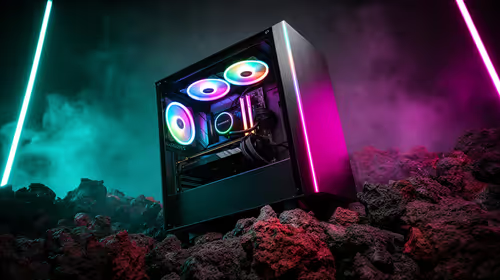
You’ve spent weeks picking the perfect parts, your cable management is immaculate, and your new rig finally powers on. But instead of a symphony of synchronised colour, you get a chaotic mess of rainbow light. Sound familiar? Getting all your components to glow in harmony is the final boss of PC building.
This complete guide will show you exactly how to sync ARGB lighting across your entire setup, transforming your PC from a disco mess into a clean, unified masterpiece. 🔧
Understanding ARGB vs. Standard RGB
Before we dive in, let's clear up a common point of confusion. What's the difference between RGB and ARGB?
- RGB (4-Pin Connector): This is the older standard. All the LEDs on a strip or fan are linked together. You can set them all to one colour at a time—all red, all blue, or all green—but you can't create multi-colour effects on a single component.
- ARGB (3-Pin Connector): This is the magic you're looking for. ✨ "ARGB" stands for Addressable RGB. Each individual LED can be controlled independently. This allows for complex, flowing effects like rainbows, gradients, and custom animations.
Knowing which type you have is the first step in this ARGB lighting guide. Check your component boxes or motherboard manual if you're unsure.
The Software: Your Digital Command Centre
To sync ARGB lighting, you need software. Most major motherboard manufacturers have their own proprietary ecosystem. The golden rule is to try and stick to one brand for your core components (motherboard, GPU) to make syncing as painless as possible.
Here are the big players:
ASUS Aura Sync
Arguably the most popular, Aura Sync is known for its wide compatibility with third-party components like G.Skill RAM and Lian Li cases. Its interface is robust, giving you granular control over every connected device.
MSI Mystic Light
Found within the MSI Center software, Mystic Light is another powerful tool. It offers a great range of preset effects and syncs beautifully with other MSI hardware. Its "Ambient Link" feature can even sync your lighting with certain games for a more immersive experience, which looks incredible on modern curved monitors.
Gigabyte RGB Fusion 2.0
RGB Fusion is Gigabyte's solution for controlling and synchronising your PC lighting. While it gets the job done, some users find its interface less intuitive than its competitors. However, it supports a huge library of Gigabyte and AORUS products.
ASRock Polychrome Sync
ASRock's software is straightforward and effective. It provides all the essential controls you need to get your lights in order without overwhelming you with options.
Cross-Platform Chaos? 💡
What if you have an ASUS motherboard, a Gigabyte GPU, and Corsair fans? It can get complicated. Tools like SignalRGB or OpenRGB aim to unify control across different brands from a single application. They can be a bit technical to set up, but they're a powerful solution for a truly mixed-component build!
Hardware Connections: The Physical Foundation
Software is useless if your hardware isn't connected correctly. This is where most people get stuck.
- Find the Headers: Look on your motherboard for 3-pin ARGB headers. They are usually labelled
ADD_GEN2, JRAINBOW, or something similar. They have one pin missing from the 4-pin layout, making them easy to identify. - Daisy-Chaining: Most ARGB fans and strips are designed to be "daisy-chained"—you can plug one into the next, creating a chain that connects to a single motherboard header. Just be mindful of the power limit per header (check your motherboard manual!).
- ARGB Hubs & Controllers: If you have more ARGB devices than headers, an ARGB controller is your best friend. This small box connects to a single motherboard header and a SATA power connector, giving you multiple ports to plug all your fans and strips into. This is one of the most essential monitor accessories for a clean build.
A proper lighting setup doesn’t just make your PC look good; it enhances the entire visual experience, especially when paired with one of the many all gaming monitors available today.
A Step-by-Step Guide to Syncing Your ARGB
Ready to get it done? Follow these steps for a perfectly synchronised light show.
- Plan Your Connections: Before you build, map out which components will connect to which headers. This saves a lot of frustration later.
- Connect Everything (PC Off!): With the power completely off, carefully plug in all your 3-pin ARGB connectors. Pay close attention to the arrow on the plug, which should align with the +5V pin on the header.
- Install ONE Control Software: Install the main software for your motherboard (Aura Sync, Mystic Light, etc.). Avoid installing multiple control programs, as they can conflict and cause chaos.
- Configure and Customise: Launch the software. It should automatically detect all connected ARGB devices. Now for the fun part! Play with the colours, effects, and brightness until you achieve your desired look. The crisp detail of a custom lighting profile is best appreciated on high-resolution 5K & 4K monitors.
Even a travel setup for a LAN party can have a consistent aesthetic, especially if you're using one of the latest portable monitors to complete your mobile battle station. Ultimately, a well-lit rig is a key part of the modern gaming setup, complementing the high-end PC monitors that bring your games to life.
Ready to Complete Your Command Centre?
A flawlessly synced rig deserves a display that does it justice. From vibrant colours to lightning-fast refresh rates, the right monitor is the final piece of the puzzle. Explore our incredible range of PC monitor deals and find the perfect screen for your masterpiece.