

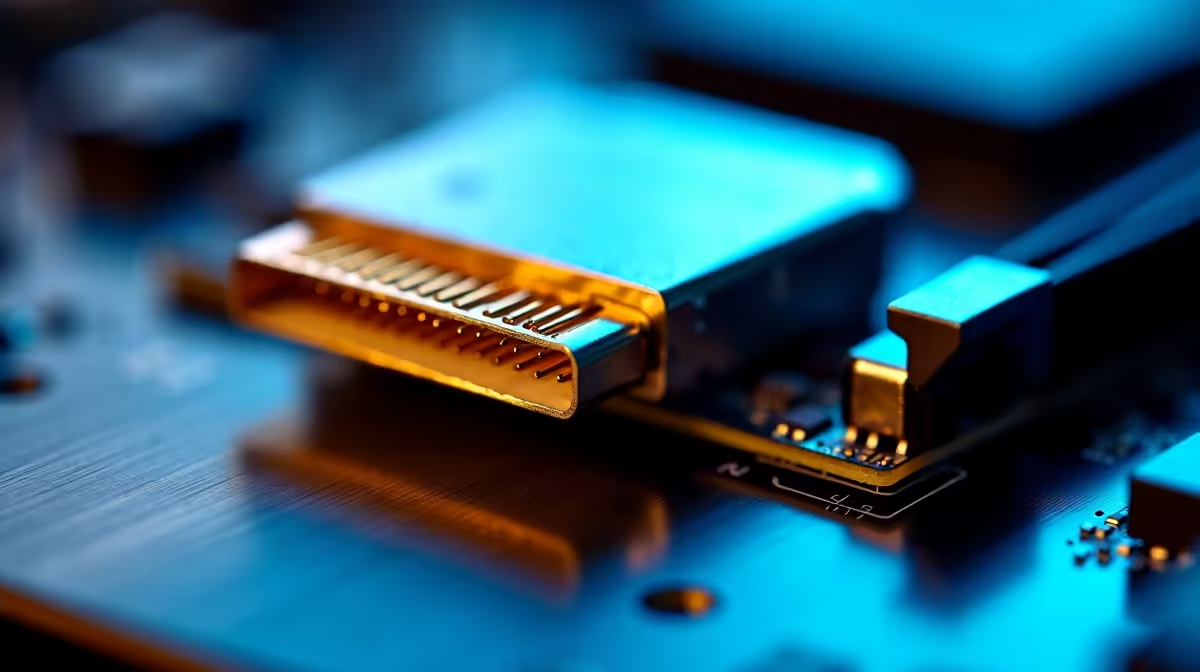
You have just spent hours assembling your dream rig. The RGB lighting looks stunning. The fans are spinning quietly. But when you plug your fast storage into the case, nothing happens. Figuring out how to troubleshoot front USB-C ports not working on new PC builds can be incredibly frustrating. Do not stress... we have the exact steps to get your connection live without tearing your setup apart.
Inspect the Motherboard Header Connection 🔧
The most common culprit is the physical connection. Modern cases use a specific Type-E connector for the front panel. This plug is notoriously tricky to seat properly. Open your side panel and find the header on your motherboard. Ensure the cable clicks in securely. Sometimes it requires a firm push to make proper contact.
If you prefer to avoid the hassle of wiring altogether, browsing the best gaming PC deals guarantees a system that is built and tested perfectly by professionals.
Verify Your BIOS Settings ⚡
Sometimes your hardware is connected perfectly but the software says no. Motherboards occasionally ship with certain USB controllers disabled to save power. Restart your PC and enter the BIOS. Look for the USB configuration menu and ensure all ports are enabled.
BIOS Update Pro Tip 🚀
Always ensure your motherboard is running the latest BIOS version. Manufacturers frequently release updates that optimise USB controller stability and fix compatibility issues with newer Type-C devices.
Unlike pre-configured portable machines such as premium laptops for sale, custom desktop motherboards often need a bit of manual tweaking to unlock their full potential.
Examine the Case Wiring for Damage
Cable management is an art... but pulling wires too tight can cause internal breaks. Trace the thick cable from your front panel down to the motherboard. Look for sharp bends or pinched sections behind the motherboard tray. A damaged cable will stop data and power delivery instantly.
This is a common mistake for first-time builders trying to hide every single wire. If the wire is completely broken, you might need a replacement front I/O panel or a whole new chassis. Fortunately, you can always find incredible value in ZAR by checking out our latest tech specials for a fresh case upgrade.
Test Your Devices and Cables
Before you dismantle your entire computer, verify that the device you are plugging in actually works. Try connecting your smartphone or external drive to the rear I/O panel directly on the motherboard. If it works there but not on the front panel, the issue is definitely internal. Also, inspect the external cable you are using. A faulty charging wire will often mimic a dead port.
Reinstall Chipset Drivers ✨
If your BIOS sees the port but Windows ignores it, you likely have a driver issue. Visit your motherboard manufacturer website and download the newest chipset drivers. Avoid relying solely on automatic Windows updates... they often install generic drivers that fail to recognise high-speed Type-C headers.
Install the official software, reboot your rig, and test the port again. A fresh driver installation can instantly solve power delivery and data transfer faults. It is a simple step that saves hours of frustration.
Ready to Build Without the Stress? Troubleshooting hardware is part of the PC building journey, but sometimes you just want a rig that works perfectly out of the box. Explore our massive range of custom desktop PCs and let our experts build your ultimate gaming machine today.











