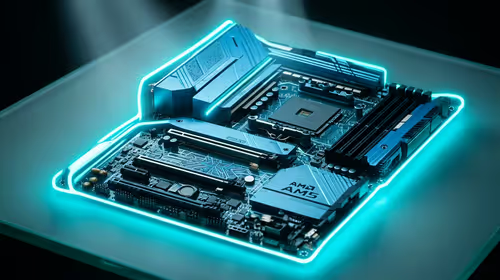
A spare Raspberry Pi gathering dust on a shelf is a smart TV box waiting to happen. Turning it into a LibreELEC media centre takes one flash of a microSD card and a few minutes of setup, after which the board boots straight into Kodi and plays your films, series and music to any TV with an HDMI port. LibreELEC is a stripped-down Linux build that does nothing but run Kodi, which is exactly why it boots fast and stays out of your way.
Quick Answer
Flash LibreELEC to a microSD card using Raspberry Pi Imager, pop it into the Pi, and it boots into Kodi in under 15 seconds. The whole job takes about ten minutes. A Raspberry Pi 5 handles 4K at 60Hz with HDR10 thanks to hardware HEVC decoding, so most high-resolution files play without stutter once hardware acceleration is on.
What you will need
Before you start, gather the following:
- A Raspberry Pi (a Pi 5 is ideal for 4K, a Pi 4 is fine for 1080p).
- A microSD card, 16GB or larger, or faster still an A2-rated card.
- A microSD card reader for your computer.
- The official Raspberry Pi power supply for your board.
- An HDMI cable to reach your TV.
A genuine power supply matters more than people expect, since an underpowered Pi throws random playback glitches that look like software faults. If you are starting from scratch, the mini PC range is worth a look alongside the Pi, since a compact mini PC running the same Kodi software gives you more headroom for heavier libraries.
Step by step: flash and boot
Follow these in order and you will be watching something within ten minutes.
- Download and install Raspberry Pi Imager on your computer from the official Raspberry Pi site, then open it.
- Click Choose Device and select your exact Pi model, for example Raspberry Pi 5. Getting this right ensures the correct image.
- Click Choose OS, scroll to Media Player OS, and select LibreELEC. The Imager pulls the right build for your board automatically, so there is no manual download to track down.
- Insert your microSD card, click Choose Storage, and pick that card. Check twice, the write erases everything on it.
- Click Write and confirm. Flashing and verification take roughly five minutes for a typical card. Let it finish completely.
- Eject the card, slot it into the Pi, connect HDMI to your TV and plug in power. The board boots into LibreELEC.
First boot and setup
On first launch, LibreELEC runs a short wizard. It walks you through language, your Wi-Fi connection and basic display settings, then drops you onto the Kodi home screen. From there you point Kodi at your media: add a source for a USB drive plugged into the Pi, or connect to a network share so the Pi streams from a NAS or another computer on your home network over the same connection.
LibreELEC is deliberately minimal, it barely touches the system memory and boots in well under 15 seconds, which is why it feels more like an appliance than a computer. There is no desktop to manage and nothing to maintain beyond the occasional update Kodi offers you.
Getting smooth 4K playback
On a Raspberry Pi 5, the board has hardware H.265 (HEVC) decoding and HDMI output supporting 4K at 60Hz with HDR10. To use it, open Kodi's settings and make sure hardware acceleration is enabled, which offloads video decoding from the CPU and is the difference between buttery 4K and a slideshow. With acceleration on, most 4K files, including large remux files, play without dropped frames. A Pi 4 is happiest at 1080p. For storage, a fast microSD card or an external drive keeps your library quick to browse, and you can find suitable media and accessories in the best-selling PCs section if you decide to scale up to a dedicated box later.
Frequently Asked Questions
Do I need to download LibreELEC separately?
No. LibreELEC is built into Raspberry Pi Imager under Media Player OS. Selecting it there downloads and flashes the correct image for your board automatically, so there is no separate file to find.
Will a Raspberry Pi 5 play 4K video smoothly?
Yes, with hardware acceleration enabled in Kodi. The Pi 5 has hardware HEVC decoding and HDMI output for 4K at 60Hz with HDR10, so most high-resolution files play without dropped frames once acceleration is switched on.
Can I stream from a NAS or another PC?
Yes. Once you reach the Kodi home screen, add a network source pointing at your NAS or a shared folder on another computer. The Pi then streams that media over your home network instead of needing everything on local storage.
What size microSD card should I use?
LibreELEC itself is tiny, so 16GB is enough for the operating system. If you plan to store media on the same card rather than streaming it, go larger, and choose a faster A2-rated card for snappier browsing.
Is LibreELEC better than installing Kodi on Raspberry Pi OS?
For a dedicated media box, yes. LibreELEC strips everything except Kodi, so it boots faster and needs no maintenance. Install Kodi on full Raspberry Pi OS only if you also want the Pi to do other desktop tasks.
Got an HDMI TV and ten minutes? Turn a Pi or a compact mini PC into a 4K media centre. Browse the mini PC range at Evetech to pick the board or box that fits your living room.