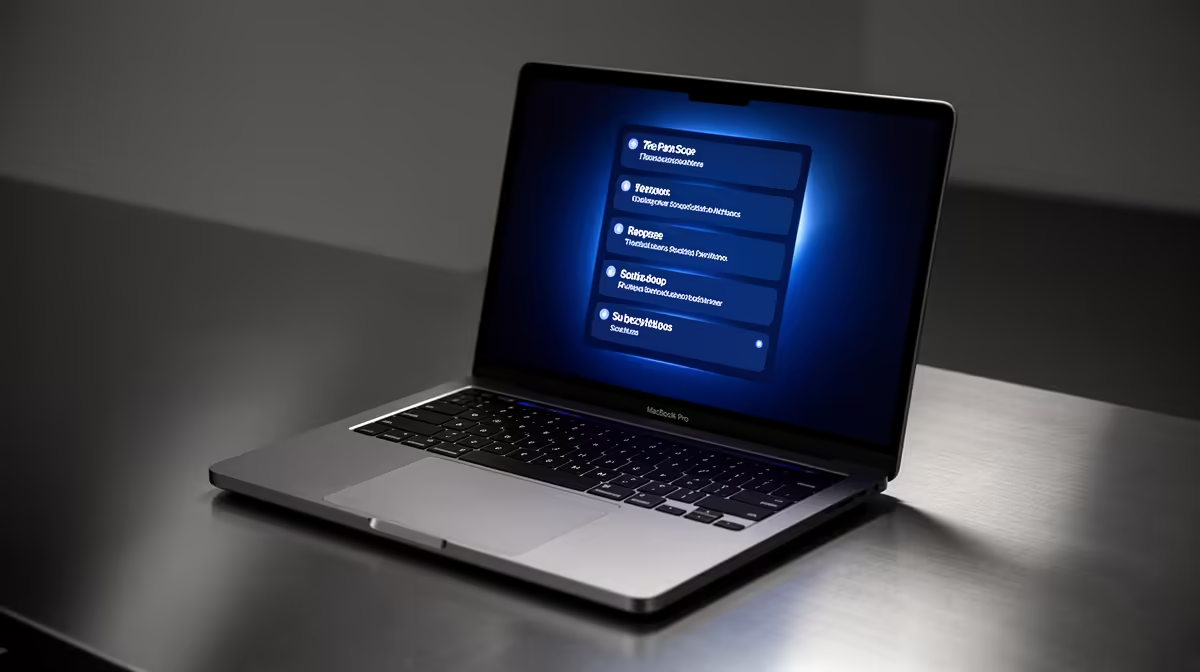
A busy app can stack a dozen alerts before you ever glance at your Mac, and scrolling through each one wastes time you do not have. Turning on notification summaries lets Apple Intelligence condense those stacked alerts into a single readable preview line, app by app, so a glance tells you what actually happened. The setting lives in System Settings under Notifications and takes under a minute to switch on.
Quick Answer
Open System Settings, click Notifications in the sidebar, select an app under Application Notifications, and turn on the Summarise notifications toggle for that app. Apple Intelligence must be enabled first. Once on, stacked alerts from that app collapse into one condensed summary line instead of a long pile of separate banners.
Before You Start
Notification summaries are an Apple Intelligence feature, so the feature only appears once Apple Intelligence is switched on and set up on your Mac. If you do not see the option described below, head to the Apple Intelligence and Siri section of System Settings and enable it there, then return to Notifications.
The setting is also per app rather than global, which is deliberate. You can summarise the chatty apps that flood your screen while leaving time-sensitive alerts, like a security app or a messaging thread you want word for word, completely untouched.
Step by Step
- Click the Apple menu in the top-left corner of your screen and choose System Settings.
- In the sidebar, scroll to and click Notifications.
- Under the Application Notifications heading, click the app whose alerts you want summarised.
- Find the Summarise notifications toggle for that app and switch it on.
- Repeat for any other app where stacked alerts pile up, such as news, mail or social apps.
- To reverse it later, return to the same screen and toggle Summarise notifications off, either for one app or from the master control at the top of the Notifications panel.
That is the whole process. From the next batch of alerts onward, Apple Intelligence reads the stacked notifications from each enabled app and presents the gist as one line, which you can tap to expand into the full set if you need the detail.
Choosing Which Apps to Summarise
Summaries earn their keep on apps that generate volume. Group chats, delivery updates, news feeds and social apps benefit because the summary spares you ten taps. Apps where every word matters, such as banking alerts or two-factor codes, are better left as standard notifications so nothing important gets compressed away.
A good rule of thumb: if you regularly swipe a pile of notifications away without reading them all, that app is a candidate. If you check every single alert the moment it arrives, leave it as is.
The Master Summarise Notifications Toggle
Beyond the per-app settings, macOS includes a master Summarise notifications toggle at the top of the Notifications panel in System Settings. This gives you a single switch to pause summaries across all apps at once, useful if you are entering a period where you need full verbatim alerts, then re-enable broadly when you go back to normal mode. The per-app choices stay saved underneath, so everything returns to your configured state when you turn the master switch back on.
How Apple Intelligence Builds the Summary
The summary is generated on-device by the same Apple Intelligence models that handle Mail summaries and writing tools. The Mac reads the queued notifications from a given app, extracts the key content, and compresses it into a sentence or short phrase. Because it runs locally, your alert content is not sent to a server to be processed. That matters for anyone who receives notifications containing personal or sensitive information, since nothing about those alerts leaves the machine.
The quality of the summary depends on how much text the notifications contain. Rich push notifications with clear subject lines summarise cleanly. Apps that send single-word or icon-only pings do not have enough text to condense, so those remain as individual alerts regardless of the toggle.
Keeping It If You Use More Than One Device
If you use more than one Apple device, your notification preferences do not automatically mirror across devices; each Mac or iPhone has its own Notifications settings. Set the summaries on each device individually. Apple silicon MacBooks paired with an iPhone create the most consistent Apple Intelligence experience since both platforms share the same on-device model architecture. The MacBook range at Evetech covers every current Apple silicon model, and if you are comparing across brands, the laptops moving fastest right now give a clear picture of what buyers are choosing locally.
Frequently Asked Questions
Why is the Summarise notifications toggle missing?
The toggle only appears when Apple Intelligence is enabled and supported on your Mac. Enable Apple Intelligence in System Settings first, then the per-app option becomes available under Notifications.
Can I summarise notifications for every app at once?
You manage summaries per app, but the Notifications panel also has a master Summarise notifications control at the top. Use that to switch the feature on or off broadly while keeping individual app choices.
Will summaries delay my notifications?
Summaries group and condense stacked alerts rather than holding them back, so you still see activity promptly. The difference is presentation: many alerts arrive as one tidy line instead of a long stack.
Does this work on any Mac?
It needs a Mac that supports Apple Intelligence and a recent version of macOS Sequoia or later. Older machines that cannot run Apple Intelligence will not show the summaries option.
Does the summary replace the original notifications?
No. The summarised line is a condensed view. Clicking or expanding it reveals the full list of individual notifications underneath, so you can still read every original alert if needed.
A clutter-free notification stack is one of the small wins Apple Intelligence brings to a capable Mac. Browse Evetech's MacBook lineup to find a model that supports these features out of the box.